- Topic ID: task_e1h_hkt_b4b
- Version: 4.0
- Date: Jan 27, 2022 12:47:25 AM
Service Backup Drive Tool
Prerequisites
Overview
- Save/restore the system states at manufactory
- Save/restore the system states when first install at installation
- Save/restore the system states by FE
- Enable/stop automatic backup config
- Setup the backup time for automatic backup config
- Export/import the state file or SW patch from USB
The following procedures describe and illustrate the backup drive process. It is important to follow the steps listed below in order.
1 Backup Drive Tool
1.1 Launch Backup Drive Tool
Procedure
- Plug the Class M SSA Key into the Host Computer.
- Select: Service icon to access the Common Service Desktop (CSD).
- Click OK as required.
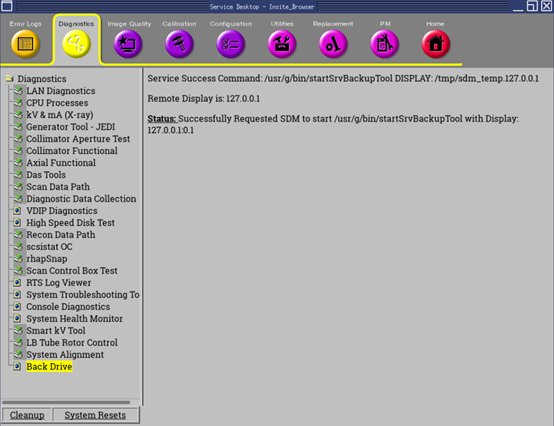
- Select: Diagnostics tab. select Back Drive to launch the Service Backup Drive Tool.
Figure 1. Common Service Desktop (CSD), Diagnostics Tab
1.2 Automatic backup drive setup
Procedure
- Enable and Setup the Automatic backup
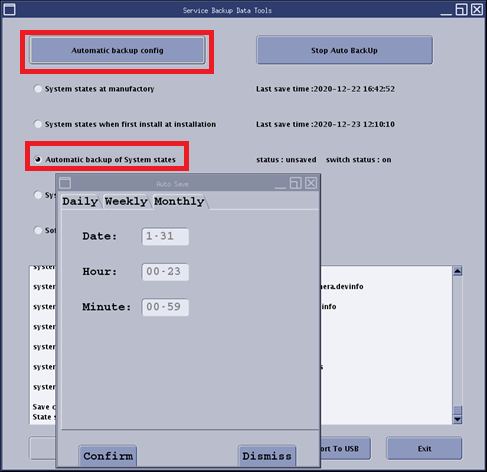
- Select Automatic backup of System states
- Click Automatic backup config to configure the Auto backup time with selection of daily, weekly and Monthly. The Auto saved states will be in /service/systemstate/scheduler/
Figure 2. Automatic backup config
- Disable and setup the Automatic backup.
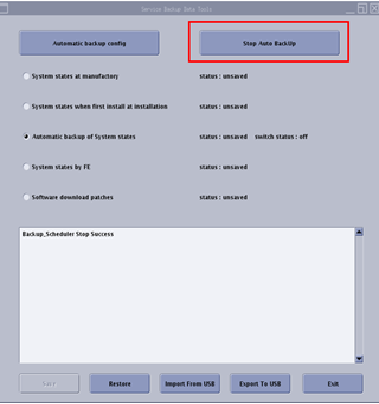
Click Stop Auto Backup disable the Automatic backup.
Figure 3. Stop Auto Backup
1.3 Save/restore the system states
Procedure
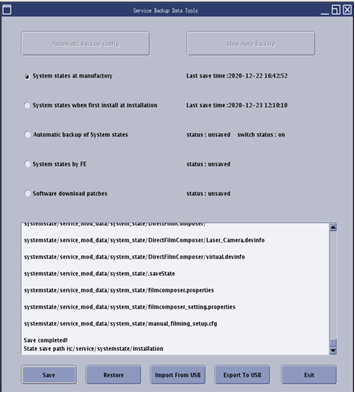
- It can Save/Restore the system states at manufactory.
Figure 4. System States at manufactory
- Save
Select System states at manufactory
Click Save, The log area will display the state saving progress, the state file will be save in /service/systemstate/manufactory/
- Restore
Select System states at manufactory
Click Restore, The log area will display the state restoring progress until complete.
- Save
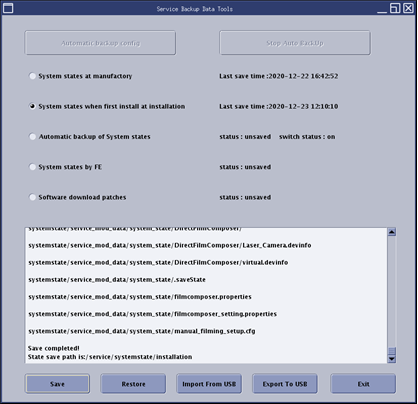
- Save/Restore the system states when first install.
Figure 5. System states at first Installation
- Save
Select System states when first install at installation
Click Save, The log area will display the state saving progress, the state file will be save in /service/systemstate/installation
- Restore
Select System states when first install at installation
Click Restore, The log area will display the state restoring progress until complete.
- Save
- Save/restore the system states when first by FE
it can Save/restore the system states by FE
- Save
Select System states by FE
Click Save, It pops up a window, type in name for the state file.
Figure 6. System states by FE
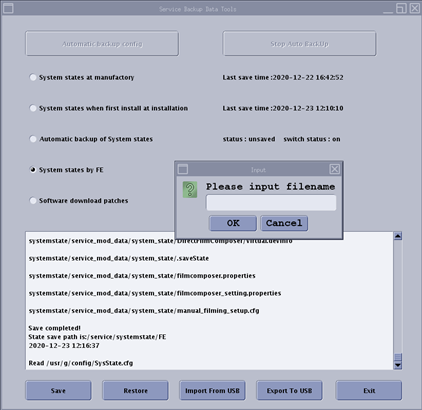
Click OK, The log area will display the state saving progress, the state file will be save in /service/systemstate/FE
- Restore
Select System states by FE
Click Restore, It pops up a window, select the exist state file that to restore.
Figure 7. System states by FE restore
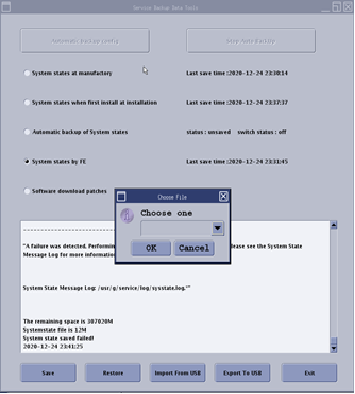
Click OK, The log area will display the state restoring progress until complete.
- Save
1.4 Export and import the saved state/patch files
Procedure
- Export
Select the System state type or the software download patch that need to export.
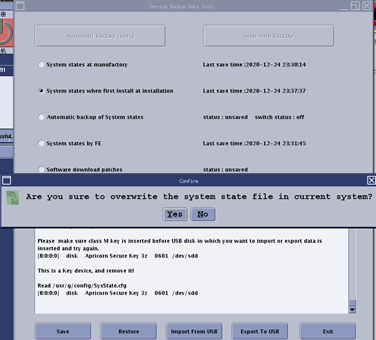
Select Export to USB button, it will pop up a window shows "are you sure to over wirte..", select Yes to export file.
Figure 8. Export file
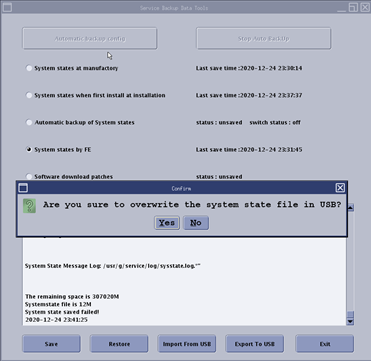 note: If export file select by system states by FE, it needs to choose the state file(s) you want to export.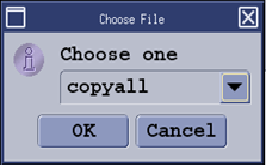
- Import
Select the System state type or the software download patch that need to import.
Select Import from USB button, it will pop up a window shows "are you sure to over wirte..", select Yes to import file.
Figure 9. Import file
1.5 Service Backup Drive Tool Command Line
Procedure
- Start the service backup drive shell tool by type the following:
- {ctuser@hostname} su -
- Password: <password>
-
[root@hostname]
# service_backup_tool -cmd
Figure 10. Run command screen
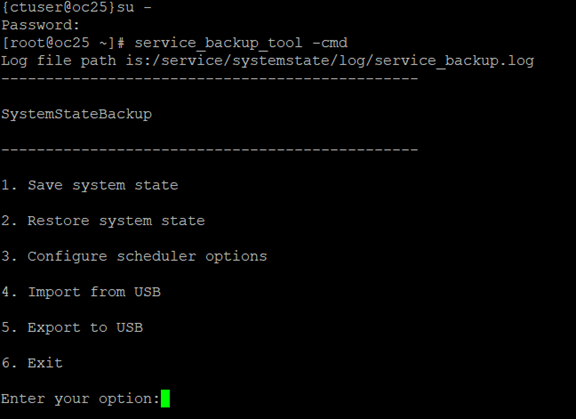
Type the corresponding number to select the operation you need, then press Enter, the options equal to the UI operation as below shown.
Type the corresponding number in option level 2, press Enter to complete the operation you want to do.
2 Finalization
No finalization steps.