- Topic ID: id_17422991
- Version: 3.0
- Date: Apr 22, 2019 12:55:46 AM
Backlight brightness adjusting tool for Gantry Control Panel
Prerequisites
Overview
This procedure provides steps for backlight brightness adjusting tool for gantry control panel with Xtream Display, which is to be used by Field engineers to adjust backlight brightness of all buttons on gantry control panel in Revolution Discovery /Discovery CT systems.
Procedure
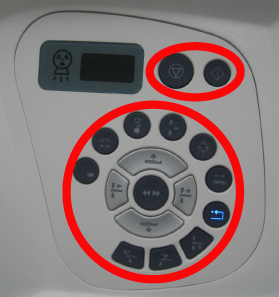
- Backlight brightness of all buttons on control panels can be
adjusted, All buttons include: all blue buttons and two green buttons
(start scan button and stop scan button as marked by red circle).
Figure 1. Control Panel
- Open a Unix Shell and type the below commands:
{ctuser@hostname} /usr/g/GEfirm/setGuifLedBrightness
then press Enter, following message pop up:
*** Control Panel LED Brightness Adjusting Tool ***
Current setting is 100% brightness
[1]: 100% brightness (Default)
[2]: 80% brightness.
[3]: 65% brightness
[4]: 50% brightness (The lowest brightness)
[0]: quit
Enter # to Change or quit?
- Input the selected number according to customer’s request,
then press Enter. Below is example of setting
80% brightness:
Enter # to Change or quit?
=2
Succeeded : <80>-> /usr/g/fw/configure/uif_characterization.cfg
- Remove gantry right side cover.
Refer to Parts Replacement → Gantry → Enclosure → (Cover Removal Procedure).
- Turn OFF all three (3) switches (Axial Drive, HVDC, 120VAC) on the Service Switch Panel.
- Turn ON 3 switches on service switch panel, then press ESTOP_RESET button, Gantry Control Panel Backlight Brightness
will be adjusted.note:
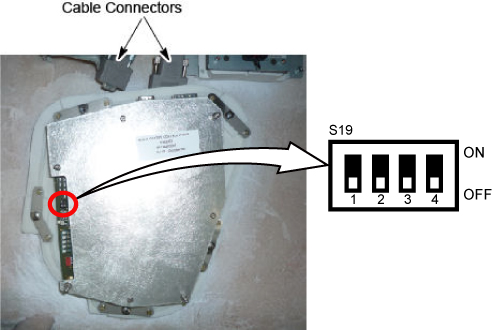
Gantry Control Panel Backlight Brightness Adjusting Tool only available when the dip switch S19-4 as OFF position.
- Reinstall the gantry right side cover.
Finalization
No finalization steps.