- Topic ID: id_16157433
- Version: 4.0
- Date: Apr 22, 2019 12:55:31 AM
Tube Install Certification
Prerequisites
Overview
This document provides the necessary steps to configure the Tube Install Certification.
1 Non-GE Service Personnel
Procedure
- Visually record X-ray Tube Insert Model Number on X-ray tube rating plate.
- Select CONFIGURATION from Service Desktop.
- Select TUBE INSTALL CERTIFICATION. A
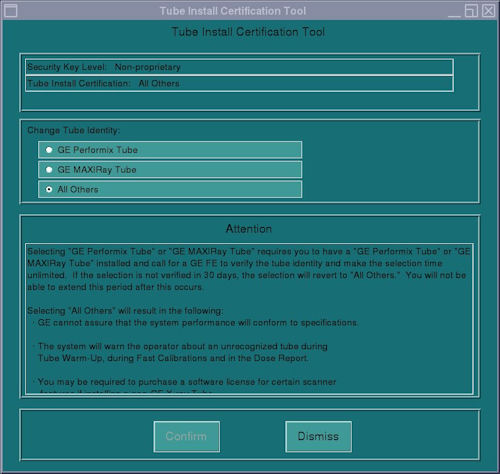
screen, as depicted in Figure 1, is displayed.
Figure 1. Initial Tube Install Certification Tool Screen
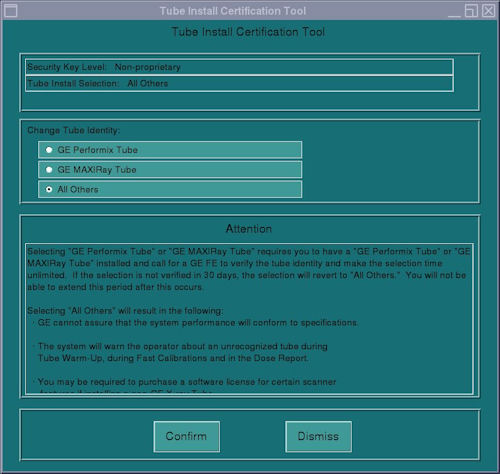
- If X-ray tube is GE authorized Tube, click GE MEDICAL
SYSTEMS TUBE from Tube Install Certification Tool Change Tube Identity pane.
If X-ray tube is NOT GE authorized Tube, click ALL OTHERS from Tube Install Certification Tool Change Tube Identity pane.
If X-ray tube is “MaxiRay, click MaxiRay from Tube Install Certification Tool Change Tube Identity pane.
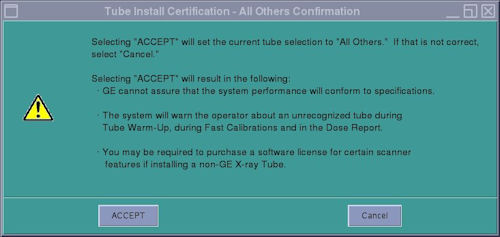
- Click CONFIRM. A Confirmation screen, as depicted in Figure 2 or Figure 3, is displayed.
Figure 2. GE Medical Systems Tube Confirmation Screen
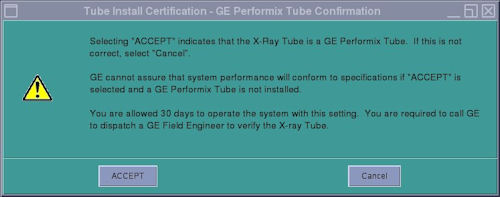
Figure 3. All Others Tube Confirmation Screen
- Click ACCEPT. Tube Install Certification
Tool top pane is updated as depicted in Figure 4 or Figure 5.note:
For GE Medical Systems Tube configuration, the Tube Install Certification Tool displays the number of Days Remaining in the Trial Period. A certified GE Field Service Engineer must confirm the tube identity during the trial period. If the trial period expires before a certified GE Field Service Engineer confirms the tube identity, the system will automatically default to "All Others" functionality.
Figure 4. GE Medical Systems Tube Install Certification Screen
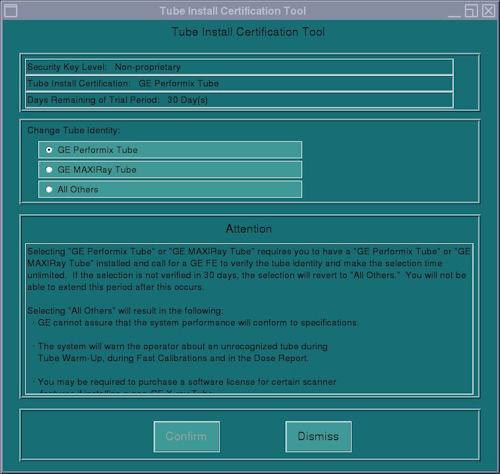
Figure 5. All Others Tube Install Certification Screen
- Click DISMISS.
- If an Attention window is displayed, read and click OK.
- Restart system.
- If Tube Install Certification is configured for a GE Medical Systems Tube and Trial Period has not expired, contact GE Call Center and create a dispatch for a Field Service Engineer to finalize Tube Installed Certification on-site.
2 GE Service Personnel
Perform the following steps when originally setting Tube Install Certification or verifying a GE Medical Systems Tube installation, within trial period, without an active GE Class M service USB key.
Procedure
- Insert and activate Class M Service key.
- Visually record X-ray Tube Insert Model Number on X-ray tube rating plate.
- Select CONFIGURATION from Service Desktop.
- Select TUBE INSTALL CERTIFICATION. A
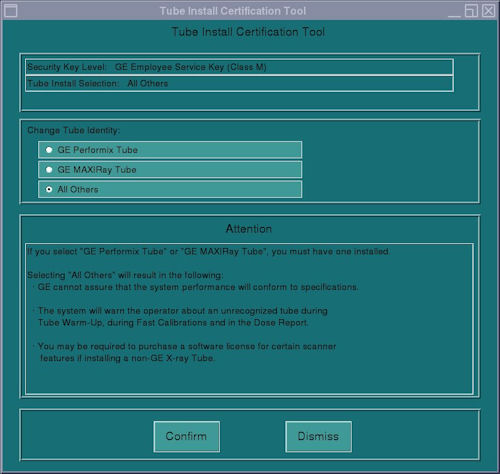
screen, as depicted in Figure 6 or Figure 7, is displayed.
Figure 6. GE Medical Systems Tube Install Certification Initial Screen
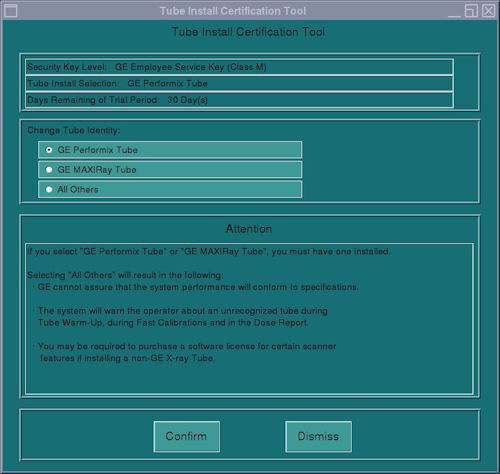
Figure 7. All Others Tube Install Certification Initial Screen
- If X-ray tube rating plate Tube Insert Model Number is 2120785-2,
click GE MEDICAL SYSTEMS TUBE from Tube Install
Certification Tool Change Tube Identity pane.
If X-ray tube rating plate Tube Insert Model Number is NOT 2120785-2, click ALL OTHERS from Tube Install Certification Tool Change Tube Identity pane.
- Click CONFIRM. A Confirmation screen, as depicted in Figure 8 or Figure 9, is displayed.
Figure 8. GE Medical Systems Tube Confirmation Screen
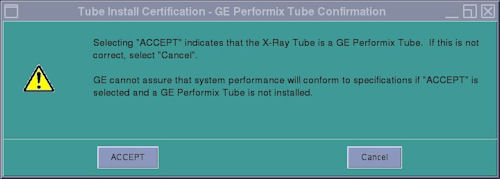
Figure 9. All Others Tube Confirmation Screen
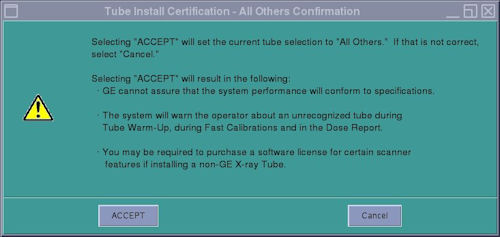
- Click ACCEPT. Tube Install Certification
Tool top pane is updated as depicted in Figure 10 or Figure 11.
Figure 10. GE Medical Systems Tube Install Certification Screen
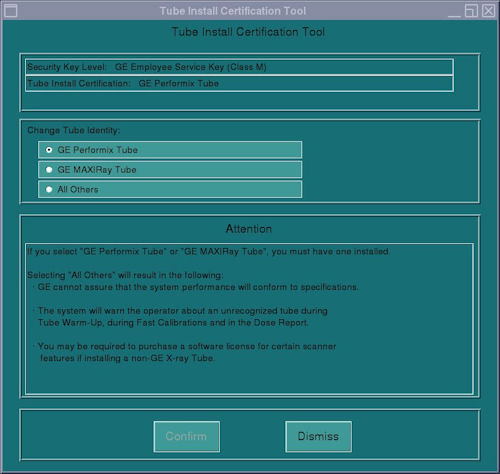
Figure 11. All Others Tube Install Certification Screen
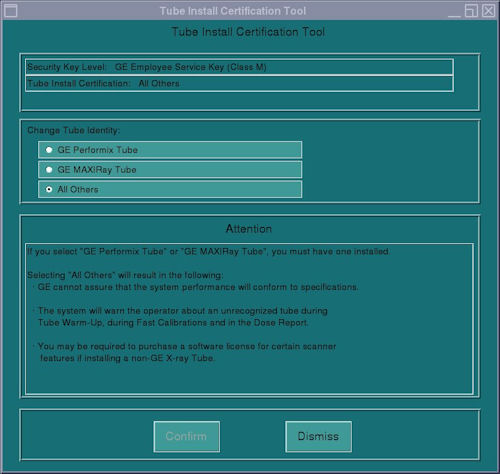
- Click DISMISS.
- Restart system.
- Deactivate and remove Class M Service key.
3 Finalization
No finalization steps.