- Topic ID: id_17423192
- Version: 3.0
- Date: Aug 10, 2021 9:56:48 PM
Open Console (Z840) Recon GPU Card Replacement
Prerequisites
Overview
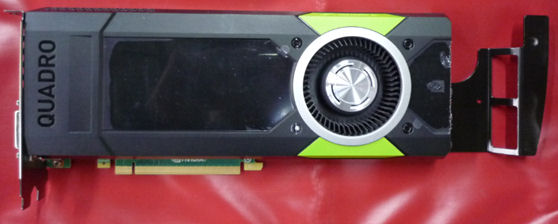
This procedure shall be followed when replacing the Recon GPU card in the Host Computer (Z840).
Figure 1. Recon GPU card
1 Preparation
Procedure
- Shutdown system. Select one of the following methods to Power
OFF the Console:
-
If Applications are up, click on the Shut Down button on desktop display and select Shutdown.
-
If Applications are down, open a Terminal Window. Type: halt , then press ENTER.
-
When halt command has finished, power Off the console at the front panel switch.
-
- Apply LOTO. See Equipment Service - Lockout-Tagout-PPE procedure.
2 Recon GPU Card Replacement
Procedure
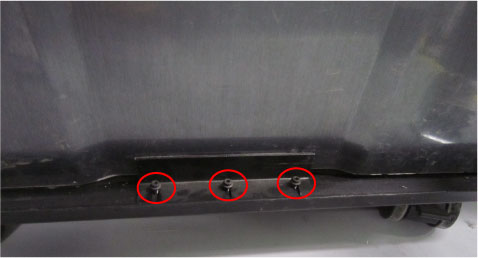
- Remove the side access panel by loosen three screws and pull
out the latch to release the computer left side cover.
Figure 2. Side Access Panel Removal
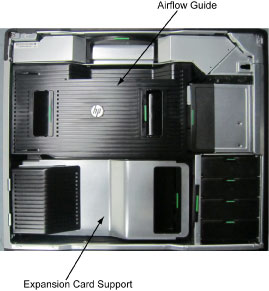
- Remove the following components from the host computer (Z840):
-
Expansion Card Support
-
Airflow Guide
Figure 3. Z840 Airflow Guide and Expansion Card Support
-
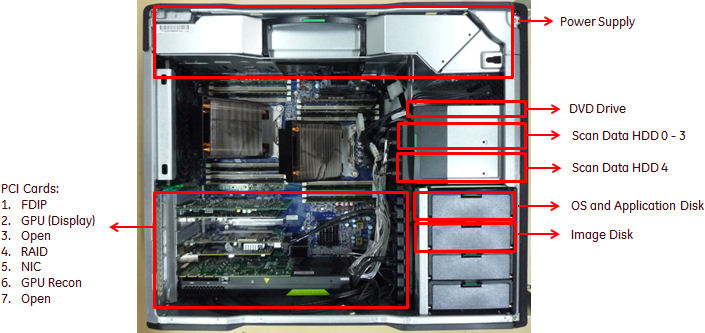
- Locate Recon GPU Card FRU by referencing the Illustration below.
Figure 4. Z840 Component Location
- Disconnect the power cable from the Recon GPU card.
- Replace the existing Recon GPU Card (Slot 6) ) with new one.note:
Lift up the card latch when removing the card. (See Figure 5)
Figure 5. PCI card Latch
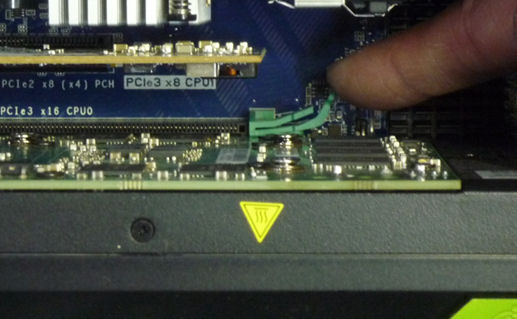
- Connect the power cable to the Recon GPU card.
- Reinstall all removed components, and reconnect any cables that have been disconnected.
3 Restore the Console
Procedure
- Remove LOTO from console.
- Reinstall the host computer side cover.
4 Finalization
Procedure
- Confirm Host computer powers up when console power is turned on.
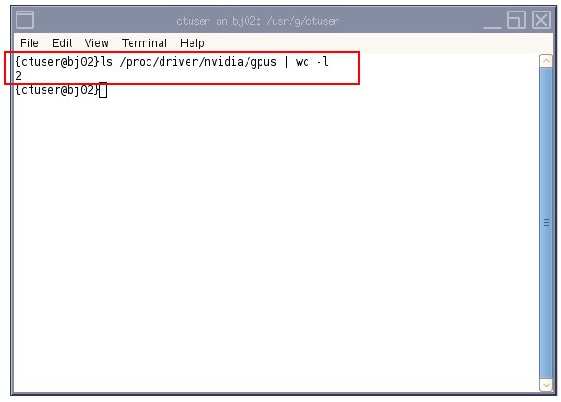
- Check the GPU card installed. Open a shell, then type:
{ctuser@hostname} ls /proc/driver/nvidia/gpus | wc —l
-
If “2” displays, the Recon GPU card is installed.
-
If “1” displays, the Recon GPU card is un-installed.
-
- Ensure GPU ECC state is ON:
- Open a Unix shell and log on as root.
- Type: su - [ENTER].
- Type the root password [ENTER].
- Type: nvidia-smi [ENTER].
- Check GPU ECC status as below:
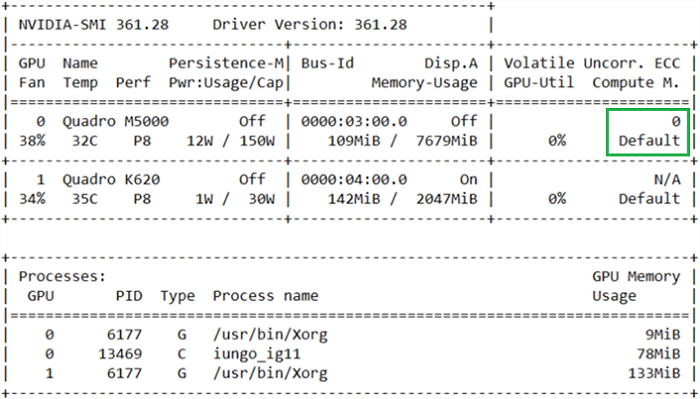
- If the GPU ECC is ON, below is what the output would look like (boxed in green):
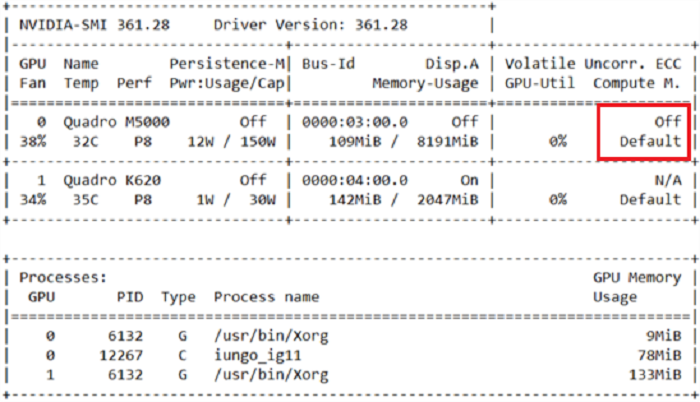
- If the GPU ECC is OFF, below is what the output would look like (boxed in red):
- If the GPU ECC is ON, below is what the output would look like (boxed in green):
- How to turn ECC back on:
- Type: nvidia-smi -g 0 --ecc-config=1 [ENTER]
- A message will show that ECC is enable and a reboot is required:

- After reboot, check that the ECC is ON according to previous steps.
- Perform the Functional Checks → System Scanning Test instructions from the procedure list