- Topic ID: id_11038726
- Version: 3.0
- Date: Mar 6, 2020 9:57:09 PM
LCD Video Monitor Setup for Z820
Prerequisites
Overview
This procedure outlines the process required to set up an EIZO LCD Display Monitors. If a system has more than one of these monitors, each must be setup. The procedure time listed above is for each monitor. An active video input signal must be connected to each monitor to perform this process.
1 LCD Display Monitor Connections and Powering Up
Procedure
- Connect the video cable(s) between the Operator Console’s
HOST computer and each monitor’s inputs. See the following Illustrations
for the appropriate LCD Monitor.note: Do not use OEM Manufacturer’s supplied video cables.
Figure 1. EIZO S1921-X / S1923–H LCD Monitor Connections
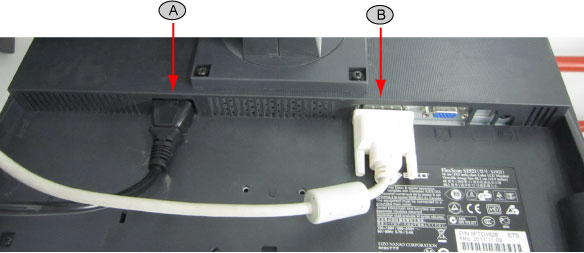
- Connect the AC in line cord from the Operator Console to each
monitor's rear side using the GE supplied console power cord. See
Illustrations above.note: Do not use the OEM Manufacturer's supplied power cord.
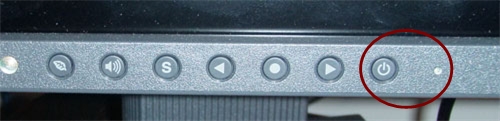
- Apply power to each monitor. Press the power button/switch to
apply power to each monitor. See the following Illustrations.
Figure 2. EIZO S1921-X / S1923–H Power Button
2 LCD Monitor Screen Manager Setup and Calibration
The LCD monitor comes configured with OEM default settings and must be properly set up with GE Healthcare Systems settings. The following steps must be performed on all LCD monitors on system.
Procedure
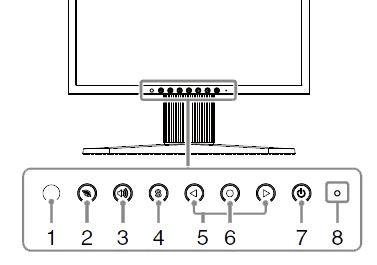
- Access EIZO Screen Manager on monitor display by pressing Enter control button on monitor front panel. See Figure 3.note: On-Screen Manager detail can be found here EIZO S1921-X / S1923–H Screen Manager Controls .
Figure 3. EIZO S1921-X / S1923–H LCD Monitor Control Buttons
- Due to the fact that Screen Managers can be accessed by anyone, custom setting can be altered. To assure correct baseline settings, first reset monitor back to OEM presets. Navigating to Others on the Adjustment Menu using the Left/Right arrow buttons and press Enter. Select Reset from the Others Menu using the Left/Right arrow buttons and press Enter. Then select Reset on the Reset Menu using the Left/Right arrow buttons and press Enter. All settings will be return to OEM presets.
- Return to the Adjustment Menu by selecting Return using the Left/Right arrow buttons and pressing Enter as many times as appropriate to step back to main menu.
- Select Color Adjustment on the Adjustment Menu using the Left/Right arrow buttons and press Enter. Select Temperature using the Left/Right arrow buttons and press Enter. Then set color temperature to 6500K using the Left/Right arrow buttons and press Enter.
- Exit the Screen Manager menu by pressing Left/Right arrow buttons to select the Return and press Enter as many times as appropriate to step back to main
menu. Select Exit from the Adjustment
Menu to exit the Screen Manager.note: Exit the Screen Manager menu may also be accomplished by pressing Enter button twice quickly.
- Disable the Auto EcoView Feature on this monitor. Press the EcoView button to display the EcoView Menu. Use the Left/Right arrow buttons to select Auto EcoView Off and press Enter.
- Press the EcoView button again to turn
off the EcoView Menu display.note: If customer needs to set DICOM, press Enter button to enter ScreenManager, select Color → Color Mode → DICOM.
3 Image Monitor Setup and Camera Calibration
The image monitor must be properly adjusted first before calibrating any camera filming devices. This procedure describes how to adjust the image monitor. Once the image monitor is adjusted, it is essential to re-calibrate the camera before the system is used for filming.
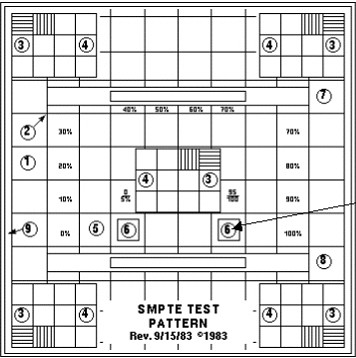
3.1 Installing the SMPTE Test Pattern
Figure 4. Sample Test Pattern
Procedure
- Access the Common Service Desktop (CSD).
- From the CSD select the Image Quality tab.
- From the menu select Install SMPTE pattern image. An Installation Window will appear.
- Allow the SMPTE pattern to load. A "Successful Copy" message
will appear when the load is complete.note: It can take as long as 10-12 minutes for the SMPTE pattern to load. Load progress shows up as successive dots in the Installation Window.
- Press Enter to leave the Installation Window.
- Click the Image Works icon, and select the Image Browser.
- Use the scroll bar, as required, to select the SMPTE test image from the Exam list.
- Click Full Viewer. If necessary, use the FORMAT option to select Full Screen mode.
- Leave the SMPTE test pattern on the image monitor.
3.2 Window and Level Settings
Procedure
- Set the default Window Setting to 100.
- With the cursor inside the SMPTE image displayed, hold down the middle mouse button and move the mouse in the horizontal plane. View the window control value at the base of the image and set the window control value to 100.
- Set the default Level Setting to 1024.
- With the cursor inside the SMPTE image displayed, hold down the middle mouse button and move the mouse in the vertical plane. View the level control value at the base of the image and set level control value to 1024.
- Inspect the SMPTE image displayed. The image should display all shades or the gray-scale. Fine adjust image brightness and contrast on monitor as necessary.
- Remove the SMPTE Pattern by selecting a different Exam from
the browser, or by selecting ESC on the keyboard.note: Because Operators are able to adjust Brightness and Contrast, they should be made aware of the impact on display image quality of doing so. If an Operator chooses to deviate from the above setups, the look of the camera film may be impacted as well. With the Image Monitor adjusted to properly display the SMPTE image, Film Camera Option Calibration may be completed if so equipped.
4 Display Monitor Positioning
4.1 Raise and Lower Monitor Screen
Procedure
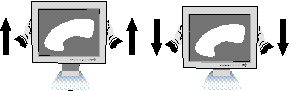
- Place your hands on the side of the monitor.
- Lift or lower the monitor to the desired height.
Figure 5. Raise or Lower LCD Monitor Screen
4.2 Tilt and Swivel
Procedure
- Grasp both sides of the monitor screen with your hands.
- Adjust the monitor tilt and swivel as desired.
Figure 6. LCD Monitor Tilt and Swivel