- Topic ID: id_11038829
- Version: 3.0
- Date: Apr 22, 2019 12:56:20 AM
LCD Monitor Replacement
This procedure describes and illustrates the steps necessary to replace either LCD Display Monitors located with the Operator Console.
Prerequisites
Figure 1. HP LCD Video Monitor
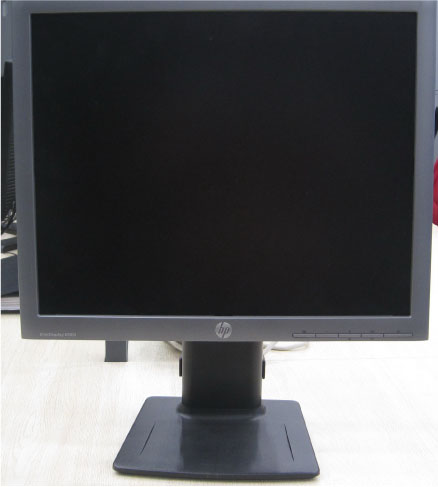
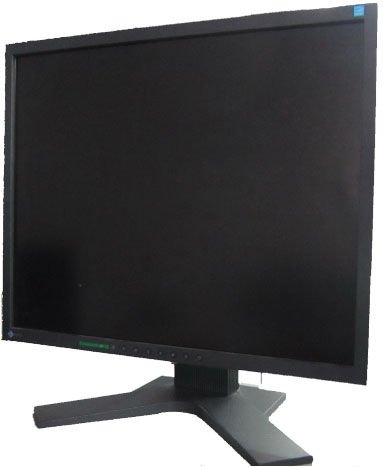
Figure 2. EIZO LCD Video Monitor
1 Power-Off (Shut Down) the Console
Procedure
- Select one of the following methods to power off the Operator
Console:
-
If applications are running, click the Shut Down icon and select Shut Down.
-
If applications are down, open a Unix Shell using the Toolchest. Type: {ctuser@hostname} halt and press Enter.
The Operator Console monitor will display a ‘System Halted’ message when it is acceptable to power off the Operator Console.
-
- Power OFF the Operator Console.
2 Remove Old LCD Monitor
Procedure
- Disconnect the Power Cord and Video Cable from the LCD Monitor being replaced.
- Remove the LCD Monitor and set aside.
3 Install Replacement LCD Monitor
3.1 Install Replacement LCD Monitor for HP
Procedure
- Place the replacement LCD monitor on the Operator Console.
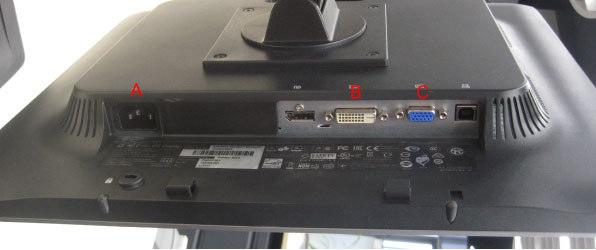
- Connect video cable and power cable to the LCD monitor.
Figure 3. HP E190i LCD
- Make sure the power switch on the side of the LCD Monitor is turned on.
3.2 Install Replacement LCD Monitor for EIZO
Procedure
- Place the replacement LCD monitor on the Operator Console.
- Connect video cable and power cable to the LCD monitor.
Scan Monitor
-
Video cable from Console Host DP0 to monitor DVI
-
Power cable from Console AC Box J10
-
Route through the cable keeper
Figure 4. Scan Monitor Connections
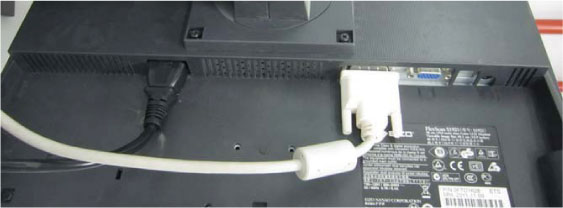
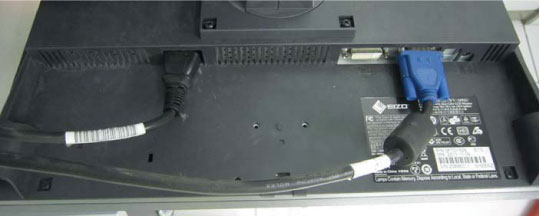
Image Monitor
-
Video cable from Console Host DVI-I 0 to monitor D-SUB
-
Power Cable from Console AC Box J9
-
Route through the cable keeper
Figure 5. Image Monitor Connection
-
- Make sure the power switch on the side of the LCD Monitor is turned on.
4 Verify LCD Monitor Replacement
Procedure
- Power ON the Operator Console at the console front panel switch.
- Visually verify that the LCD Monitor powers up and receives
a video signal.note:
The LCD Monitor Power LED will illuminate Green if both power and video are present. If the video signal is missing, the LCD Monitor Power LED will illuminate Yellow.
- In order to assure proper operation of the LCD Monitor it is necessary to perform LCD Video Monitor Setup for Z800 or LCD Video Monitor Setup for Z840.
Return to this procedure when finished.