- Topic ID: id_17423115
- Version: 3.0
- Date: Apr 22, 2019 12:55:58 AM
Install Software Options by eLicense
Prerequisites
Overview
This procedure describes how to install eLicense option keys to CT systems as an alternative method of using DVD media.
1 Generating eLicense
The following procedure may change slightly according to changes made to the eLicense website.
Procedure
- Obtain the Host ID of the host computer by executing the check_config command in Unix shell.
- On your laptop PC, connect to the eLicense website at http://elicense.gehealthcare.com
- Login with your SSO ID and password. The eLicense home page
displays.
Figure 1. Login Screen
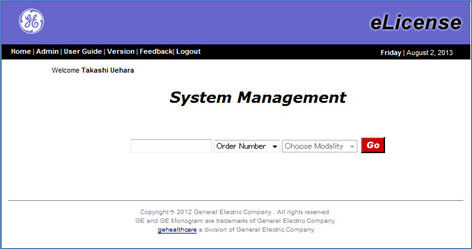
- Enter the GON (Global Order Number) and click “Go”.
The Order Assignment screen will be displayed.
Figure 2. Order Assignment Screen
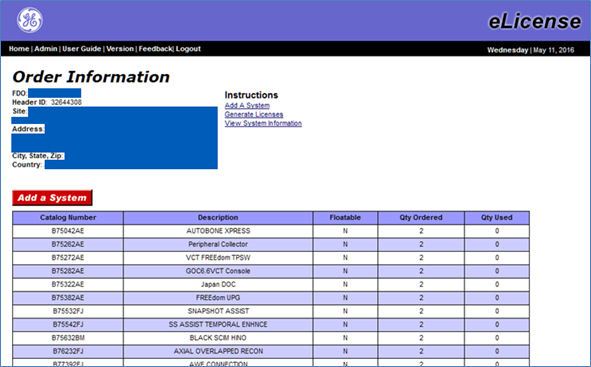
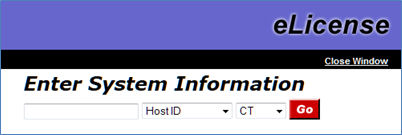
- Click “Add a system” button. Enter System Information
window opens. Enter Host ID and click “Go”.
Figure 3. Enter System Information Window
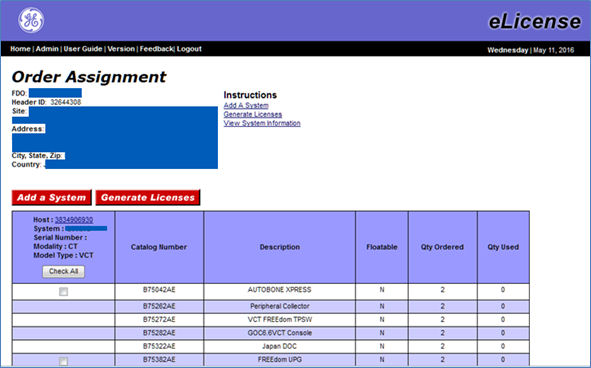
- Enter the System ID and click “Continue” in the
next screen. The new column is added with system information at the
left.
Figure 4. Order Assignment Screen with System Information
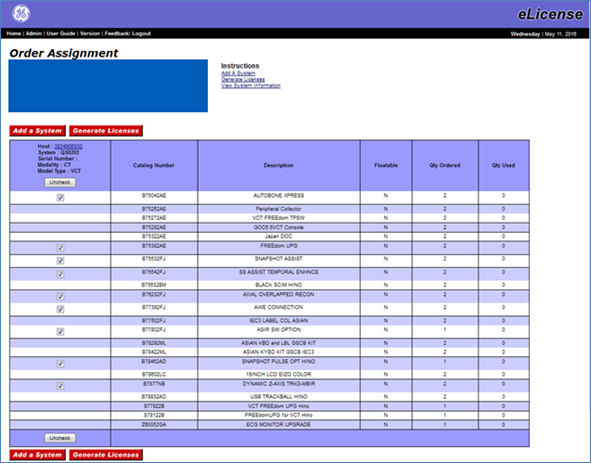
- In the Order Assignment screen, click “Check All”
button and “Generate Licenses” Button.
Figure 5. Generate Licenses Button on Order Assignment Screen
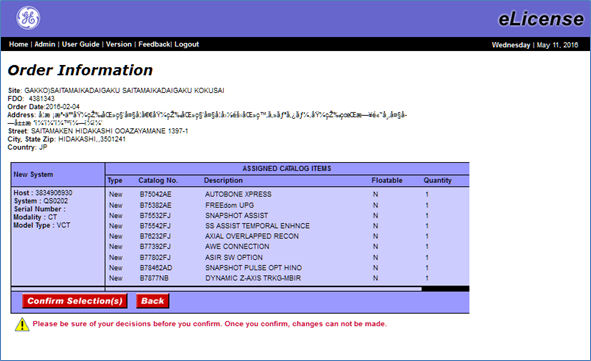
- Confirmation screen appears. Click “Confirm Selection
(s) button if the information is correct.
Figure 6. Confirmation Screen
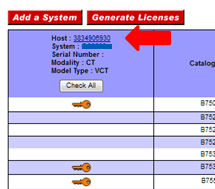
- If the eLicense keys are successfully generated, the check boxes
are changed to key icon. Click the “Host” link.
Figure 7. Key Icon on Order Assignment Screen
- Detailed eLicense information is displayed.
Figure 8. eLicense Information Screen
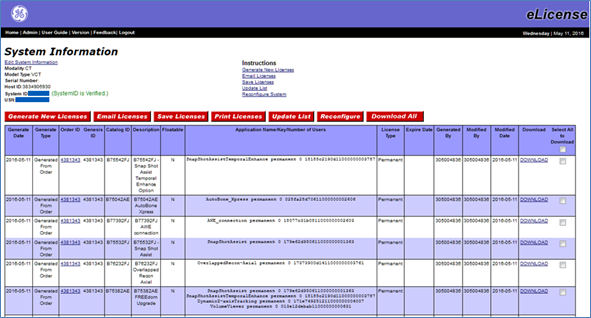
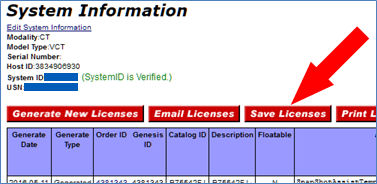
- Click “Save Licenses” button. A license.dat file will be saved to your PC.
Figure 9. Save Licenses Button
- Copy the license.dat file to a USB memory.
2 Installing eLicense Key
Procedure
- Insert the USB memory which contains the license.dat file to the console service USB port.
- Open a Unix shell and type mountUSB
- Type cp /USB/license.dat /usr/g/service/flex
- Type unmountUSB and remove the USB memory from the service USB port.
- Reboot the system.
-
Option key installation will be automatically started after OS is started up.
-
Some options will ask you to confirm the settings. Check or enter the appropriate parameters.
-
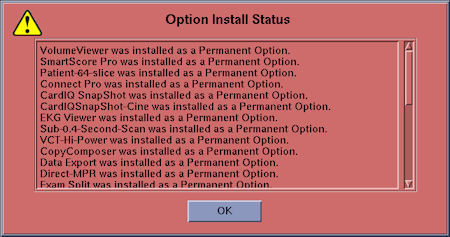
When all eLicense keys are installed, the following pop-up message will appear.
Figure 10. Pop Up Message Window
note:Some option key installation may fail due to dependency to other options. If failed, repeat the Step 1) through Step 5) again.
-
3 Finalization
Procedure
- After application start up, check that all options are installed successfully by Verify Options in Common Service Desktop - Configuration tab.