- Topic ID: id_17423149
- Version: 4.0
- Date: Nov 27, 2020 2:15:22 AM
Host Computer (Z840) NIC Card Replacement
Prerequisites
Overview
This procedure shall be followed when replacing the NIC Card in the host computer (Z840).
Existing software option key will become invalid by NIC Card replacement. Regeneration of the software option key will be required by eLicense.
1 Host Computer Removal
Procedure
- Shutdown system. Select one of the following methods to Power
OFF the Console:
-
If Applications are up, click on the [Shut Down] button on desktop display and select Shutdown.
-
If Applications are down, open a Terminal Window. Type: halt , then press ENTER.
-
When halt command has finished, power Off the console at the front panel switch.
-
- Apply LOTO. See Equipment Service - Lockout-Tagout-PPE procedure.
- Remove Front and Top covers. Refer to the following procedure.
Refer to Replacement → Console → Console Cover Removal and Installation
- Remove the host computer from console chassis. Refer to the
following procedure.
Refer to Replacement → Console → Host Computer (Z840) Replacement
2 NIC Card Replacement
Procedure
- Open the host computer side access panel.
- Remove the Expansion Card Support.
Figure 1. Z840 Airflow Guide and Expansion Card Support
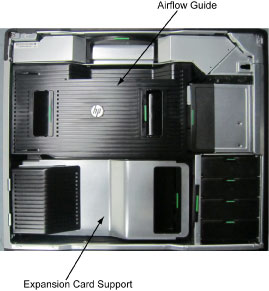
Figure 2. Z840 Component Location
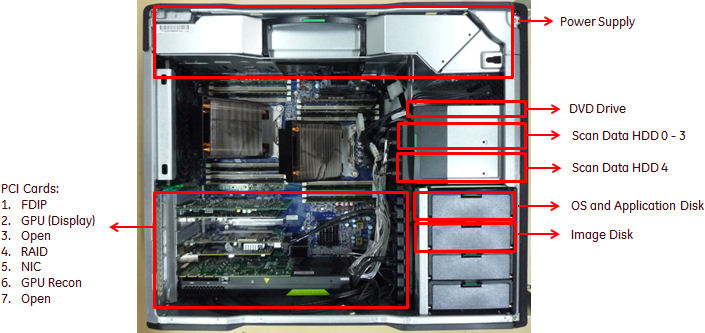
- Replace the existing Ethernet NIC card with new one.
- Install the Expansion Card Support and close the Side Access Panel.
3 Restore the Console
Procedure
- Install Host computer into Console chassis. Refer to the following
procedure.
Refer to Replacement → Console → Host Computer (Z840) Replacement
- Reconnect all cables removed earlier to the Z840 computer.
- Install Console covers. Refer to the following procedure.
Refer to Replacement → Console → Console Cover Removal and Installation
- Remove LOTO on console.
4 Finalization
Procedure
- Perform the Functional Checks → System Scanning Test instructions from the procedure list.
- Regenerate software option key by eLicense and install to the system.