- Topic ID: id_17423180
- Version: 3.0
- Date: Aug 10, 2021 9:57:03 PM
HP Host Computer Z820 System/Image HDD Replacement
Prerequisites
Overview
This procedure shall be followed when replacing the System or Image hard drive in a Z820 computer.
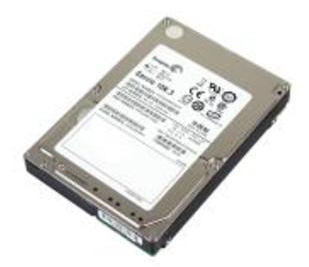
Figure 1. System or Image Hard Drive
1 System or Image Disk Replacement Preparation and Location
Procedure
- Select one of the following methods to Power OFF the Operator
Console:
- If Applications are up, click on the [Shut Down] button and
select [Shutdown].
The Operator Console monitor will display a 'Power Down' message when it is acceptable to power OFF the Operator Console.
- If Applications are down, open a Unix Shell. Type: halt.
- If Applications are up, click on the [Shut Down] button and
select [Shutdown].
- Power OFF the console at the front panel switch.
- Remove the front and left side covers from the console.
.
- Locate System or Image Hard Drive FRUs by referencing the Illustrations
below.
Figure 2. System or Image Disk Location
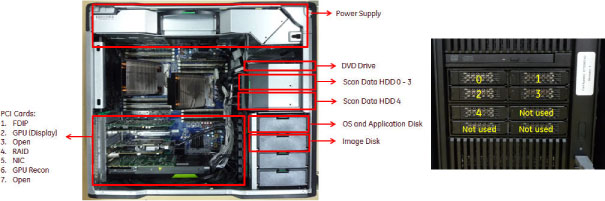
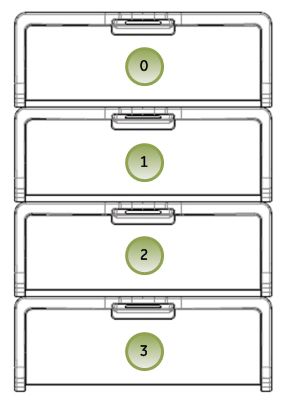
Figure 3. System and Image Hard Drive Bay Locations
2 System or Image Hard Drive Removal
Procedure
- Open the Side Access Panel.
- Remove the original Hard Drive assembly from the computer’s drive bay.
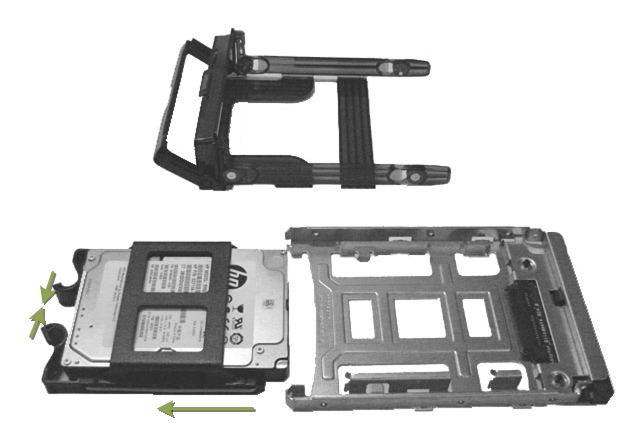
- Remove the 2.5 to 3.5 inch Form Factor Adapter Bracket with Hard Drive from the Hard Drive carrier rails. See Figure 4.
- Remove the 2.5 to 3.5 inch Form Factor Adapter Bracket from Hard Drive and set Hard Drive aside. See Figure 4.
3 System or Image Hard Drive Preparation
Procedure
- Install replacement Hard Drive into the original 2.5 to 3.5 inch Form Factor Adapter Bracket removed from original Hard Drive.
- Install replacement Hard Drive with Form Factor Adapter Bracket
into original Hard Drive carrier rails.
Figure 4. Hard Drive Form Factor Brackets and Carrier Rail Assembly
4 System or Image Hard Drive Install
Procedure
- Install the replacement Hard Drive assembly into the computer drive bay.
- Close Side Access Panel.
5 Finalization
Procedure
- Refer to System Scanning Test to confirm proper operation.
- Reinstall the console covers.