- Topic ID: id_17422952
- Version: 1.0
- Date: Aug 23, 2018 11:14:45 PM
RAID Troubleshooting
1 Overview
This document explains the procedure of RAID Troubleshooting.
2 Troubleshooting
The following command shows the Scan Disk status. Use “gre-raid -q” command at root user.
[root@host]# gre-raid -q
Check Consistency on VD #0 is not in progress.
Background Initialization on VD #0 is not in Progress.
Number of Physical Drives on Adapter 0: 5
Disk Array Chassis Layout - Current
Top
|====================||====================|
| 0: Passed || 1: Passed |
|====================||====================|
| 2: Passed || 3: Passed |
|====================||====================|
| 4: Passed || 5: Not used |
|====================||====================|
| 6: Not used || 7: Not used |
|====================||====================|
Bottom
Virtual Drive State: Good
gre-raid: success
[root@host]#
There are four status of result “gre-raid -q”.
-
Passed: Good and Recognized
-
Failed: No good and need to be replaced.
-
Empty: Disk is not inserted or not recognized.
-
Unconfig good: Good but need to rebuild.
In case of one failed disk was found, replace the failed disk and execute Rebuild Scan Disk Array in Reconfig menu. (The menu is displayed just in case of one disk is "Unconfig good" status.) Scan file will be rescued.
Figure 1. Reconfig Menu
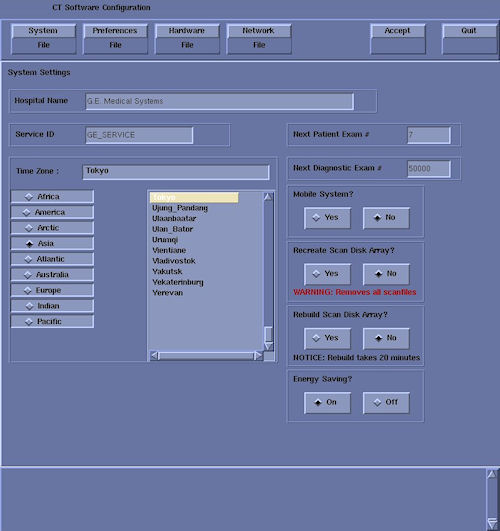
In case of two or more failed disks were found, replace them and execute Recreate Scan Disk Array in Reconfg menu. Scan file will be erased.
If one disk status is "Empty", confirm the cable connection between the disk and RAID controller card.
If all of disk status is "Empty" even if all disk are connected, RAID controller card is highly defective.