- Topic ID: id_17423202
- Version: 2.0
- Date: Dec 29, 2020 1:07:59 AM
Manually Configuring System INFO (16BW45.x or Later)
This procedures describes the steps necessary to manually configure System INFO.
-
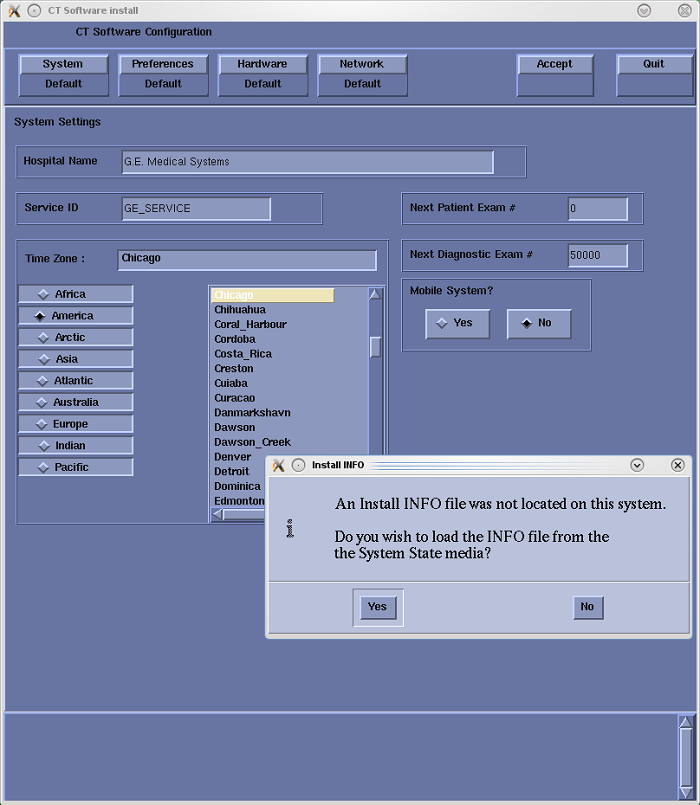
When the System State Install INFO decision box appears (Figure 1), click No. Then select: Hardware to access System and Console Type configuration.
Figure 1. Install INFO Decision Box
-
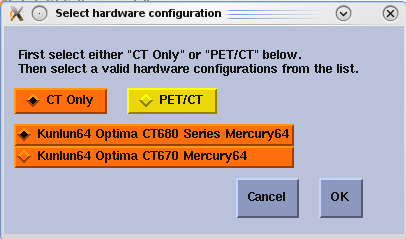
In the Hardware Configuration window, select the appropriate hardware configuration for the System, DAS and Console type. Click OK when done. Refer to Table 1 for hardware configuration selection.
Figure 2. Hardware Configuration Window (16BW45.x)
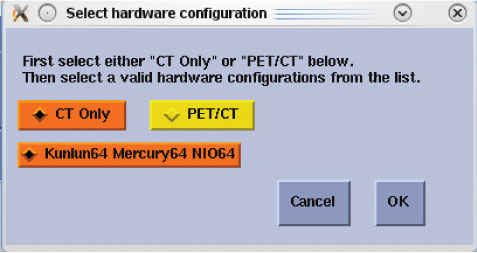
Figure 3. Hardware Configuration Window (17BW34.x)
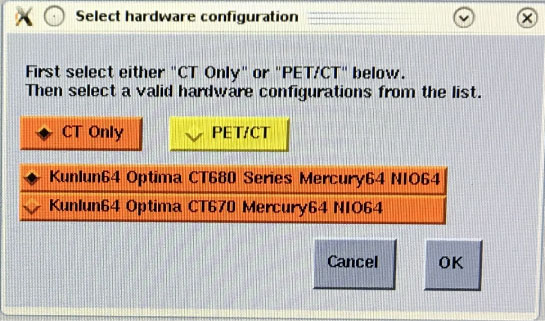
Figure 4. Hardware Configuration Window (18BW26.x)
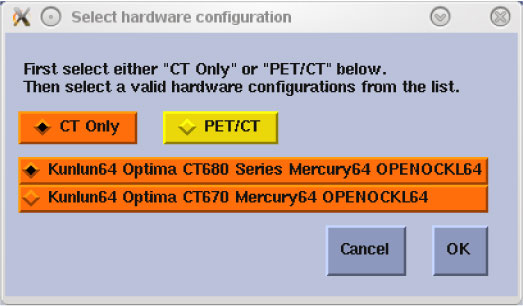
Figure 5. Hardware Configuration Window (20BW25.x)
-
Manually configure the Preference, Hardware, and Network Settings screens as required. refer to System Configuration
-
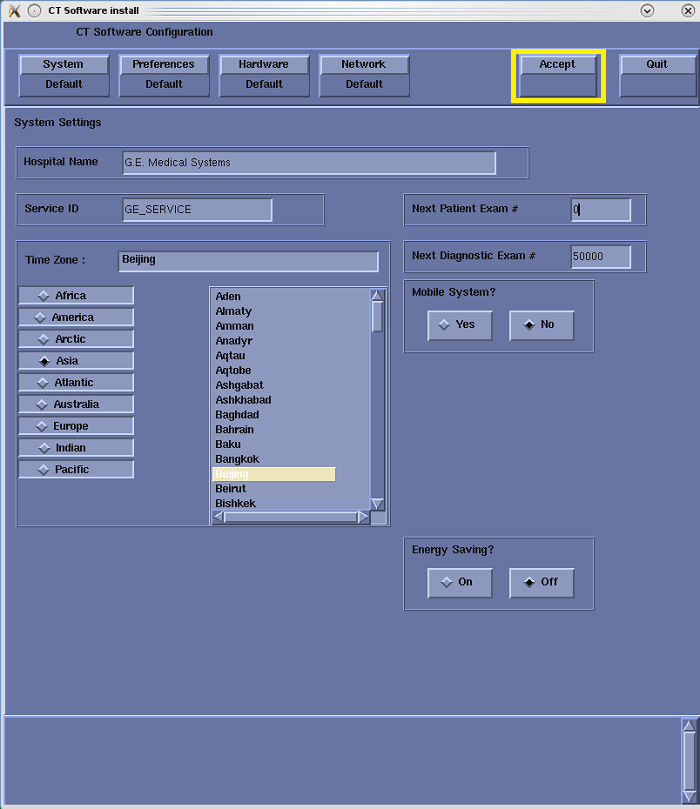
After manually configuring the system, click Accept and return to Applications Software Load, in the Load From Cold (LFC) procedure.
Figure 6. System Configuration Utility - Accept Window