- Topic ID: task_sfj_smq_y3b
- Version: 3.0
- Date: Dec 29, 2020 1:01:21 AM
Rotor Control Tool with LB tube - GUI (20BW25.x or Later)
Prerequisites
Overview
Objective: LB tube rotor control tool is not only control rotor status from stop to high speed or low speed to stop, but also automatically shows rotor status when system detects rotor status changing.
Procedure
- Launch the Diagnostics.
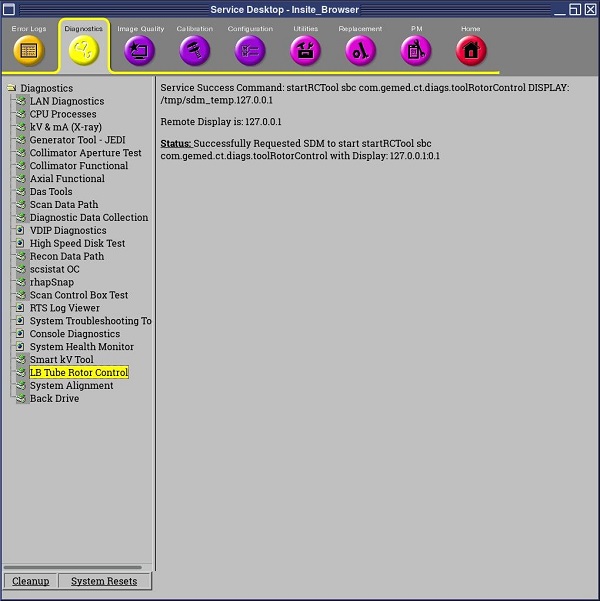
- Launch the LB Tube Rotor Control tool.
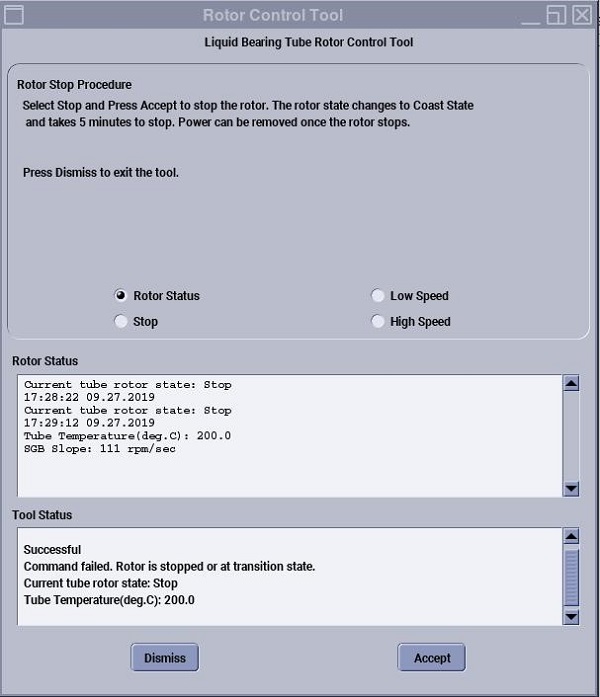
- Choose Rotor Status button and select Accept to display the rotor status and tube temperature. The information will be refreshed when Accept is selected again.
- Choose Low Speed button and select Accept to decelerate the rotor when running at High Speed.
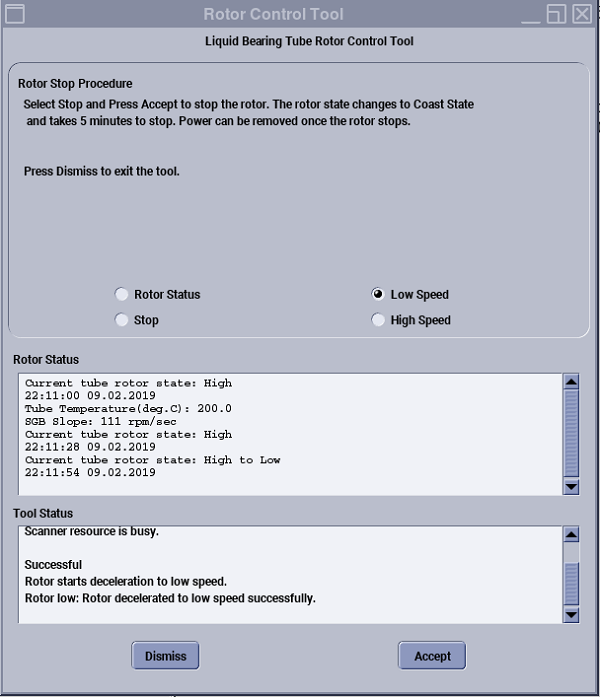
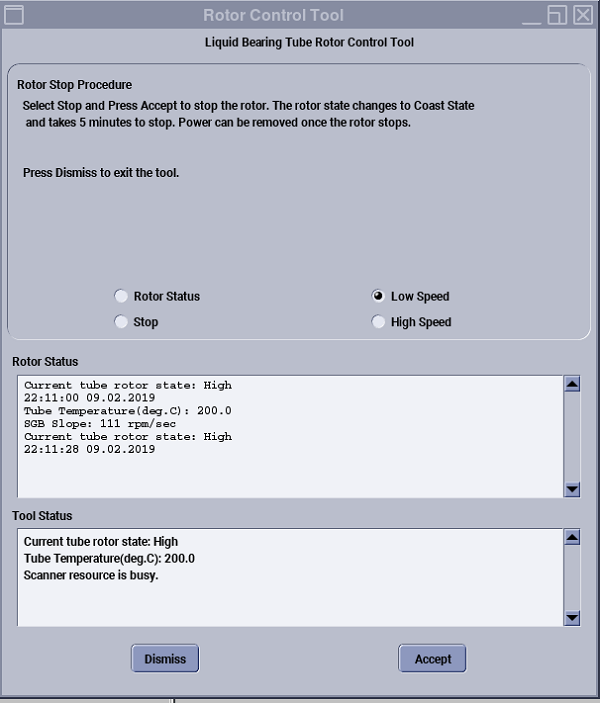
If the rotor it already in Low Speed, Coasting or Stop it will stay in its current state.
If the Scan Acquisition hardware is in use then the rotor cannot move to Low Speed since the scanner resource is busy.
- Choose High Speed button and Accept to bring the rotor High Speed from Stop, Coasting or Low Speed.
If the Scan Acquisition hardware is in use then the rotor can change to High Speed.
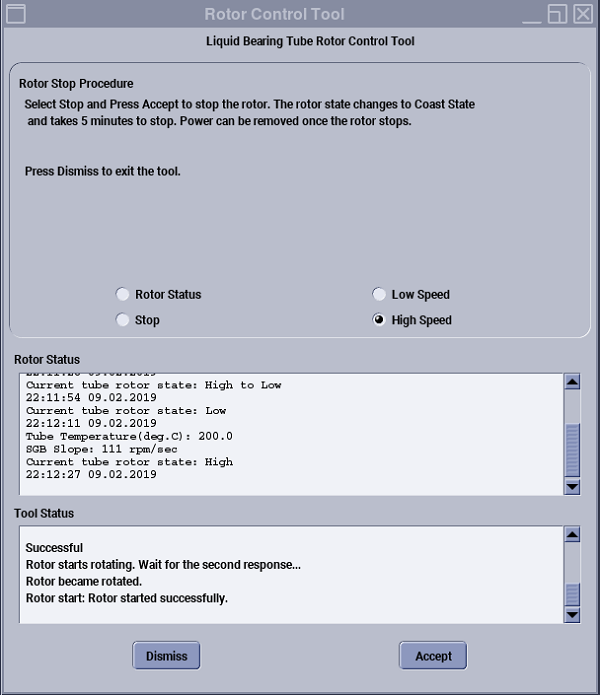
- Choose Stop button and Accept to stop the rotor when it is running in High Speed or Low Speed.
If the Scan Acquisition hardware is in use then the rotor cannot be stopped since the scanner resource is busy.
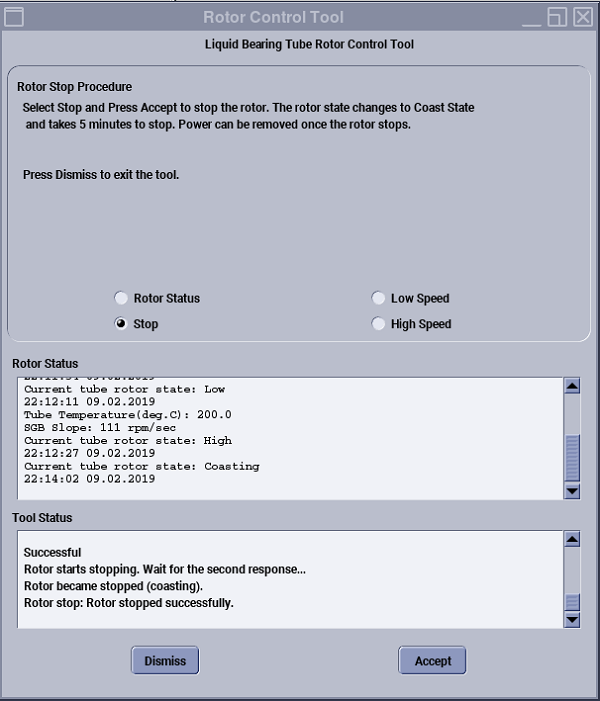
If Tube temperature is not high (TubeCare indicator in Blue or yellow Zone), Rotor will start coasting and stop.
If tube temperature is high (Tube care indicator in Green Zone), there is tube failure risk due to hot landing if continue to stop the rotor. An attention will pop up to select [Continue] or [Cancel]. Please select [Cancel] to wait for TubeCare indicator in Blue or yellow Zone.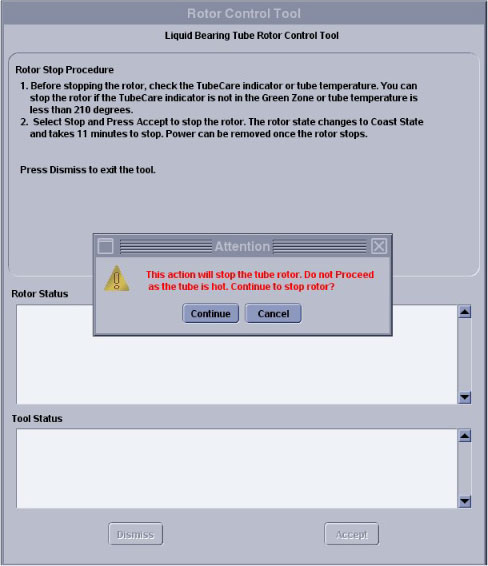
- Real time rotor status will be shown in rotor status message bar.
- If a problem occurs, check the error code.
Finalization
No finalization steps.