- Topic ID: task_y4k_r1b_jpb
- Version: 2.0
- Date: Dec 22, 2021 11:21:29 PM
Z8G4 Image SSD Module Replacement
Prerequisites
Overview
This procedure shall be followed when replacing the Image SSD (Solid State Disk) Module in the Z8G4 computer.
Figure 1. Image SSD Module
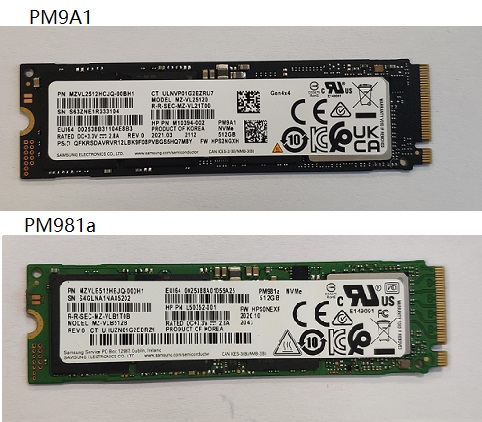
1 Image SSD Module Replacement Preparation and Location
Procedure
- Select one of the following methods to Power OFF the Operator Console:
- If Applications are up, click on the [Shut Down] button and select [Shutdown].
The Operator Console monitor will display a 'Power Down' message when it is acceptable to power OFF the Operator Console.
- If Applications are down, open a Unix Shell. Type: halt.
- If Applications are up, click on the [Shut Down] button and select [Shutdown].
- Power OFF the console at the front panel switch.
- Apply LOTO. See Equipment Service - Lockout-Tagout-PPE
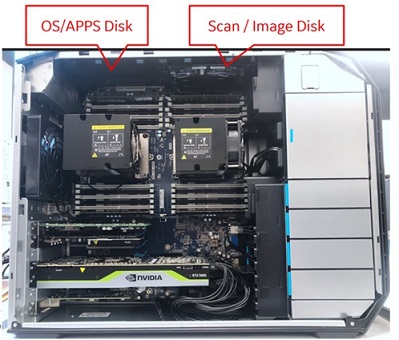
- Locate SSD by referencing the Illustration below.
Figure 2. Image SSD Location
2 Image SSD Removal
Procedure
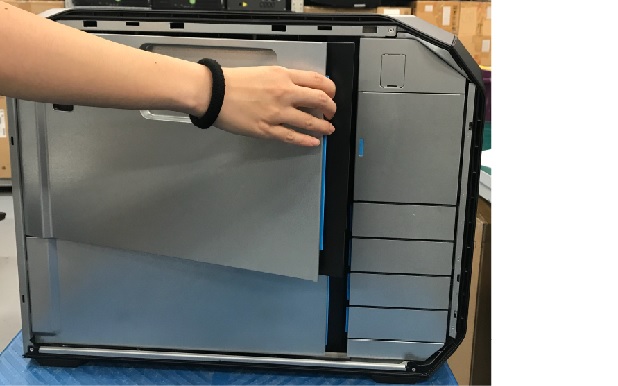
- Open and remove the module small side cover
Figure 3. Remove module small side cover
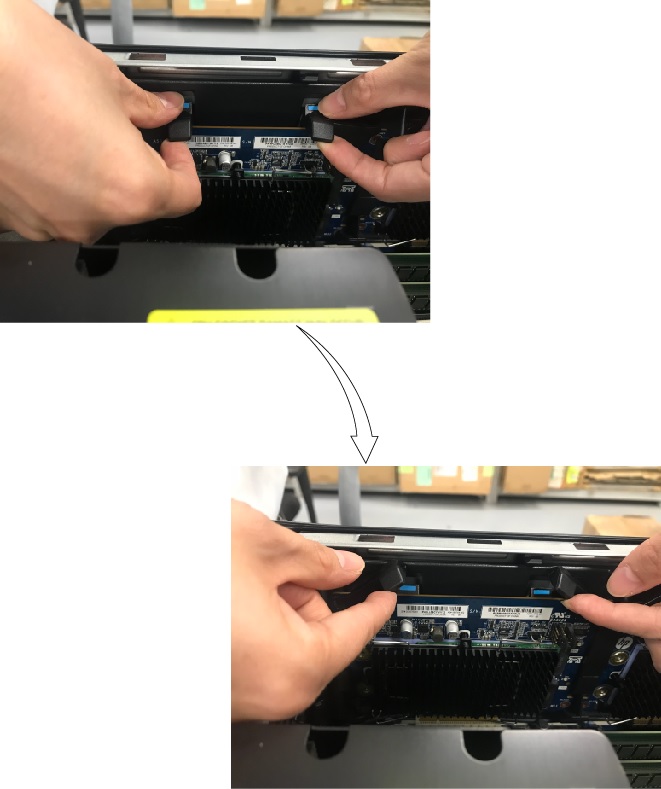
- Press down the latch, release the clamp and lift up the scan data SSD assembly from the slot carefully.
Figure 4. SSD Removal
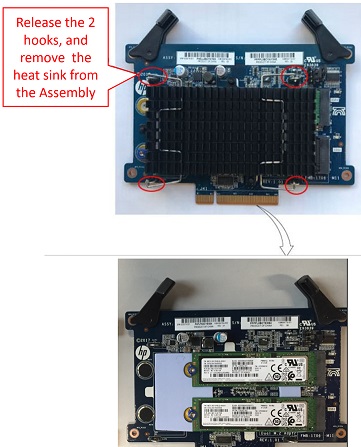
- Remove the SSD from the SSD assembly.
Figure 5. Remove Image SSD
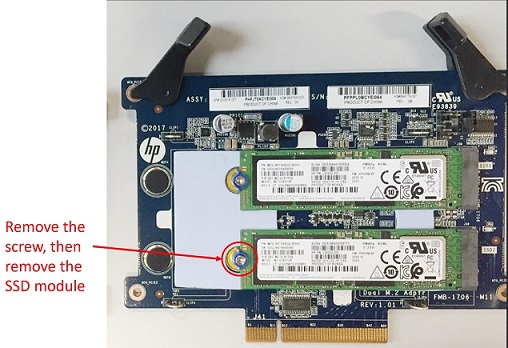
- Remove module from the SSD assembly by remove the screw.
Figure 6. Remove SSD module
3 Image SSD Install
Procedure
- Install the new module in the SSD assembly and tighten the screw
- Install the SSD heat sink on the SSD assembly by tighten the hooks of heat sink.
- Install the new SSD assembly, align the keyway with the slot key, and firmly seat the SSD assembly in the slot.
- Retention Clamp
4 Finalization
Procedure
- Reinstall module small side cover.
- Remove LOTO on console.
- Refer to LFC procedure to load all the software and options.
- Power ON the operator console. Start up sequence stops before application start up.
- Confirm the SSD Module is installed per following steps:
- In case of one failed module was found, replace the failed module and execute following steps, Scan file will be rescued.
-
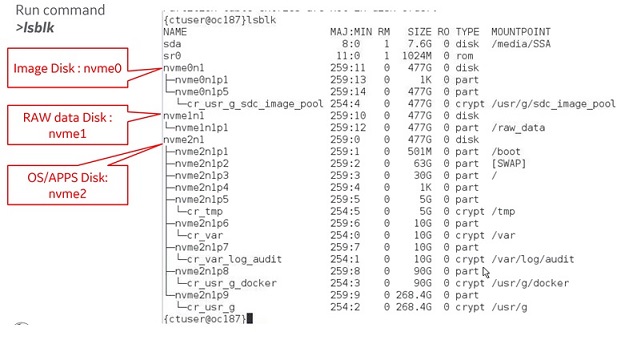
Check which module replaced. Use {ctuser@hostname}su -
Password
[root@hostname]$ lsblk The below illustration only example when no problem
-
- In case of one failed module was found, replace the failed module and execute following steps, Scan file will be rescued.
- Open shell window and type st to start up application.
- Refer to System Scanning Test to confirm proper operation.
- Install back the Host side cover.