- Topic ID: id_16157926
- Version: 3.0
- Date: Jan 20, 2020 8:36:20 PM
Accessories Replacement
Prerequisites
Overview
1 Power-Off (Shut Down) the Console
Procedure
- Select one of the following methods to power off the Operator
Console:
-
If applications are running, click the Shut Down icon and select Shut Down.
-
If applications are down, open a Unix Shell using the Toolchest. Type: {ctuser@hostname} halt. Press Enter.
The Operator Console monitor will display a ‘System Halted’ message when it is acceptable to power off the Operator Console.
-
- Power OFF the Operator Console at the front panel switch.
- Perform prescribed Lockout/Tagout procedure. For added protection, disconnect the Twist-N-Lock Main Power Cable from rear of console.
2 Remove the Old Keyboard, Mouse, Trackball, Barcode Reader or PMT
Procedure
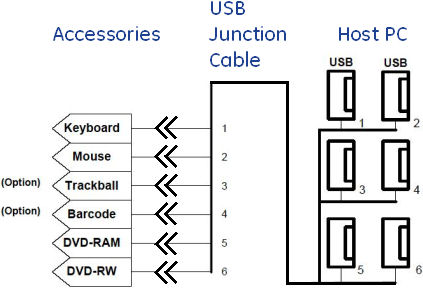
- Remove the USB cable connection from USB junction cable connector,
for the Keyboard, Mouse, Trackball, Barcode Reader or PMT being replaced,
and remove the accessory (see Figure 1).
Figure 1. USB Cable Connection
3 Install the Replacement Keyboard, Mouse, Trackball, Barcode Reader or PMT
Procedure
- Place the replacement Keyboard, Mouse, Trackball or PMT on the Operator Console.
- Plug in Keyboard, Mouse, Trackball or Barcode Reader cable in the USB connector at USB junction cable connector.
4 Power-On the Operator Console
Procedure
- Power ON the Operator Console at the console front panel switch.
5 Verify Replacement Keyboard, Mouse, Trackball, Barcode Reader or PMT Operation
Procedure
- Visually verify Keyboard, Mouse, Trackball, Barcode Reader or PMT works as expected with the CT Applications.
- No other verifications required.note:
This procedure assumes that like type Keyboard, Mouse, Trackball or Barcode Reader has been used in the replacement process. If Keyboard language type or different style Mouse or Trackball are used, there may be Operating Software and/or System Configuration issues. Use GE Healthcare recommended spare parts.
note:Keyboard and Mouse functionality is readily apparent and easy to verify proper operation. Trackball functionality is not so readily apparent since functions vary based on Application usage. Refer to the system's Technical Reference Guide for Trackball functionality description.
6 Finalization
No finalization steps.