- Topic ID: id_11039086
- Version: 2.0
- Date: Jan 30, 2019 9:43:11 PM
Collimator Inspection
1 Overview
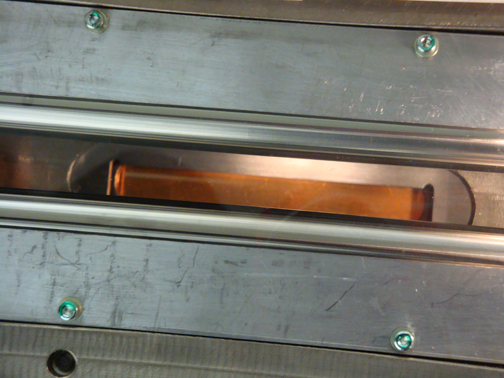
You will run one pass of the Collimator Application Test and inspect the tube port for contamination or debris while the filters are moving.
This test positions the Cams and filter to the selected positions for the test duration.
2 Procedures
 |
|

-
From the Common Service Desktop, select Diagnostics, Collimator Functional.
-
Setup (see Figure 1).
-
Acquisition Aperture: click Select All
-
Filter: click Select All
-
Test Duration: Select 120 (You can select longer, if desired)
-
Gantry Params
-
Gantry: Position
-
Speed: N/A
-
Position: 180
-
The test runs in continuous modes, which helps detect intermittent operating conditions. This is a means to visually validate the aperture and filter positions, and validate the operation of the collimator.
-
-
Inspection
-
Look for highlighted fields on the screen that indicate the cam or filter did not make it to position.
-
Check the log for additional information if errors occur.
-
While the test is running:
-
Figure 1. Collimator Application Position Test Screen
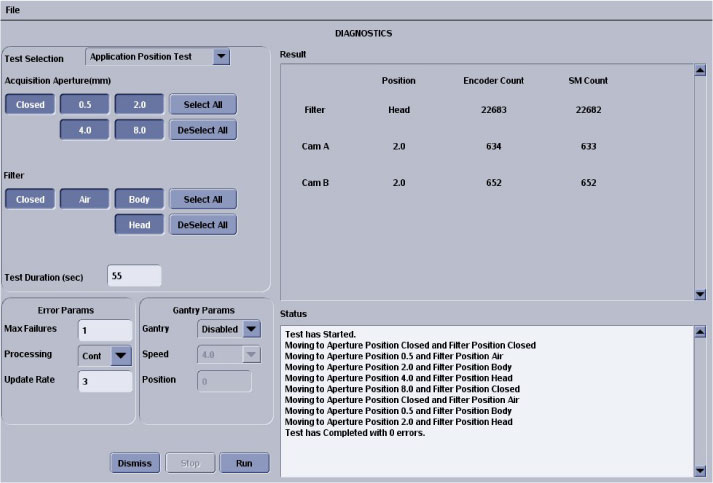
Figure 2. Collimator Filters
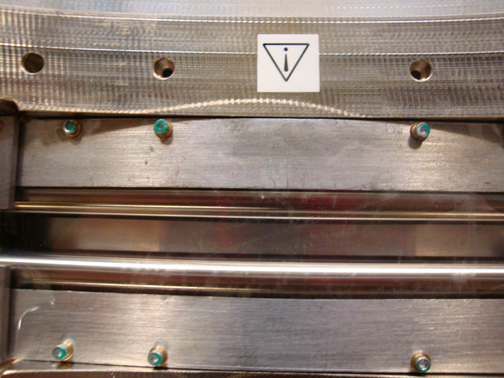
Figure 3. Collimator Copper Filter