- Topic ID: task_acc_sc3_t3b
- Version: 3.0
- Date: Dec 29, 2020 1:02:42 AM
Set TVA Password
Prerequisites
Overview
This procedure describes the steps to set a new password for the Tip Virtual Assistance (TVA). Whenever TVA usage is needed then it is recommended that a new password should be set. There is no means to remember/retrieve the previous password, if it is forgotten or lost.
Procedure
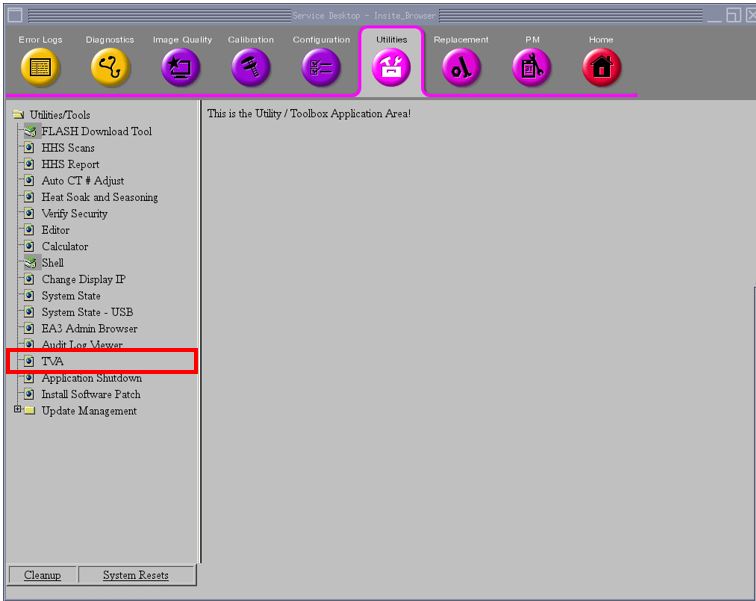
- Open Common Service Desktop (CSD), click Utilities and find TVA.
Figure 1. Utilities Interface
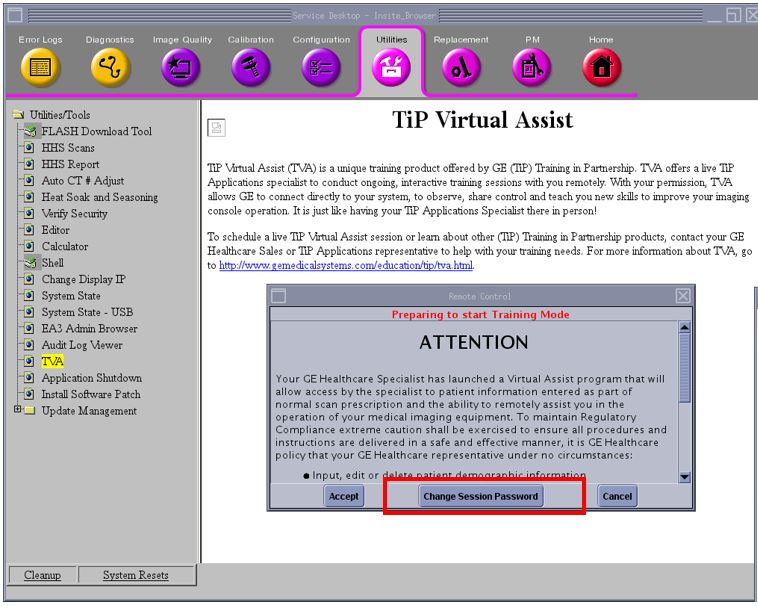
- Click Change Session Password.
Figure 2. Change Session Password
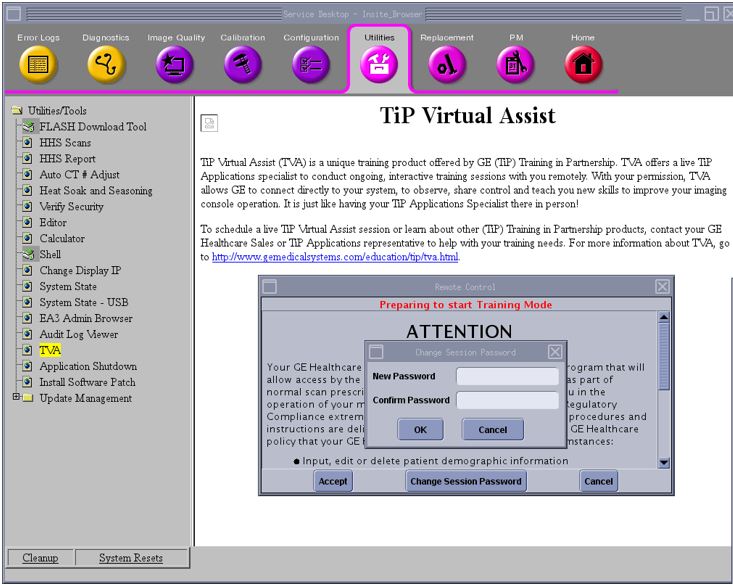
- The password window will appear.
Figure 3. Password Window
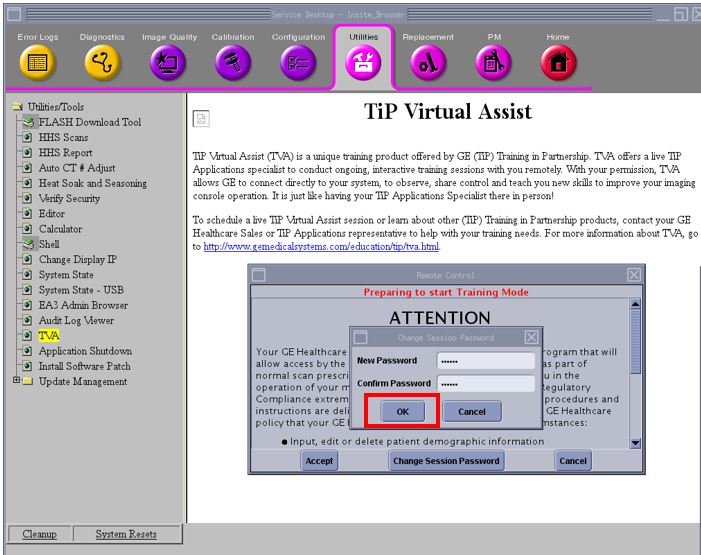
- Enter new password and confirm new password (see Figure 4) and then click OK.
Figure 4. Enter Password
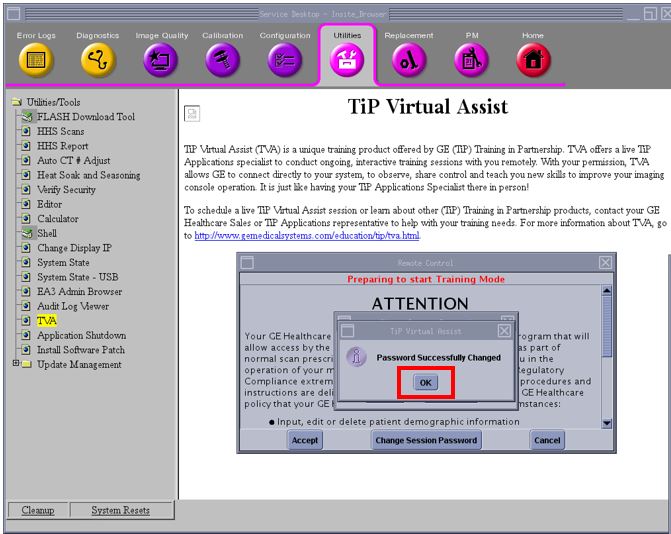
- Acknowledge password change message.
Figure 5. Password Change Message
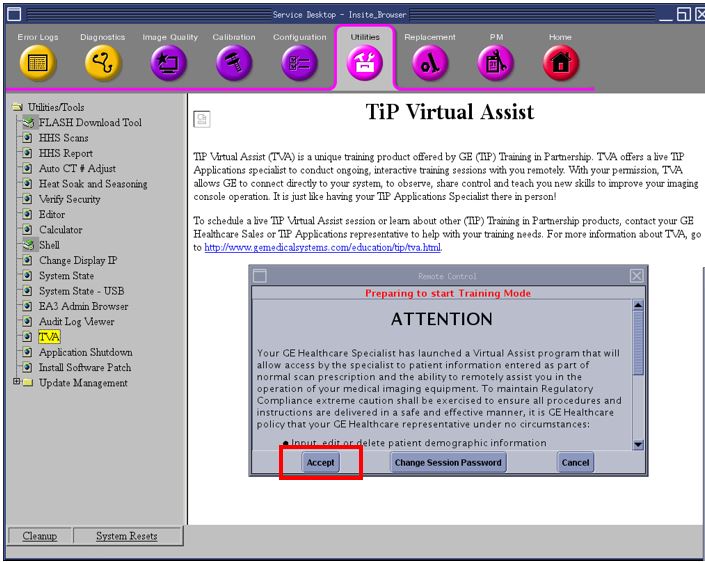
- Click Accept.
Figure 6. Accept Button
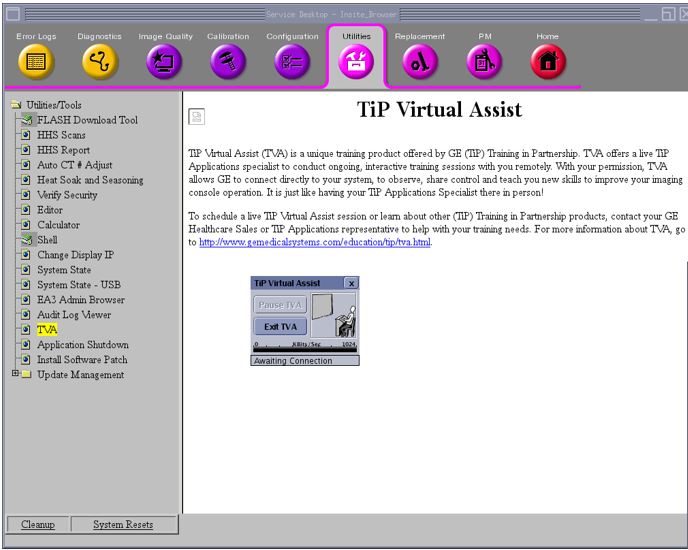
- TVA is ready to use using FFA.
Figure 7. Finished Interface
Finalization
Communicate the password to OLE or Applications Specialist so that he/she can start the remote TVA session using FFA.