- Topic ID: concept_dn1_n1f_qjb
- Version: 2.0
- Date: Dec 10, 2019 2:30:46 AM
Gantry Table User Preference
Overview
This document describes how to enable the Gantry Tilt for Extender Removal, Cradle Speed, Scout Table Speed, Tilt Speed and Patient Load & Home Motion feature on CT system.
1 Gantry Tilt for Extender Removal: Off/On
The Gantry Tilt for Extender Removal is feature that allows customer to easily remove or install the cradle extender at the table lowest position.
When this feature is enabled, the gantry behaves as follows:
- The Load foot pedal moves the gantry to 0 degree if the gantry is tilted. When the foot pedal is released, the movement is stopped.
- The Unload foot pedal moves the gantry to 8 degrees forward. When the foot pedal is released, the movement is stopped.
Figure 1. Gantry Table User Preference Window
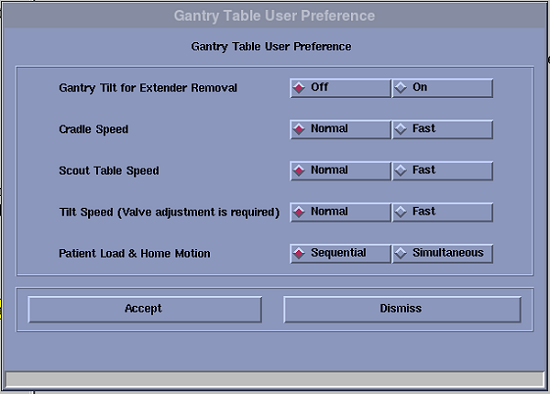
2 Cradle Speed: Fast
- Cradle moving speed will change to 175mm/sec then using Fast IN/OUT button on Gantry Control Panel. (Normal speed is 125mm/sec)
- Cradle moving speed will change to 10mm/sec then IN/OUT button on Gantry Control Panel. (Normal speed is 5mm/sec)
note: This button is only applicable for system with GT 1700V Table.
3 Scout Table Speed: Fast
- Scout table moving speed will become to 175mm/sec. (Normal speed is 100mm/sec)
- Trigger rate will become to 1925 Hz. (Normal rate is 1100 Hz)
note: This button is only applicable for system with GT 1700V Table.
4 Tilt Speed: Normal/Fast
- Gantry tilt upper allowable speed will become to 2.6 deg/sec. (Normal speed is 1.8 deg/sec)
- Gantry tilt lower allowable speed will become to 0.9 deg/sec. (Normal speed is 0.5 deg/sec)
note: This button is only applicable for system with GT 1700V Table.
5 Patient Load & Home Motion: Simultaneous
- Patient Load (Load Pedal Motion) - Move both Elevation and IMS/Cradle until they reach the each target position.
- Home Motion (Home Pedal Motion) - Move both Elevation and Cradle/IMS until they reach the home positions simultaneously.
6 Procedure
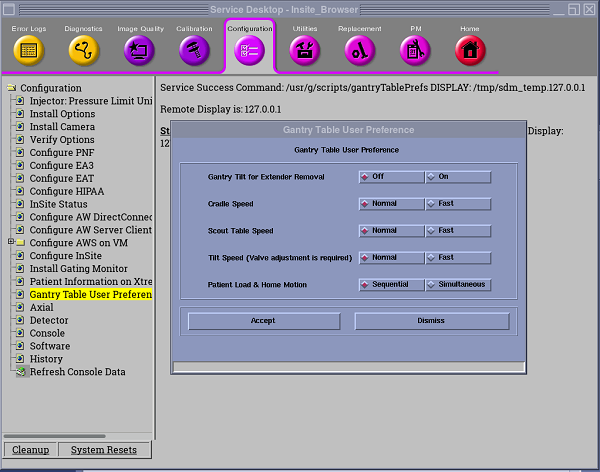
- Click the Service Icon on the Display Monitor, and the Common Service Desktop (CSD) will appear.
- Select the Configuration tab on the CSD and find the Gantry Table User Preference in the menu.
- The Gantry Table User Preference window appears.
Figure 2. Configuration Tab on CSD
- To select Fast, simultaneous for activate each feature.
- Click Accept.
- Then click OK.
- Restart the application.
7 Finalization
Confirm the gantry and table behaves as expected.