- Topic ID: id_2030485
- Version: 2.0
- Date: Sep 13, 2021 2:15:10 AM
RESETTING AN OS USER ACCOUNT PASSWORD
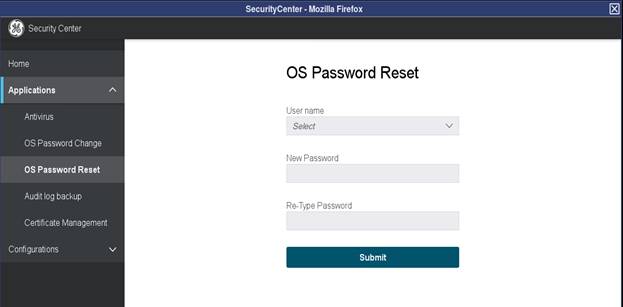
Forgot Password / OS Password Reset UI allows user withadministrator and service privileges to reset OS password for root and ctuser user accounts when the present passwords for those accounts are not known or forgotten
Procedure
- Login to EA3/HIPAA authentication page as administrator role or GE service role.
- From Utilities Menu, select Service, to open the service desktop.
- Select Utilities Tab, select Security Center.
- Select OS Password Reset menu item from Application Menu.note: Application Menu is not displayed when the current user doesn’t have EA3 admin or GE Service role.
- Select the user account (root, ctuser, insite) from User Name drop down.
- Enter the New Password that complies with rules defined in Password Strength Rules chapter in the New Password field and Retype New Password.
If new password does not meet the password strength rules, the system displays an error message and the password is not changed.
- Click Submit button. A message will be displayed to indicate Password Changed Successfully or why the password change was not accepted.
- Close the SecurityCenter once done.
Figure 1. Reset OS Password UI