- Topic ID: id_2030484
- Version: 2.0
- Date: Sep 13, 2021 2:15:10 AM
CHANGING AN OS ACCOUNT PASSWORD
It is recommended that site user administrators change the default OS user account passwords after every SW installation for root, ctuser and insite.
OS Password Change UI allows user withadministrator or GE service privileges to change OS password for root, ctuser and insite user accounts.
Once software is installed, Site administrator or GE Service user can change the OS Passwords anytime at their discretion. Following are the steps to be followed:
Procedure
- Login to EA3 as a user with administrator or GE Service privileges.
- From the system utilities Menu, select Service to open the service desktop application.
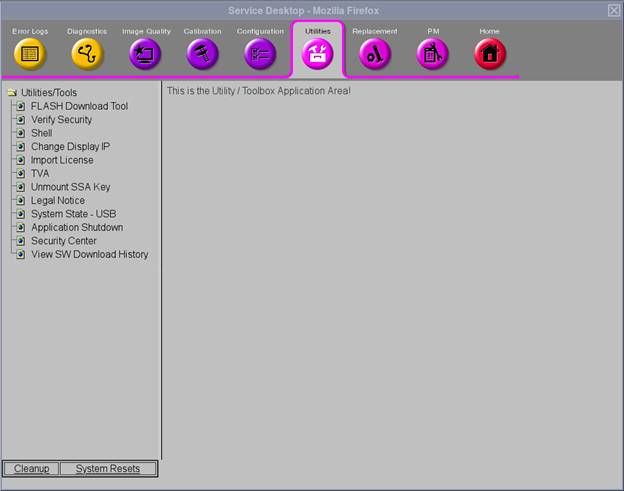
- Select Utilities Tab, select Security Center.
Figure 1. Service Desktop
- On Security Center Dashboard, select OS Password Change from Application Menu.
Figure 2. Security Center
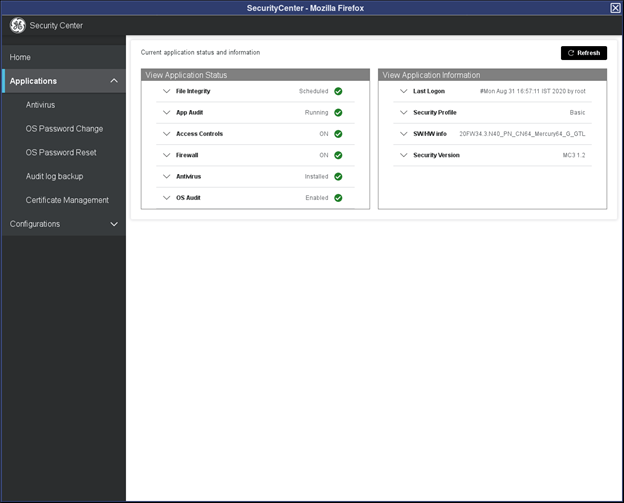 note: Application Menu is not displayed when the current user doesn’t have EA3 admin or GE Service role.
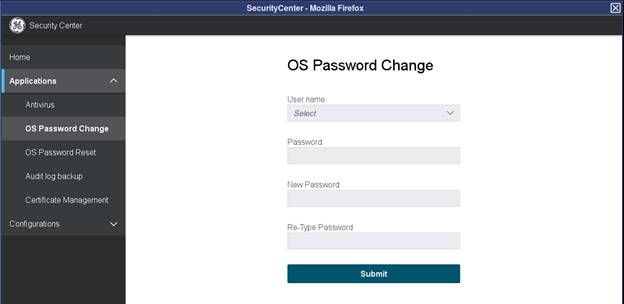
 - Select the OS user account (root, ctuser, insite) from User Name drop down.
- Enter the Old Password.
- Enter the New Password that complies with rules defined in Password Strength Rules chapter in the New Password field and Retype New Password.
- Click Submit. A message will be displayed to indicate that password changed successfully or why the password change was not accepted.
Figure 3. OS Password Change GUI
System enforces the following password strength rules:
- All passwords must have a minimum of 8 (normal) alphanumeric characters.
- All passwords must have at least one uppercase alphabetic character
- All passwords must have at least one lowercase alphabetic character
- All passwords must have at least one numeric character
- All passwords must have at least one non-alphanumeric special character
- Passwords must not contain more than three consecutive repeating characters
- The default passwords cannot be used
If new password does not meet the above stated “password strength rules”, the system displays an error message as shown below and the password is not changed.