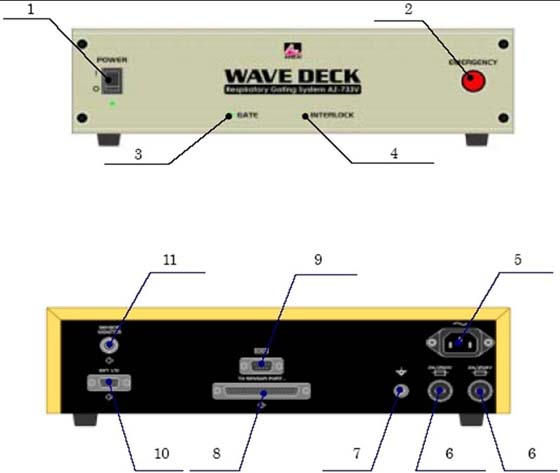
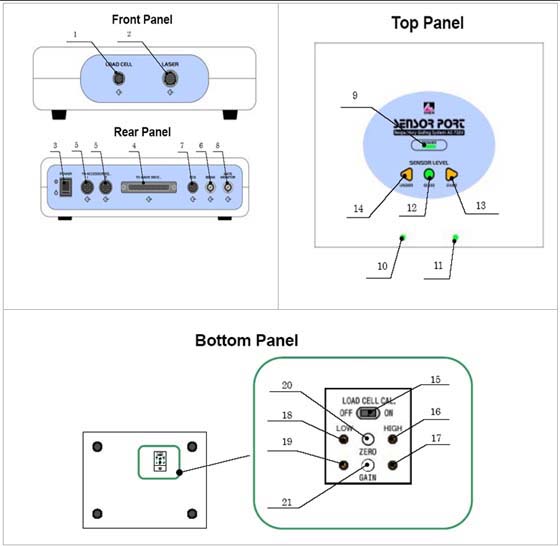
- Topic ID: id_23554480
- Version: 2.0
- Date: Jan 3, 2020 12:21:58 PM
Anzai Respiratory Gating System Installation
Prerequisites
Overview
This procedure defines the process to install the Anzai Respiratory Gating System. An overview of the system setup is as follows:
1. Make sure Laptop is off.
2. Connect Ethernet cable from Laptop to facility network access.
3. Insert USB adapter cable assembly into (any) USB port on the Laptop and connect opposite end to Wave Deck.
4. Connect ground cable from Wave Deck to Console ground point.
5. Connect one AC IEC Power Adapter to Console AC outlet.
6. Connect Laptop Power Supply cable to AC Power Adapter Cable (IEC) at Accessory Panel (Gantry) or Console AC Distribution box.
7. Connect Laptop Power Supply to Laptop power input jack.
8. Make sure Wave Deck is off.
9. Connect the second AC IEC Power Adapter to Console AC outlet.
10. Connect Wave Deck AC power cable to AC Power Adapter (IEC) cable at Accessory Panel (Gantry) or Console AC Distribution box.
11. Connect AC power cable to back of Wave Deck.
12. Connect Wave Deck to Accessory Panel Respiratory jack on Gantry.
13. Connect cable between Sensor Port and Wave Deck.
14. Connect Load Sensor to Sensor Port.
15. Turn Wave Deck Power On.
16. Turn Laptop On.
17. Start Anzai Respiratory Gating software.
18. Perform Functional Tests.
1 Anzai Installation Kit Contents
Procedure
- notice
-
Table 4 lists all parts in the Anzai Gating System installation kit. They
are part of the Anzai Catalog E8819AN.note: Grounds are recommended in all configurations.note: Some cables may not be used in some configurations.
 |
2 Anzai Gating System Installation Options
Procedure
- Unpack the Anzai system from it’s packaging.
- Select the appropriate Installation option from Table 5.
3 Typical Control Room Installation with TIO Console
Procedure
- Install the Anzai Gating System according to Figure 1.
- Discard cables that are not used in this configuration.note: The cables and their respective connectors are unique and should be easy to connect. If necessary, refer to Appendix A: Indicators and Cable Connector Descriptions.
Figure 1. Control Room Installation with TIO Console
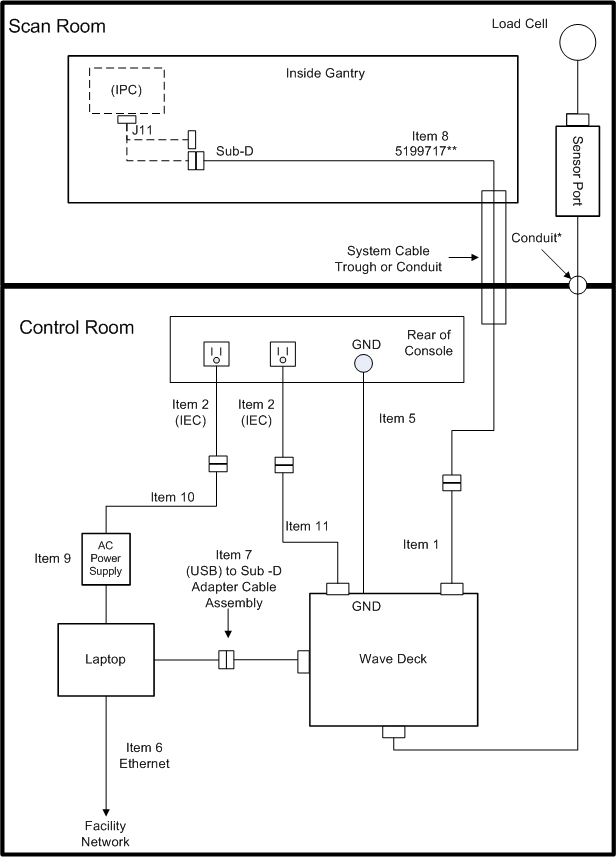
* This conduit may not exist on some sites; alternate route is through door opening.
** Cable 5199717 is not part of the Anzai Gating Installation kit. It is part of the System Installation cable collector and has been installed as part of the system installation. It is located in the cable conduit or cable trough between the Scan Room and Control Room.
note: If cable 5199717 is NOT present in the cable trough/conduit and cable 5174616 is present, this cable may be used in place of 5199717. If cable 5212250 is present in the cable trough/conduit, it must be replaced with the most current cable (5199717) for the Anzai system to properly function.note: Item 7 is a cable assembly and is shipped as one cable unit by design. These two cables must not be reconfigured in any way.note: The Ethernet connection to Facility network is used for motion file transfer to AW or Console for Advantage 4D application. In case of Prospective gating, this motion file is not needed/not used.
4 Typical Scan Room Installation With TIO Console
Procedure
- Install the Anzai gating system according to Figure 2.
- Discard cables that are not used in this configuration.note: The cables and their respective connectors are unique and should be easy to connect. If necessary, refer to Appendix A: Indicators and Cable Connector Descriptions.
Figure 2. Scan Room Installation with TIO Console
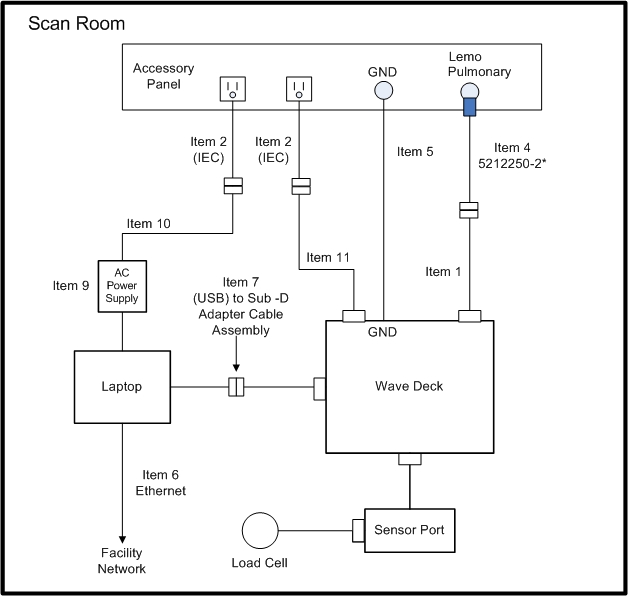
* May also use existing long cable 5212250 (if present) instead of 5212250-2.
note: Item 7 is a cable assembly and is shipped as one cable unit by design. These two cables must not be reconfigured in any way.
5 Initial Power Up
After all cable connections have been completed, proceed to turn power on as follows:
Procedure
- Place Sensor Port unit on the end of the cradle.
- Connect load cell to load cell port on the sensor port.
- Connect the sensor cable to the sensor port on the back of the wave deck.
- Connect the other end of the sensor port cable to the sensor port in the scan room.
- Confirm each connection of the units before turning ON the system.
- Turn ON the power of Wave Deck.
- Turn ON the power of Sensor Port.
- Turn ON the power of Computer. (Windows XP will boot up).
- From the Window XP Desktop select the AZ733V icon to launch the application.
- Perform an initial test of the Load Sensor by pressing it lightly
between your fingers while observing the indicators on the top of
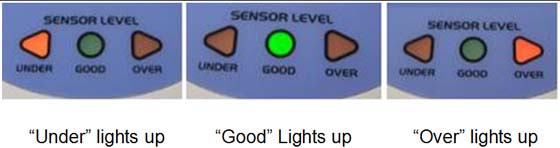
the Sensor Port unit. Notice that the indicator will change from UNDER to GOOD to OVER when varying the amount of pressure applied. If this does not occur
check cables and the possibility of a bad Load Sensor. Refer to Figure 3.
Figure 3. Initial Sensor Port and Load Sensor Test Indicators
- At the front of the Sensor Port Unit, unplug the Load Sensor from the Load Cell port. (Pull back on the metal sheath to disengage the plug.)
- Observe that the two green LED’s above the two connections (Load Cell and Laser) flash on and off continuously.
- Reconnect the Load Sensor cable.
- Observe that green LED indicator above the Load Cell port is
on steady, and the LED on the Laser port is off.note: If the two LED's are still flashing, this indicates that the Load cell is bad or has been damaged and must be replaced.
6 Anzai Respiratory Gating System Functional Test
Procedure
- Select: Display and make sure Estimated Respiratory Wave and Estimated Respiratory
Wave of file are checked.
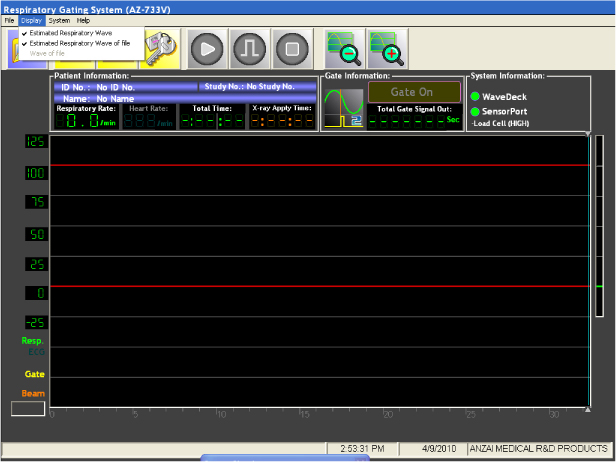
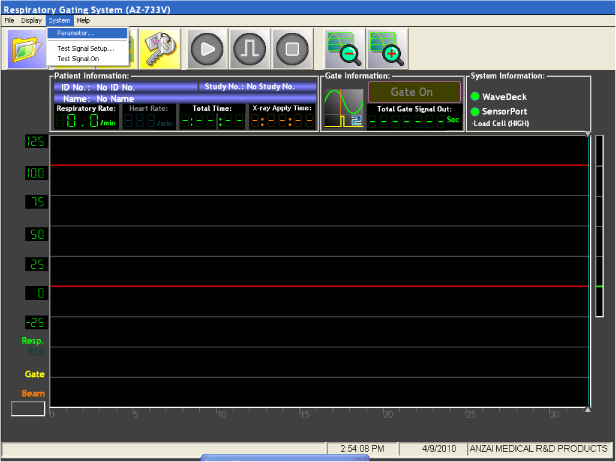
- Select: System and then Parameter…
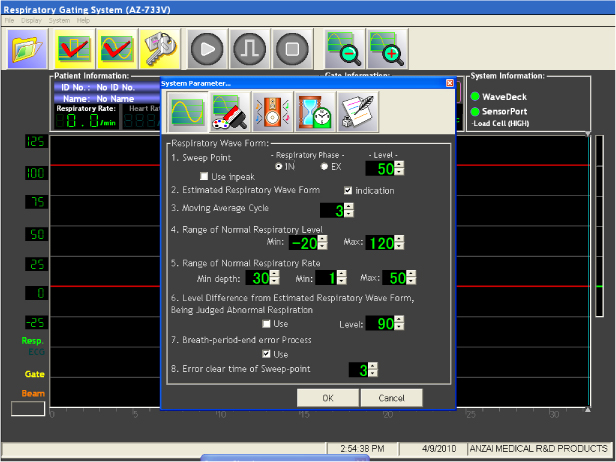
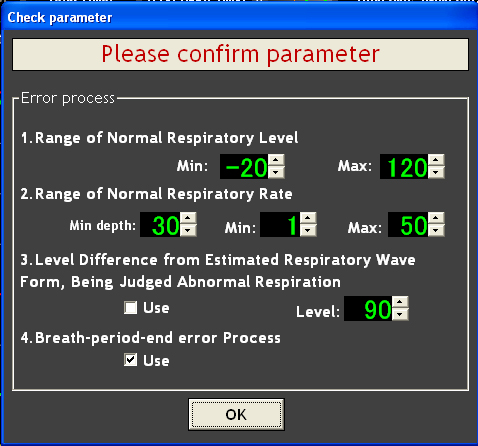
- Select/ensure that the Respiratory Wave Form parameters are
set as follows:
-
Sweep Point Respiratory Phase “IN” is checked and level is set to a value of 50.
-
Estimated Respiratory Waveform “Indication” box is checked.
-
Moving Average Cycle is set to a value of 3.
-
Range of Normal Respiratory Level is set to values of Min = -20, Max = 120.
-
Range of Normal Respiratory Rate is set to values of Min depth = 30, Min = 1, and Max = 50.
-
Level difference from Estimated Respiratory Wave Form, Being Judged Abnormal Respiration Level is set to 90 and “Use” box is unchecked.
-
Breath-period-end error Process “Use” check box is checked.
Error clear time of Sweep-point is set to a value of 3.
-
- Select OK.
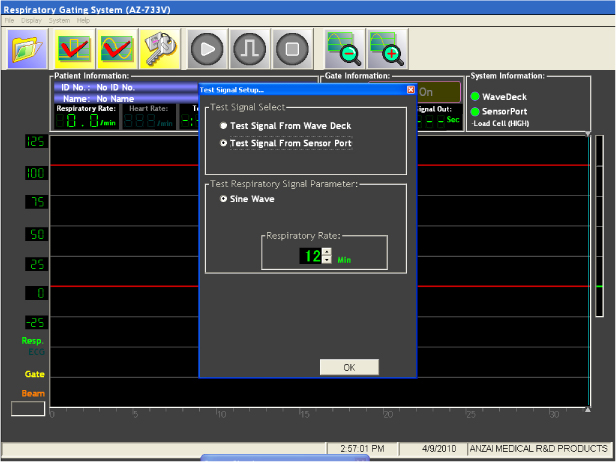
- Select: System and Test Signal
Setup... then set parameters as follows:
-
Test Signal from Sensor Port is selected.
Sine Wave is selected, Respiratory Rate is set to 12.
-
- Select OK.
- Select: System and then Test
Signal on….
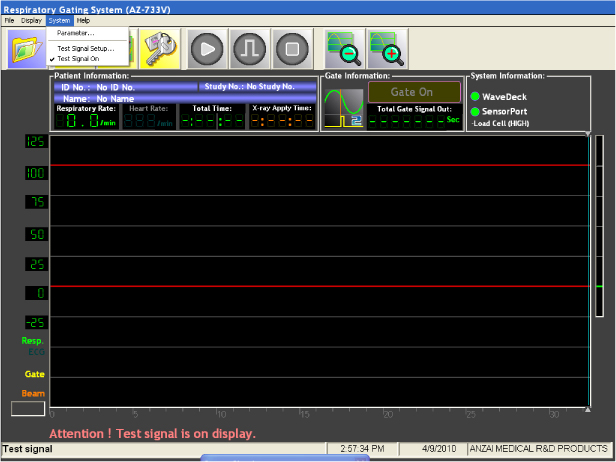
- At this point a test message “Attention! Test signal is On display.” should be flashing at the bottom of the display. (Indicating the unit is using the internal test signal.)
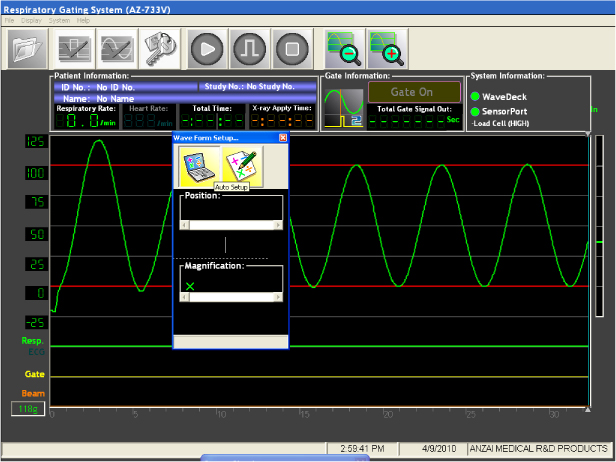
- Select the Waveform Setup button (3rd icon
from left).

- Select Auto Setup button to automatically
select the position and magnification parameters. The green waveform
will eventually settle itself between the red lines.
- Close Waveform Setup Dialog window.
- This concludes the functional test of the simulated waveform.
7 Anzai Load Sensor Functional Test
Procedure
- Uncheck: System and Test Signal on....
- At this point the test message “Attention! Test signal is On display.” will disappear from the bottom of the display.
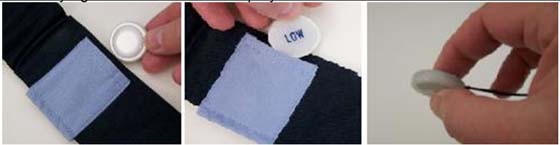
- Insert the Load Sensor into the belt pocket. (Either direction
is OK for this test.) See Figure 4.note: Either direction is OK for this test. For customer use, the Load Sensor should be placed into the pocket with the curved side facing towards the chest.
Figure 4. Load Sensor Operation
- Select Setting Lock icon (4th icon from
left).

- Select OK.
- Select Start icon (5th icon from left)
to start respiratory acquisition.

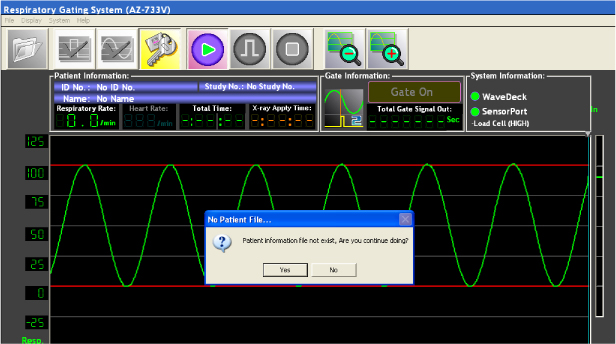
- If New Patient File does not exist, select Yes to continue.
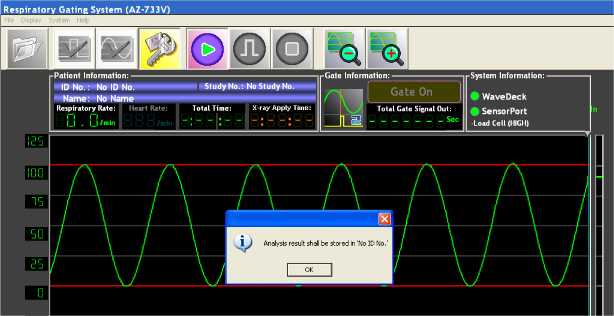
- Select OK when the next dialog window
appears.
- A green waveform will begin tracking across the display.
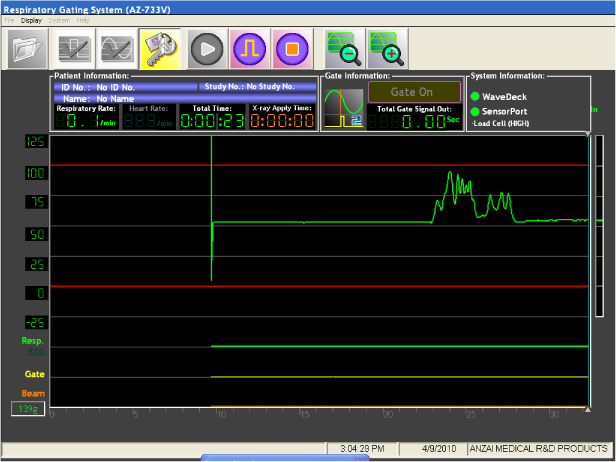
- Gently press the load cell in the belt between your fingers
and observe that the waveform changes with the amount of pressure
applied.
- DO NOT stop the acquisition. Resume with next section, X-Ray On Signal Test.
8 X-Ray On Signal Test
Procedure
- Observe that the Total Time (in Green) is counting.
- Observe that the X-Ray Apply Time (in Orange) is not counting and that the Orange line (Beam) at the bottom of the display is a straight line (low) at the bottom of the display.
- At the back of the Wave Deck, disconnect cable 5338119 from the “EXT I/O” connector.
- Verify that the X-Ray Apply Time (in Orange)
is now counting and that the Orange line (Beam) at the bottom of the
display has jumped to a High state.
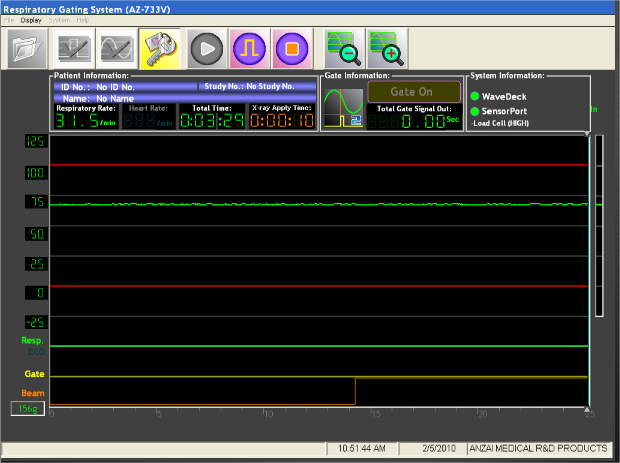
- Reconnect the cable to the “EXT I/O” connector and verify the that the X-Ray Apply Time (in Orange) counter has stopped, and the Orange line (Beam) at the bottom of the display has returned to a Low state.
- Select the Stop icon (7th icon from the
left).

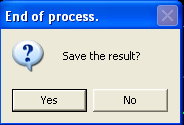
- Select No when the next dialog box (Save
Results) appears.
- This completes the test:
- If there was not a good indication of proper function check all cables and repeat the tests.
- If the Customer is not going to use the system, exit the AZ733V Respiratory gating application.