- Topic ID: id_23553919
- Version: 2.0
- Date: Sep 26, 2020 10:11:54 PM
20cm QA Phantom Image Series Verification (without QA2 Protocol)
Prerequisites
1 Acquiring the 20cm QA Phantom Image Series
Procedure
- Mount the Phantom Holder on the head-end of the table.
- Mount the 20cm QA Phantom on the Phantom Holder.
- Align, level, and center the 20cm QA Phantom.
-
Align black line on phantom using the internal laser lights.
-
Level phantom using bubble level and the Z Axis knob on the Phantom Holder.
-
Center phantom using the CENTER PHANTOM procedure in the left head SCANNER UTILITIES selection and the X and Y Axis knobs on the Phantom Holder.
-
- Set up the system to scan three 20cm QA Phantom image series with a Recon of the 1st series.
MANUAL SCAN PROTOCOL SETUP
Refer to Table 2 and setup an Axial scan with the parameters shown in the table.
AUTO SCAN PROTOCOL SETUP
- Acquire the 1st 20cm QA Phantom image series and 2nd Recon series (MTF and Contrast, Visible Lines) by performing the 1st series protocol scan, the series name as “QA1 MTF 2x10/120kV/260mA/1s”. The 2nd Recon series is generated from QA1 MTF 2X10/120kV/260mA/1s .
- Acquire the 3rd 20cm QA Phantom image series by performing the 5th series protocol scan, the series name as “QA3 LCD 4x5/120kV/310mA/1s”.
Acquire the 4th 20cm QA Phantom image series by performing the 6th series protocol scan, the series name as “QA3 LCD 4x5/120kV/455mA/1s”.
- Acquire the 5th 20cm QA Phantom image series by performing the 7th series protocol scan, the series name as “QA3 Sm 2x10/120kV/310mA/1s”.
2 20cm QA Phantom Image Series Image Performance Verification
2.1 1st QA Phantom Image Series (4 Image MTF Average and Contrast Scale) Image Performance Verification
Procedure
- Launch the Image Analysis Tool.
- From the Global Control Palette, click on the Service Desktop.
- From the Service Desktop upper navigational bar, click on Image Quality.
- In the left navigational area directory, click on Image Analysis.note:
During the Image Analysis process, you will need to switch between the Service Browser screen (to select the image series to analyze) and the Image Analysis screen (to run a particular Auto 1x analysis test). Use ALT/F1 to bring a window to the front. Use ALT/F3 to send a window to the back.
- Using the Auto 1x Tool on the Image Analysis screen, generate a QA#1 MTF and QA#1 Contrast Scale report for the 1st series of the 20cm QA Phantom acquisition.
- From the Service Browser window, select the 1st series of the 20cm QA Phantom series acquired in Acquiring the 20cm QA Phantom Image Series.
- On the Image Analysis Tool window, click on the AUTO 1X diamond shaped button.
- Click on the AUTO 1X rectangular button, select the IMGSER 20CMQA test from the pull-down menu, slide cursor to the right to select QA1 MTF 2X10/120KV/260MA/1S from the test pull-down menu.
- Click on the ACCEPT button.
- Review the Image Analysis Report data and record the 4 Image MTF Average and Per Image Contrast Scale data for each row in Table 3.
2.2 2nd Recon Series (4 Bone Retro Image Visible Lines) Image Perf. Verification
Procedure
- Using the Auto 1x Tool on the Image Analysis screen, generate a Per Image QA#1 Lines report for the 2nd Recon series acquisition.
- From the Service Browser window, select the 1st image of 2nd Recon series acquired in Acquiring the 20cm QA Phantom Image Series.
- Click on the AUTO 1X rectangular button, select the IMGSER 20CMQA test from the pull-down menu, and slide cursor to the right to select RECON 2: QA1 MTF 2X10/120KV/260MA/1S.
- Click on the ACCEPT button. The tool displays a Visible Lines pop-up window.
- On the Visible Lines pop-up window, click on the VISIBLE LINE button.note:
The Image Analysis Tool automatically sets the Window/Level for optimal viewing. If required, adjust Window/Level using the center mouse button.
- From the Visible Line pull-down menu, select the letter (A through F) that matches the smallest line pair pattern that you can discern in the Image View Port.
- On the Visible Lines pop-up window, click on the OK button.
- Review the Image Analysis Report data and record the Per Image QA#1 Visible Lines data for the 1st image in Table 4.
- Repeat Step 1 and Step 2, for each of the remaining three images in 2nd Recon series.
2.3 3rd and 4th QA Phantom Image Series Image Performance Verification
Procedure
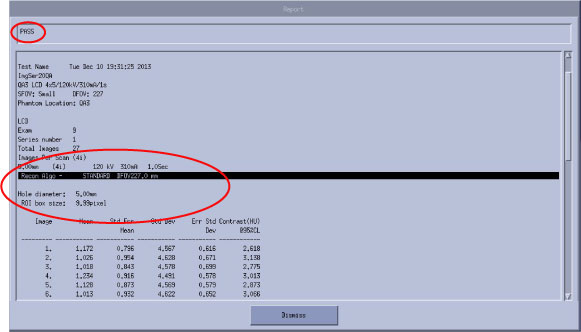
- Using the Auto 1x Tool on the Image Analysis screen, generate a Per Image QA#3 LCD report for the 3rd series of the 20cm QA Phantom acquisition.
- From the Service Browser window, select the 1st image of the 3rd series of the 20cm QA Phantom series acquired in Acquiring the 20cm QA Phantom Image Series.
- Click on the AUTO 1X rectangular button, select IMGSER 20CMQA from the pull-down menu, and slide cursor to the right to select QA3 LCD 4X5/120KV/310MA/1S.
- Click on the ACCEPT button. The report pops up window.
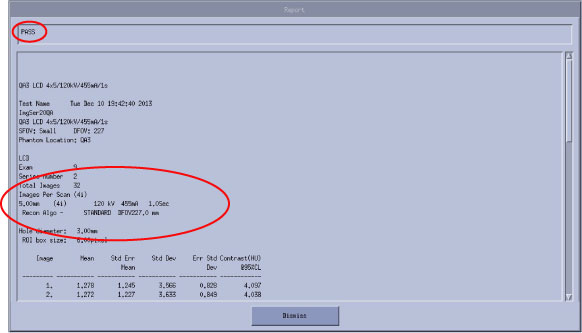
- Using the Auto 1x Tool on the Image Analysis screen, generate a Per Image QA#3 LCD report for the 4th series of the 20cm QA Phantom acquisition.
- From the Service Browser window, select the 1st image of the 4th series of the 20cm QA Phantom series acquired in Acquiring the 20cm QA Phantom Image Series
- Click on the AUTO 1X rectangular button, select IMGSER 20CMQA from the pull-down menu, and slide cursor to the right to select QA3 LCD 4X5/120KV/455MA/1S.
- Click on the ACCEPT button. The report pops up window
2.4 5th QA Phantom Image Series (QA#3 Small) Image Performance Verification
Procedure
- Using the Auto 1x Tool on the Image Analysis screen, generate a QA#3 Small report for the 4th series of the 20cm QA Phantom acquisition.
- From the Service Browser window, select the 5th series of the 20cm QA Phantom series acquired in Acquiring the 20cm QA Phantom Image Series.
- Click on the AUTO 1X rectangular button, select IMGSER 20CMQA from the pull-down menu, slide cursor to the right to select QA3 SM 2X10/120KV/310MA/1S from the test pull-down menu, and continue to slide cursor to the right to select AUTO.
- Click on the ACCEPT button.
- Review the Image Analysis Report data and record the QA3 Small data for the 5th 20cm QA Image Series in Table 5.
- Verify the Overall Test Pass/Fail Indicator Window of the Report display indicates PASS.
- Verify that the scan parameter values displayed in the report match those inTable 2 for the 5th 20cm QA Image Series.
- Record the QA3 Small data (Row 2A1A and Row 2B1B Series Means AvXc and AvXo - AvXc), QA3 (AvSDc), and the Center Smudge Row data in Table 5.
Box Size:
-
196 mm2 to 256 mm2
-
15 mm (+/- 1 mm) x 15 mm (+/- 1 mm)
-
31 (+/- 2 pixels) x 31 (+/- 2 pixels)
Box Positions:
-
Box 1 = 0 mm x 0 mm
-
Box 2 = 0 mm x -80 mm
-
Box 3 = 80 mm x 0 mm
-
Box 4 = 0 mm x 80 mm
-
Box 5 = -80 mm x 0 mm
-
- Verify the Overall Test Pass/Fail Indicator Window of the Report display indicates PASS.
- Review the 5th 20cm QA Phantom images acquired in Acquiring the 20cm QA Phantom Image Series for Rings, Bands, and Streaks using the Image Works Desktop.
- From the Global Control Palette, click on the IMAGE WORKS DESKTOP.
- From the Image Works Browser window, select the 5th 20cm QA Phantom series acquired in Acquiring the 20cm QA Phantom Image Series.
- From the Image Works Browser window, click on the VIEWER button.
- While paging through the eight images in the series, analyze images for any Ring, Band, or Streak artifacts. Adjust Window/Level using the center mouse button, as required.
- Note any image that appears to have a Ring, Band, or Streak artifact.
- Verify any images noted above (Step 3.e) meet 20cm QA Phantom Ring, Band, or Streak Image Performance requirements.
- From the Global Control Palette, click on the Service Desktop.
- From the Service Browser window, select an image of the 4th 20cm QA Phantom series acquired in Acquiring the 20cm QA Phantom Image Series that appeared to have a Ring, Band, or Streak while reviewing the series in Image Works.
- On the Image Analysis Tool window, click on the AUTO 1X rectangular button, select the IMGSER 20CMQA test from the pull-down menu, slide cursor to the right to select QA3 SM 2X10/120KV/310MA/1S from the test pull-down menu, and continue to slide cursor to the right to select RING, BAND, or STREAK.
- Click on the ACCEPT button.note:
If required, adjust Window/Level using the center mouse button.
- Position and size the Ring, Band, or Streak ROI, using the left cursor button.note:
To ensure specifications are properly applied, do not adjust the Reference ROIs for the Ring, Band, and Streak artifact tests. The Reference ROIs are adjustable after the 1st Accept Modification click.
- Click on ACCEPT MODIFICATION twice to generate a report.
- Verify the Overall Test Pass/Fail Indicator Window of the Report display indicates PASS.
- Repeat Step 4.b through Step 4.g for each image noted in Step 3.e.
3 Failure Recommended Actions
3.1 1st Image Series (4 Image MTF Average) Failure Recovery
Procedure
- Specifications:
The 4 Image MTF Average must pass specifications:
4 Image MTF Average: 0.65 to 1.00
- Recommended Recovery:
- Repeat Detailed Cal for the 20cm QA Phantom.
- Repeat Auto CT# Adjust for the 20cm QA Phantom.
- Repeat Acquiring the 20cm QA Phantom Image Series and 20cm QA Phantom Image Series Image Performance Verification, to verify Image Performance.
3.2 2nd Recon Series (Visible Lines) Failure Recovery
Procedure
- Specifications:
The Largest 5 line pair patterns (coded F, E, D, C, and B) must be visible for each of the four images in this series.
- Recommended Recovery:note:
The most common failure for this test is that the phantom has air bubbles that are obscuring the line pair patterns.
-
Carefully inspect the 20cm QA Phantom for air bubbles. If required, refill the phantom with water, to eliminate all air bubbles.
-
Repeat Acquiring the 20cm QA Phantom Image Series and 20cm QA Phantom Image Series Image Performance Verification, to verify Image Performance.
-
3.3 3rd and 4th Image Series Failure Recovery
Procedure
- Specifications:
- Recommended Recovery:
- Repeat Detailed Cal for the 20cm QA Phantom.
- Repeat Auto CT# Adjust for the 20cm QA Phantom.
- Repeat Acquiring the 20cm QA Phantom Image Series and 20cm QA Phantom Image Series Image Performance Verification, to verify Image Performance.
3.4 5th Image Series Failure Recovery
Procedure
- Series Means:
Specifications:
Both Rows (2A1A, 1B2B) of the series must pass QA#3 Series Means specifications:
-
AvXc: < +/- 3.0.
-
AvXo - AvXc: < +/- 3.0.
-
- Recommended Recovery:
- Repeat Detailed Cal for the 20cm QA Phantom.
- Repeat Auto CT# Adjust for the 20cm QA Phantom.
- Repeat Acquiring the 20cm QA Phantom Image Series and 20cm QA Phantom Image Series Image Performance Verification, to verify Image Performance.
3.5 QA#3 (AvSDc)
Procedure
- Specifications:
Both Rows (2A1A, 1B2B) of the series must pass QA#3 AvSDc specifications:
-
AvSDc (< 5K Scans): 2.90 to 3.50.
-
AvSDc (> 5K Scans): 2.80 to 3.60.
-
- Recommended Recovery:
- Repeat Detailed Cal for the 20cm QA Phantom.
- Repeat Auto CT# Adjust for the 20cm QA Phantom.
- Repeat Acquiring the 20cm QA Phantom Image Series and 20cm QA Phantom Image Series Image Performance Verification, to verify Image Performance.
3.6 Center Artifact or Center Smudge
Procedure
- Specifications:
All eight images of the series must pass 20cm QA#3 Center Artifact and Center Smudge specifications:
-
Center Artifact factor: +/- 3.5.
-
Center Smudge factor: +/- 2.2.
-
- Recommended Recovery:
- Repeat Detailed Cal for the 20cm QA Phantom.
- Repeat Auto CT# Adjust for the 20cm QA Phantom.
- Repeat Acquiring the 20cm QA Phantom Image Series and 20cm QA Phantom Image Series Image Performance Verification, to verify Image Performance.
3.7 Ring, Band, or Streak Artifact Failure Recovery
Procedure
- Specifications:
-
Ring Artifact: Ring Factor < +/- 4.8.
-
Band Artifact: Band Factor +/- 2.8 from 0cm to 8.5cm < +/- 2.8 > 8.5cm.
-
Streak Artifact: Streak Factor < +/- 4.0.
-
- Recommended Recovery:
- Troubleshoot Ring, Band or Streak artifact failures as described in the Service Manual.
- Repeat Detailed Cal for the 20cm QA Phantom.
- Repeat Acquiring the 20cm QA Phantom Image Series and 20cm QA Phantom Image Series Image Performance Verification, to verify Image Performance.