- Topic ID: id_16157940
- Version: 2.0
- Date: Nov 7, 2019 8:55:39 PM
Troubleshooting Rings in an Axial Image_PDAS
Related Topic: Refer also to “Image Quality Test Procedures” (located in folder).
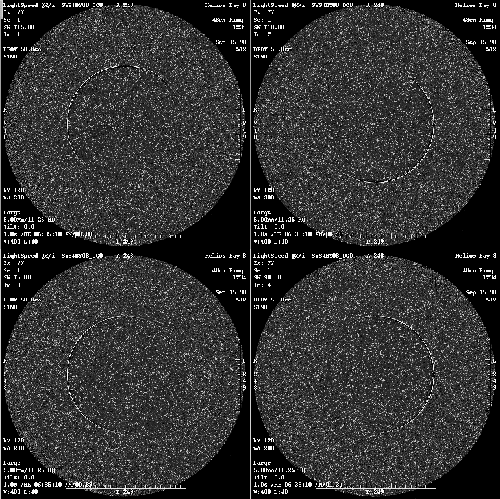
Figure 1. Example of Bad Channel in Axial Image Series
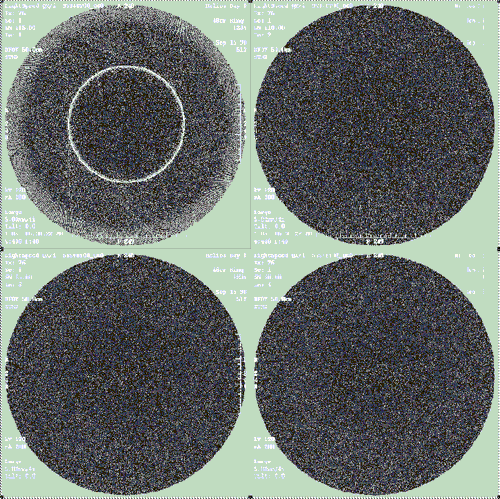
Looking at the Example in Figure 1, just by knowing the scan series was using Axial 4 x 5.00 Mode and was done Head first (Annotation of image vs. Table position), it can be determined that the Ring is probably in Row 2A of the Scanfile.
To confirm this, use Scan Analysis and plot the Means & Standard Deviations (MSD) of the selected Exam, Series, and Scan Number. From the Service Desktop:
-
Select UTILITIES.
-
Select TOOLS.
-
Select SCAN ANALYSIS.
Figure 2. Scan Analysis GUI
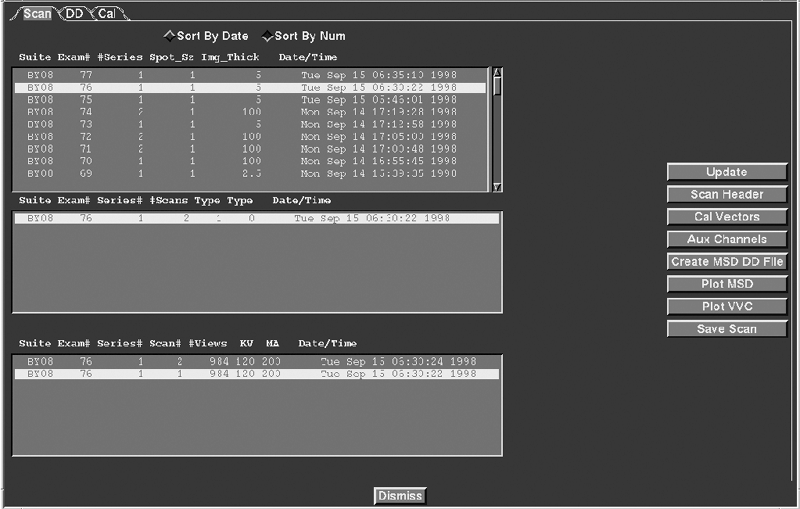
Select an EXAM NUMBER, SERIES, and SCAN NUMBER. Remember that 1 scan, in a 4 x i mode, is made up of 4 Data sets (or rows), which produces 4 images. In the example, images 1 through 4 are created from scan 1. Once the scan is highlighted, select PLOT MSD.
Figure 3. Plot MSD GUI
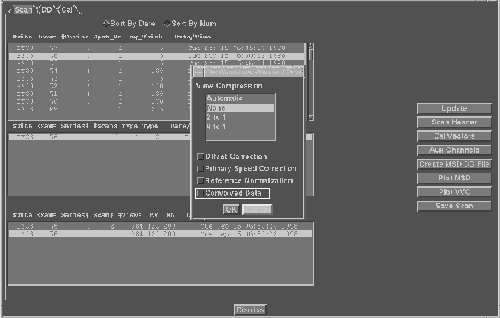
Leave the view compression defaulted to NONE, but choose CONVOLVED DATA, which will identify a ring type artifact better in the resultant plot. Select OK.
Figure 4. Scan Analysis (2A) Means & Standard Deviation GUI
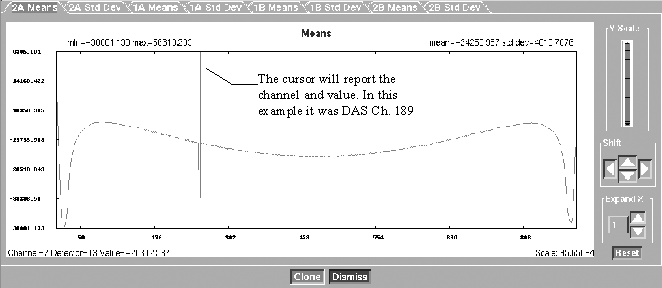
The Scan Analysis Tool will first plot Row 2A. Any of the 4 rows of Means and Standard Deviations can be viewed by selecting the appropriate tabs (see Figure 4). Select the tab that indicates the row where the ring is expected based on your initial observations. It maybe necessary to adjust the level to find a spike in the data or view other rows. Look for any abnormal spikes.
Figure 5. Scan Analysis (1A) Means & St. Dev. GUI
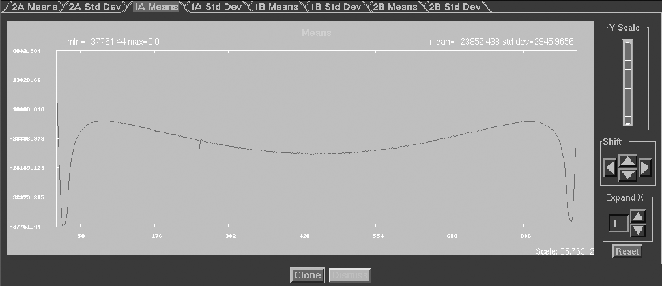
In Row 2A (see Figure 4), the ring is apparent. Notice the large spike in the data on channel 189. Row 1A (see Figure 5) has a small spike on channel 189 that is a result of capacitive discharge from row 2b channel 189. The small spike can be ignored. It is a product of the major spike on row 2B. Rows 1B and 2B look good. See Figures Figure 6 and Figure 7.
Figure 6. Scan Analysis (1B) Means & St. Dev. GUI
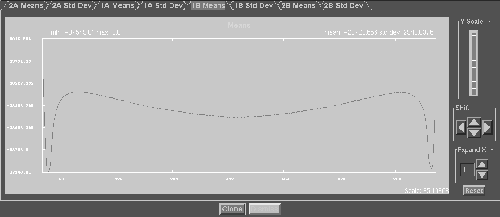
Figure 7. Scan Analysis (2A) Means & St. Dev. GUI
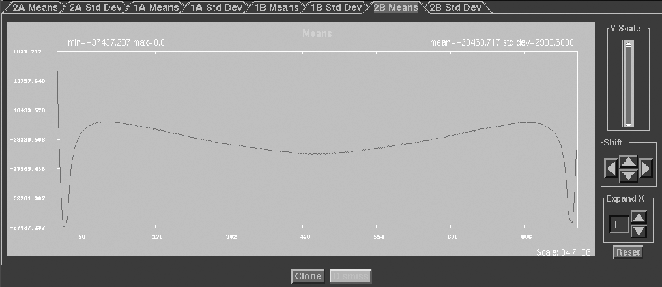
Now the Ring has been verified. It is in Row 2B and is on DAS Channel 189.
From within Scan Analysis, Cal vectors can be plotted to see if the bad DAS channel is present.
Determine if the ring is caused by a particular acquisition mode by scanning a phantom using different modes or slice thickness’. The example was scanned in a 4 x 5.00 mode and the ring appeared on Row 2A, therefore, the Detector rows or diodes used were D8+D7+D6+D5. They produce row 2A. If another scan was taken at 4 x 1.25 mode, then the first image, or row 2A data would be acquired from Detector row D2. If the ring is a hard failure (consistent every time) and if after changing slice thickness the ring does away, the ring may have been caused by a suspect detector. Perform further detector verification before replacing a detector. If the ring is still present, the problem could still be the detector, but may be a DAS board or elastomer interface connection.
By using the DAS / DETECTOR Architecture Tool, found in the pull-down menu under FILE, select the tool. A TTY window appears and prompts for a Detector Row and DAS Channel. The program will display the associated DAS ADB board, Detector channel, module number, elastomer number, and other important information.Find the associated DAS ADB board number. If you have multiple rings, look for patterns (ADB Bd, Row, etc.).
If DAS is Suspect, swap ADB Board and repeat Scan & Analyze.
-
If bad channel follows ADB bd. replace the board.
-
If bad channel stays at same location, problem area could be:
-
ADB Board to Interposer connection point
-
Interposer to Detector Flex connection point
-
Bad Detector (Replace)
-
Bad Flex (part of detector, replace Detector)
-
Bad Flex to Detector connection point (part of detector, replace Detector)
-
Bad Detector Channel (part of detector, replace Detector
-
Bad Detector Cell (part of detector, replace Detector)
-
-
Troubleshoot Ring Artifacts in a Helical series by duplicating the problem in a Axial Mode. If the Helical data is used to troubleshoot, the bad data can be in any row since all 8 rows of data can be used to produce a Helical image and the number of views to produce a helical image are weighted differently based on table speed and pitch.
Note that the Helical images are a result of the same bad DAS Channel as the Above Axial example. The hard ring in the Axial example appears as partial arcs in the Helical images.
Figure 8. Example of Bad Channel in Helical Image Series