- Topic ID: id_23554532
- Version: 1.0
- Date: Oct 9, 2018 1:36:12 PM
Log Viewer
1 Introduction
Log Viewer provides a common method to review various system files that may be useful in evaluating system performance and/or troubleshooting system problems. It replaces the System Browser at the CT application level of operation. The Log Viewer provides “one-stop” shopping by eliminating the need to remember complex directory structures and paths. The contents of important system files can be display using the browser’s functions and menus.
The Log Viewer is web based. It utilizes the Java language for much of its functionality and user interface. This allows for future expansion.
2 Log Viewer Startup (Applications Level)
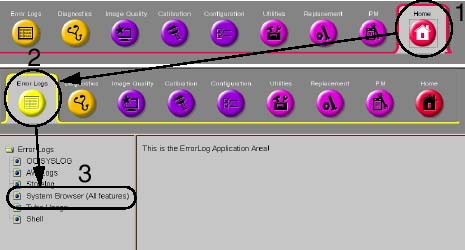
Starting from the Service desktop Home Page Tab, select the Error Logs tab, and then select System Browser from the list of file options. See Figure 1. If the CT applications are not up, bring them up by typing st in the console window, and then select service desktop.
Figure 1. Browser Home and Error Log Tabs
Once the Log Viewer starts, a new window (HTML Page) is opened. By default, gesyslog should be selected and the logs for today should be displayed in tabular form in the display area. By default, the last messages in the gesyslog should be displayed.
The viewer window is divided into two frames. Starting from top to bottom, they are the “selection area” and the “informational viewing area”. The selection area is used to select the log to be viewed. The informational viewing area is where the log is actually displayed.
3 Log Viewer Selections
In the browser’s log selection area, the option to choose several different system logs for viewing is available.
To view a log, use the mouse, click the Log Select drop-down list box, and click on the log name you wish to view. Next click on SHOW LOG!. The log displays in the viewing area.
The drop-down list gives you the following selections:
-
GE System Log - gesyslog
-
SYSLOG OC - The OC computer IRIX Operating System Log
-
IOS LOGS - Application software logs for: Image Browser, Image Database Read Server, Image Database Write Server, Image Server, DICOM Server, Image Acquisition Server, Networking Server, Film Composer Log, Printer Server, Archive, Display, Filming.
-
Tube Usage - Tube slice count and use information for the current and previous x-ray tubes.
-
OC Info
-
Config Files - OC Host Configuration File, OC Scan Hardware Configuration File
-
Scan Usage
-
Motorola scan Corrections Computer, VxWorks Logs
In addition to showing a log, HistogramVIEW and SEARCH are also available.
4 GE Message Log (gesyslog) Viewing
The entire gesyslog displays, starting with the last page message first. There should be a hyperlink to the TOP of the page, when you scroll to the bottom. The PREV, FIRST and LAST links are enabled (if the gesyslog is huge). Clicking on the TOP link displays the first few messages in log. If the PREV, FIRST, LAST links are displayed, click on them to view the next set of messages. Selecting PREV displays the previous records for the gesyslog file, if it exists. LAST takes you to the end of the log, where you should find the text “A New gesylog file is being created.” You will find gesyslog located in the following file path:
/usr/g/service/log/gesys_<suite name>_oc.log
5 SYSLOG OC
When you select SYSLOG OC and click SHOW LOG!, you can choose which specific SYSLOGS to view. Use the drop-down list box to make your selection and choose VIEW.
Figure 2. SYSLOG Drop-Down List
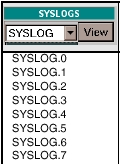
The SYSLOGS are found within the path /var/adm. If a log is present and is of size > 0 bytes, its contents display. Otherwise you will get an error message saying that the specified log-file has zero contents.
6 IOS Logs
When you select IOS LOGS and then SHOW LOG!, a new frame is opened. A pull-down in the frame lets you select which specific log file to display.
Figure 3. IOS Logs Drop-Down List
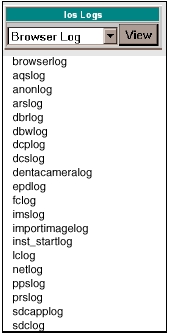
The IOS log files are created and updated by various scanner application software processes. The IOS Logs are normally found within the path /export/home/sdc/logfiles. If a log is present and is of size > 0 bytes, its contents display. Otherwise you see an error message stating that the specified log-file has zero contents.
7 Tube Usage
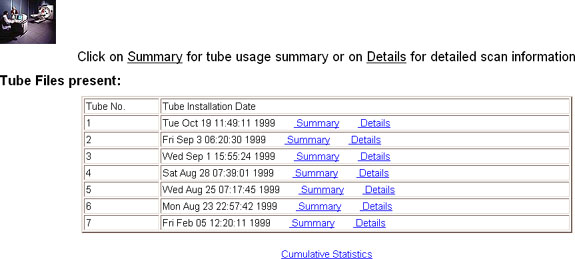
When you select TUBE USAGE and then SHOW LOG!, a new frame is opened. Within the new frame is a list of tube usage files presently available for viewing. The tubes files are displayed from newest to oldest, top to bottom respectively. Three different views of information can be generated by following the hyperlink: Summary, Details, and Cumulative Statistics. See Figure 4.
Figure 4. Tube Usage Screen - Example
For Tube Warranty purposes, “Warranty Effective Slices” is the correct number to report upon tube unit failure.
7.1 Tube Usage Details
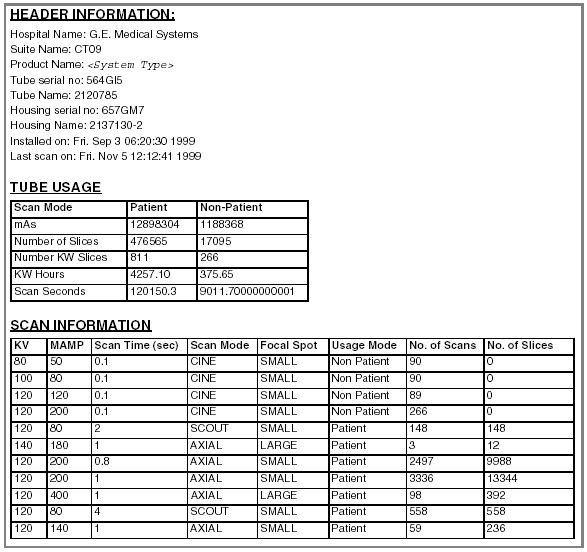
The Tube Usage Details information provides identification, usage and scan information. Scan information lists the types and number of scans taken on unit being displayed. An example is provided in Figure 5.
Figure 5. Tube Usage Detail - Example
7.2 Tube Usage Cumulative Information
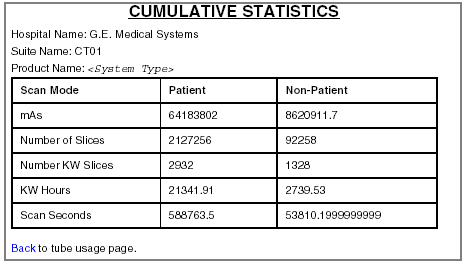
The Tube Usage Cumulative Information displays the totaled tube usage information for all tubes that have been installed on the system. Refer to Figure 6 for an example of the display.
Figure 6. Tube Usage Cumulative Statistics - Example
8 OC Info
When you select OC INFO and then SHOW LOG!, a new frame for OC Info is opened within the current window. “OC Info” executes basis Linux (or IRIX) commands to gather information used for display. To use, make a selection and select VIEW. The associated Linux (or IRIX) command is executed and the output is directed into the frame immediately below, as HTML (See Table 1).
Figure 7. OC Info Selection (Showprods Shown)
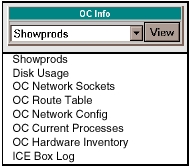
The command results available in this area are:
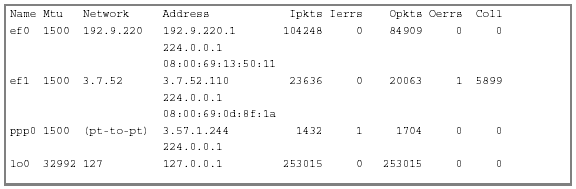
Refer to Figure 8 for an example of OC Network Sockets output.
Figure 8. OC Network Sockets - Example
9 Config Files
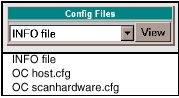
When you select CONFIG FILES and then SHOW LOG!, a new frame for Config Files is opened within the current window. “Config Files” executes basis IRIX commands to gather information used for display. To use, simply make a selection and select VIEW. The associated IRIX command (see Table 2) is execute and the output is directed into the frame immediately below as HTML.
The System Browser has the capability of viewing some of the routinely referenced scanner configuration files used in gathering data about the system.
Figure 9. Config Files Selection (Info File Shown)
Refer to Figure 10 for an example of the INFO file result.
Figure 10. INFO File - Example