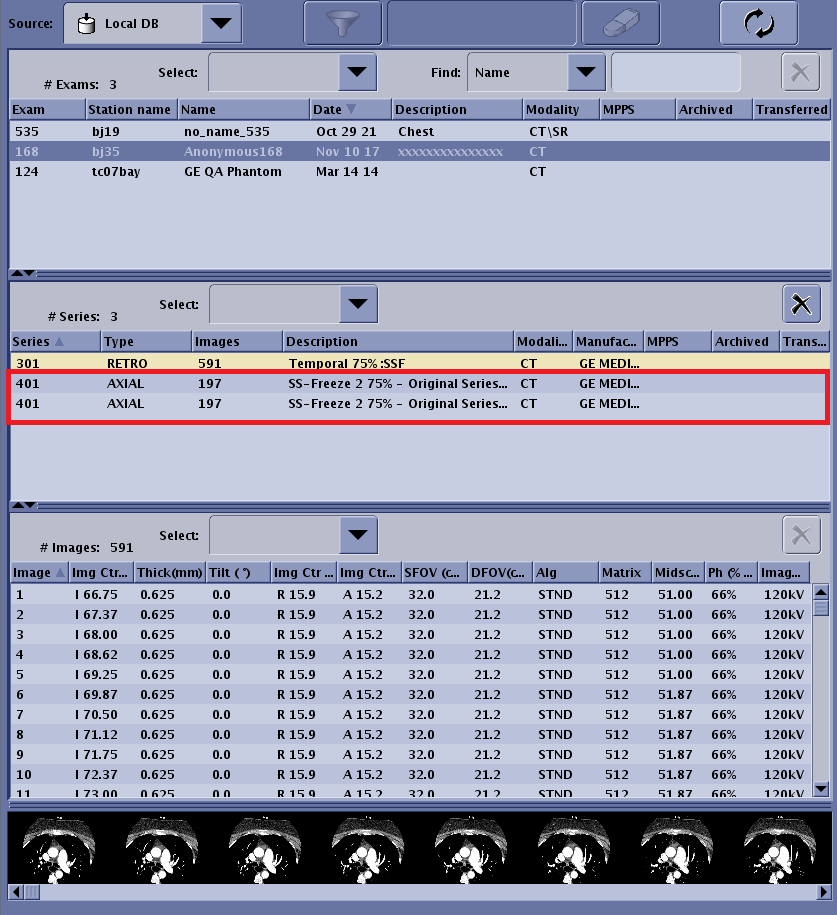
- Topic ID: task_gly_qsh_jrb
- Version: 3.0
- Date: Mar 2, 2022 10:16:04 PM
SnapShot Freeze 2.0 Feature Connection
Prerequisites
1 How to Check CT eth0 IP address
The CT Private IP address is necessary by CT option key install.
Procedure
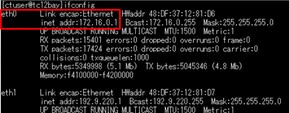
- Open shell and type following command.
ifconfig and press [Enter]
- Record the [inet adder:] of eth0.
eth0 inet addr : ___________________
- Type exit and press [Enter] for close shell.
Figure 1. Example inet addr is 172.16.0.1
2 How to Check CT Hostname
The CT Scanner Hostname is necessary by Device Registry on EHL Admin Console.
Procedure
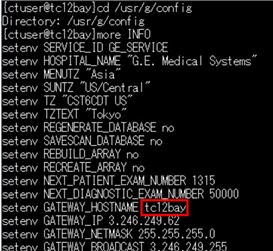
- Open shell and type more /usr/g/config/INFO and press [Enter].
- Record the hostname (GATEWAY_HOSTNAME)
GATEWAY_HOSTNAME : ________________________
Figure 2. CT Hostname
- Type exit and press [Enter] for close the shell.
3 Add Remote Host to Network Manager for EHL
Procedure
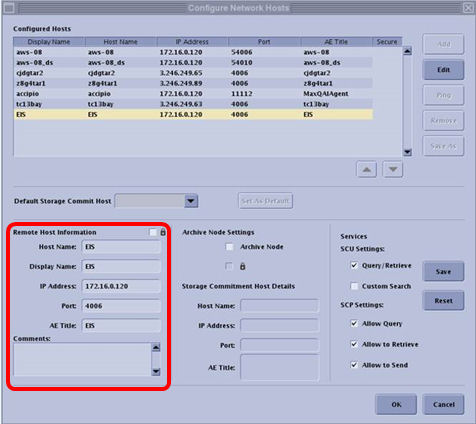
- On the Image Works Browser, click "Network Configuration" under the "Tools" sub-menu.
- Add the following remote hosts [EIS].
Refer to [Check Private Proxy IP address of EHL] of [EHL 1.5 SnapShot Freeze 2.0 Installation Manual - 5843539-1EN] about Recorded Edison private proxy IP address.
Figure 3. Remote Host Information
4 Setting the Remote Recon Time/Zone
Procedure
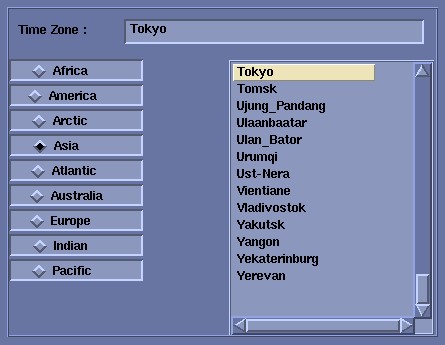
- Open shell and type /usr/local/bin/update_dig_timezone.py "Time/Zone". Then, press [Enter].note:
The “Time/Zone” should be match with the CT Console configuration
Example: /usr/local/bin/update_dig_timezone.py "Asia/Tokyo"
Figure 4. Time Zone
- Type cd /usr/local/bin and press [Enter].
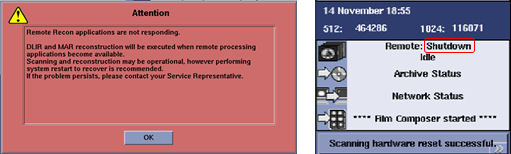
Type restart_recon_pods.py and press [Enter].
The following status is showing during this process is running.
Figure 5. Example: Status during process execution
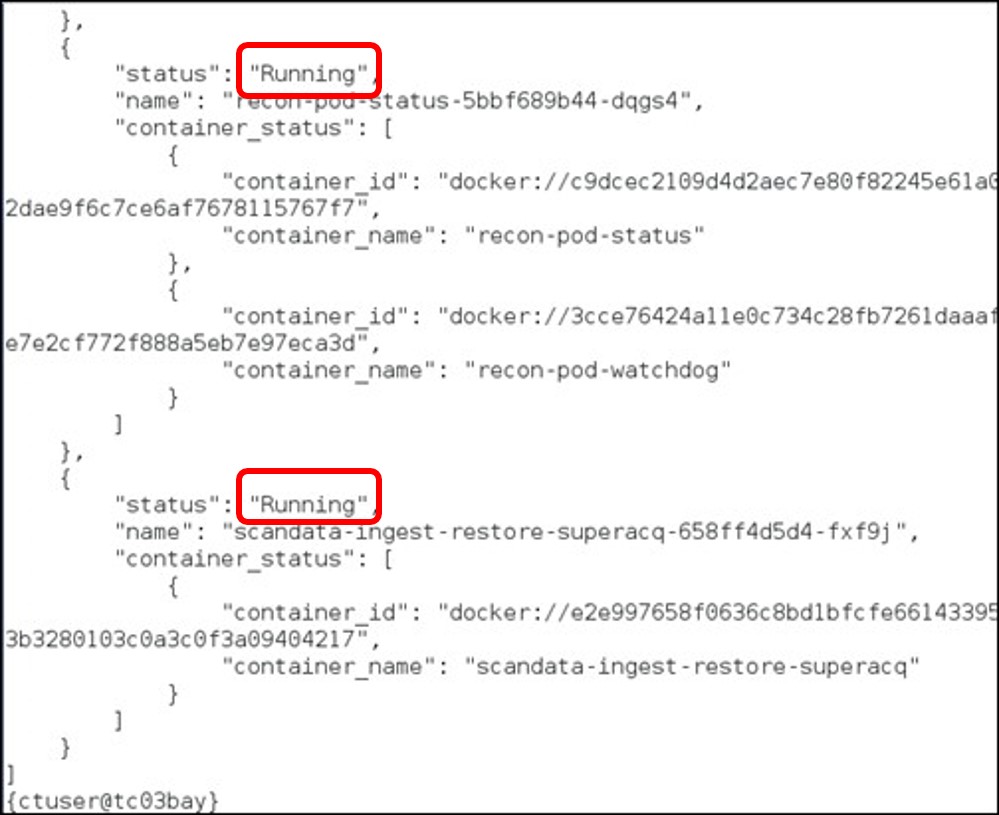
- Type get_pods.py and press [Enter].
- Confirm that the all status are “Running” as shown below.
Figure 6. Containers Status
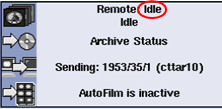
- Remote Recon status will return to “Idle” when after the process is complete.
Figure 7. Remote Recon Status
- Confirm that the all status are “Running” as shown below.
5 Finalization: System Function Check
Procedure
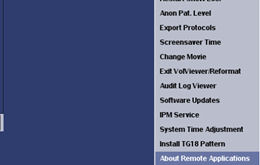
- On the Image Works Browser, click “About Remote Applications” under the “Tool Chest” sub-menu.
Figure 8. Tool Chest - Sub-menu
- Confirm the Application Label of “SnapShot Freeze 2” window is display.
Figure 9. Example: Application Label
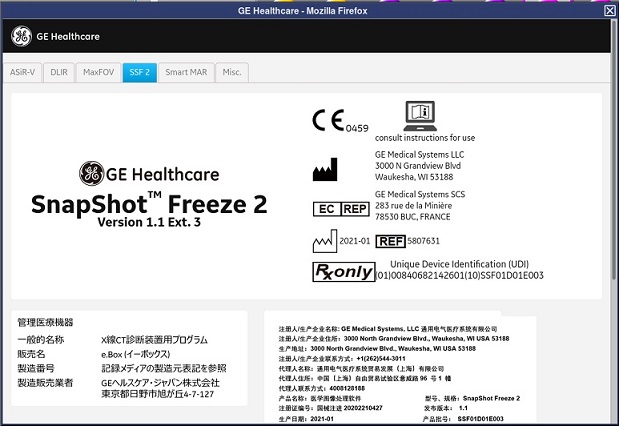
- Record the Unique Device Identification (UDI).
- UDI (01) : ___________________
- UDI (10) : ___________________
- Check Snapshot Freeze connection function.
- Select one exam with Cardiac TemporalEnhance series from Image Work.
- Select one series by click right mouse, Click Send Series To→ EIS.
Figure 10. SSF connection
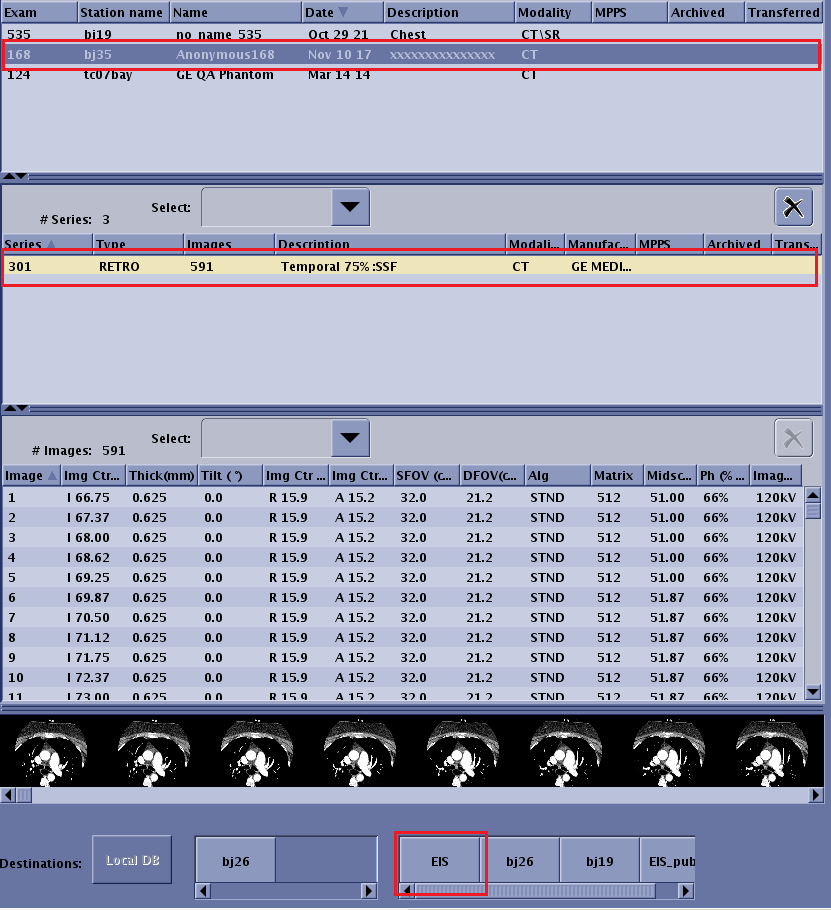
- Retro recon image send to EIS, Image processing by SS-Freeze, shown as below, SnapShot Freeze connection Successfully.
Figure 11. SSF Connection Successfully