- Topic ID: task_n3f_5jn_13b
- Version: 4.0
- Date: May 22, 2020 4:17:32 AM
Open Console (Z8G4) System/Image HDD Replacement
Prerequisites
Overview
This procedure shall be followed when replacing the System or Image hard drive in a Z8G4 computer.
1 System or Image Disk Replacement Preparation and Location
Procedure
- Shutdown system. Select one of the following methods to Power OFF the Console:
- If Applications are up, click on the [Shut Down] button on desktop display and select [Shutdown].
The Operator Console monitor will display a 'Power Down' message when it is acceptable to power OFF the Operator Console.
- If Applications are down, open a Terminal Window. Type: halt , then press ENTER
- When halt command has finished, power Off the console at the front panel switch.
- If Applications are up, click on the [Shut Down] button on desktop display and select [Shutdown].
- Apply LOTO. See Equipment Service - Lockout-Tagout-PPE procedure.
- Locate System or Image Hard Drive Disk by referencing the Illustrations below.
Figure 1. System or Image Disk Location
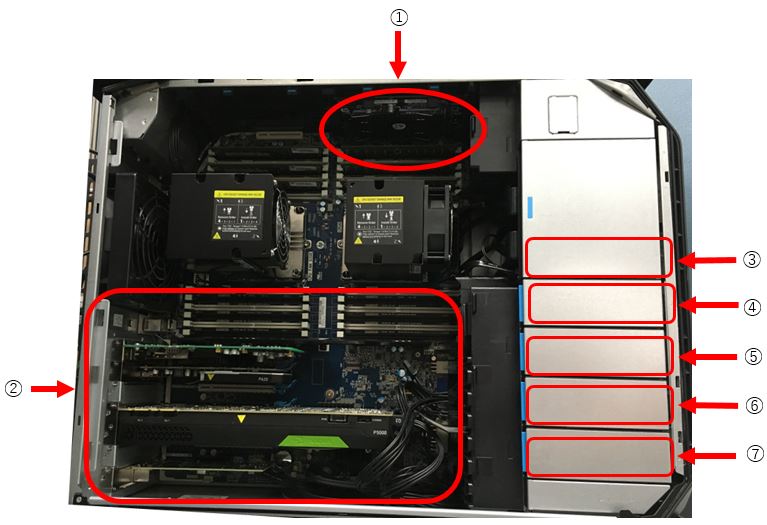
① Scan Data SSD ② PCI Card - 1. FDIP
- 2. Graphics Card
- 3. Open
- 4. GPU
- 5. Open
- 6. Open
- 7. NIC Card
③ DVD Drive ④ Empty ⑤ Empty ⑥ Image Desk ⑦ OS and App Disk
2 System or Image Hard Drive Disk Removal
Procedure
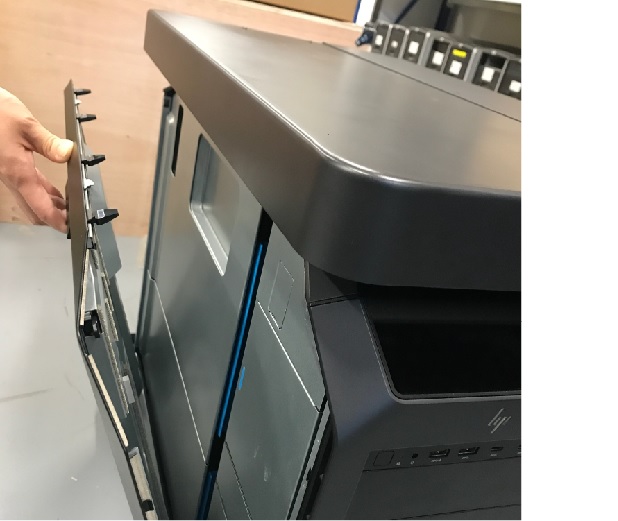
- Pull out the latch to release the host computer left side cover.
Figure 2. Side Access Panel Removal
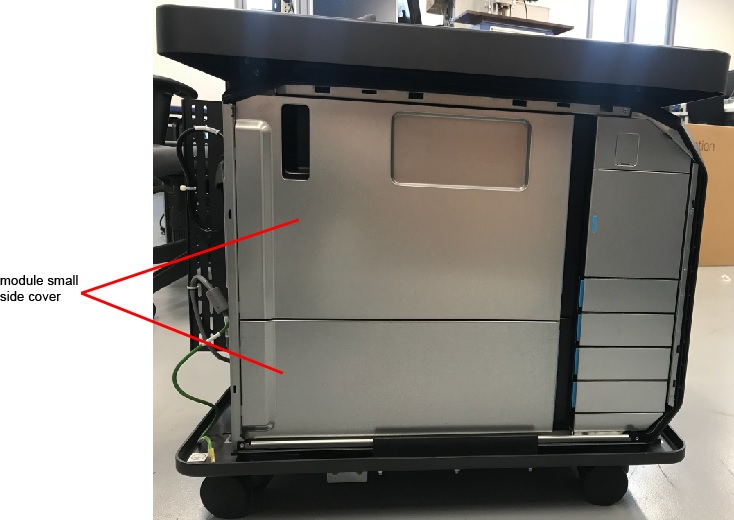
- Open and remove the module small side cover
Figure 3. Remove module small side cover
- Disconnect the power and signal cables from two system hard disk drives.
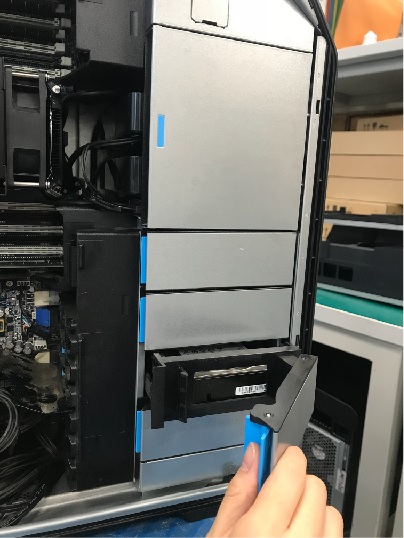
- Pull System/Image HDD from the computer’s drive bay
Figure 4. Remove Hard Drive Disk
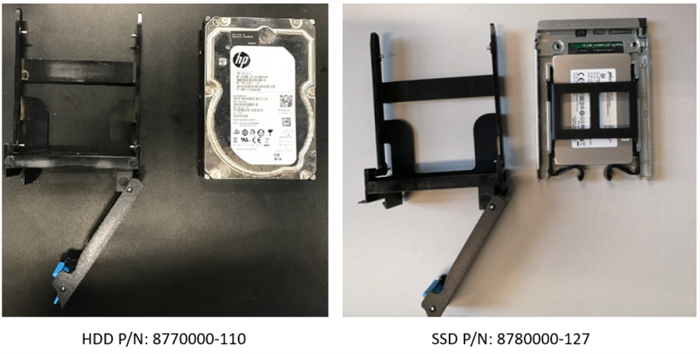
- Remove the original Hard Drive Disk from the Hard Drive carrier rails.
Figure 5. Remove HDD
3 System or Image Hard Drive Install
Procedure
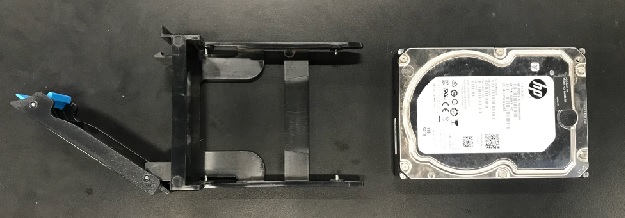
- Install replacement Hard Drive Disk into original Hard Drive carrier rails.
Figure 6. Install HDD
- Install the replacement Hard Drive assembly into the computer’s drive bay.
- Reinstall the module small side cover.
- Reinstall the host computer left side panel.
4 Finalization
Procedure
- Refer to LFC procedure to load all the software and options.
- Perform the Functional Checks → System Scanning Test instructions from the procedure list.
- Reinstall the console covers and all removed components, and reconnect any cables that have been disconnected.
- Remove LOTO on console.
- SSA Gen2 license needs to be recreated.
Check the new 16 digital code at CSD Home page, create new SSA Gen2 license and install the license. Refer to SSA License File Installation.