- Topic ID: task_qdq_n3n_13b
- Version: 4.0
- Date: May 22, 2020 4:17:27 AM
Open Console (Z8G4) DVD Drive Replacement
Prerequisites
Overview
This procedure shall be followed when replacing the DVD Drive in the Z8G4 computer.
1 Preparation
Procedure
- Shutdown system. Select one of the following methods to Power OFF the Console:
-
If Applications are up, click on the [Shut Down] button on desktop display and select [Shutdown].
-
If Applications are down, open a Terminal Window. Type: halt , then press ENTER.
-
When halt command has finished, power Off the console at the front panel switch.
-
- Apply LOTO. See Equipment Service - Lockout-Tagout-PPE procedure.
2 DVD Drive Replacement
Procedure
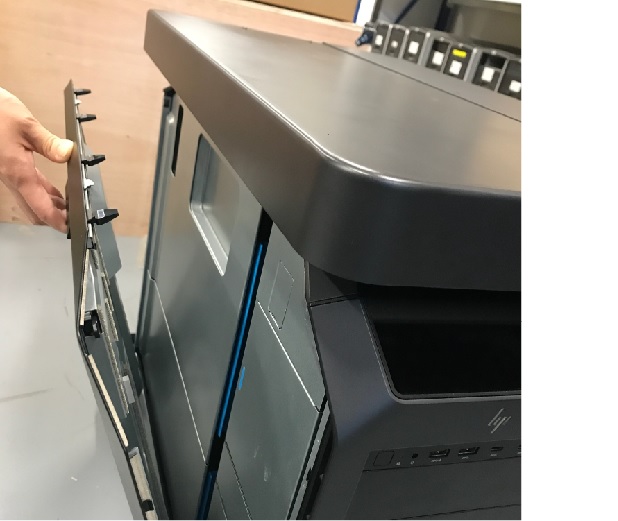
- Pull out the latch to release the host computer left side cover.
Figure 1. Side Access Panel Removal
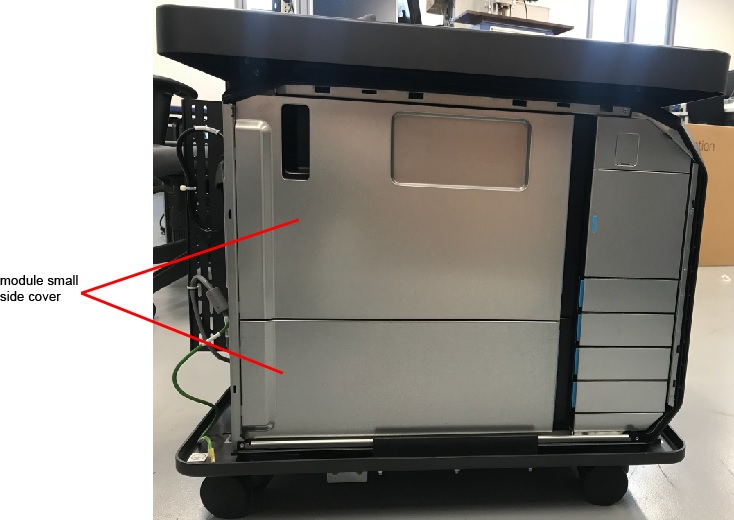
- Open and remove the module small side cover
Figure 2. Remove module small side cover
- Locate DVD by referencing the Illustration below.
Figure 3. Z8G4 Component Location
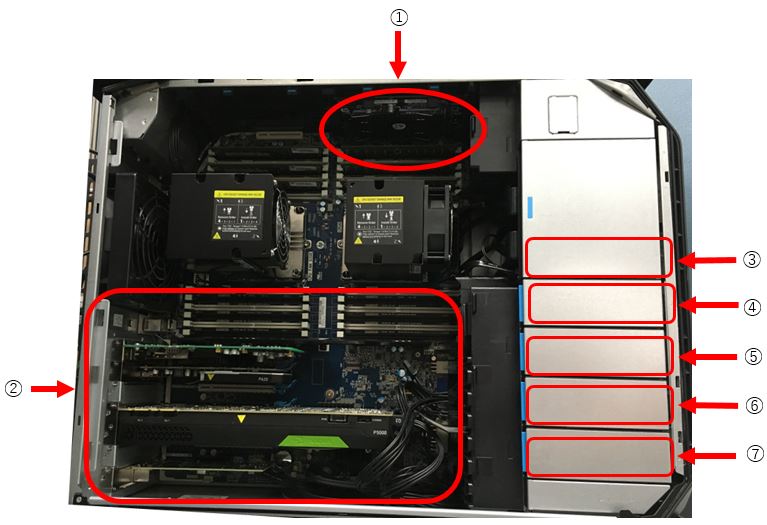
① Scan Data SSD ② PCI Card - 1. FDIP
- 2. Graphics Card
- 3. Open
- 4. GPU
- 5. Open
- 6. Open
- 7. NIC Card
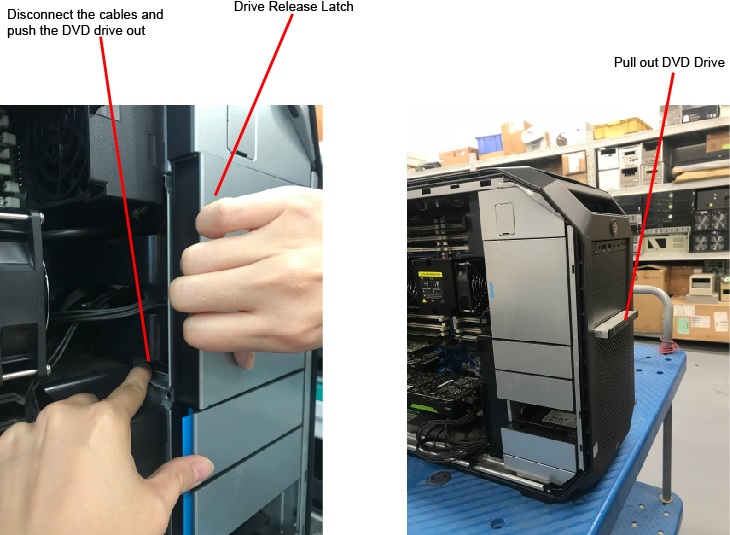
③ DVD Drive ④ Empty ⑤ Empty ⑥ Image Desk ⑦ OS and App Disk - Disconnect the cables for DVD drive.
- Pull the drive release latch, and push out DVD drive.
Figure 4. Drive Release Latch
- Replace the existing DVD drive with new one.
- Pull the drive release latch, and push DVD drive into host computer.
- Reinstall all removed components, and reconnect any cables that have been disconnected.
3 Restore the Console
Procedure
- Remove LOTO on console.
- Reinstall the module small side cover.
- Reinstall the host computer left side panel.
4 Finalization
Finalization
No finalization steps.