- Topic ID: id_18480420
- Version: 4.0
- Date: Jan 20, 2020 8:36:54 PM
NIO64 Host Computer (Z820) NIC Card Replacement
Prerequisites
Overview
This procedure shall be followed when replacing the NIC Card in the NIO64 host computer (Z820).
1 Z820 Computer Removal
Procedure
- Shutdown system. Select one of the following methods to Power
OFF the Console:
-
If Applications are up, click on the [Shut Down] button on desktop display and select Shutdown.
-
If Applications are down, open a Terminal Window. Type: halt , then press ENTER.
-
When halt command has finished, power Off the console at the front panel switch.
-
- Apply LOTO. See Equipment Service - Lockout-Tagout-PPE procedure.
- Remove Front and Top covers from NIO64 console.
Refer to Replacement → Console (RIO) → Console Cover Removal and Installation.
- Remove the Z820 computer from the NIO64 console chassis.
Refer to Replacement → Console (NIO64) → HP Host Computer Z820 Replacement
2 NIC Card Replacement
Procedure
- Open the Z820 computer side access panel.
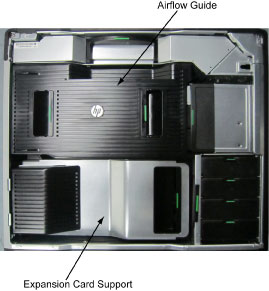
- Remove the Expansion Card Support.
Figure 1. Z820 Airflow Guide and Expansion Card Support
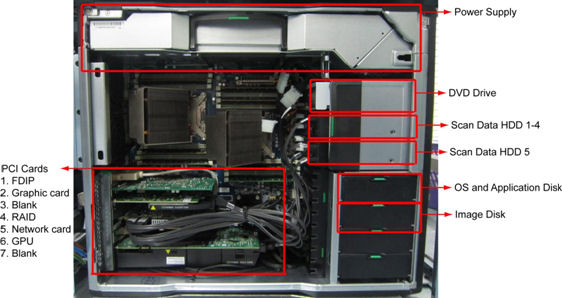
- Remove the following components from the Z820 computer:
- FDIP Card (Slot 1)
- Quadro 2000 Graphic Card (Slot 2)
- RAID Controller (Slot 4)
Figure 2. Z820 Component Location
- Replace the existing Ethernet NIC card with new one.
- Reinstall the removed PCI cards to the Z820 computer in the
following order:
- RAID Controller (Slot 4)
- Quadro 2000 Graphic Card (Slot 2)
- FDIP Card (Slot 1)
- Install the Expansion Card Support and close the Side Access Panel.
3 Restore the Console
Procedure
- Fully slide the Z820 computer back into the console chassis, until mounting brackets are flush against the console chassis.
- Install and torque the four (4) 3mm socket cap screws that mount
the Z820 computer in the NIO64 console.note:
Torque each the for (4) 3mm socket cap mounting screws to:
- Reconnect all cables removed earlier to the Z820 computer.
- Remove LOTO on console.
4 Finalization
Procedure
- Install console covers. Refer to Replacement → Console (RIO) → Console Cover Removal and Installation Procedure.
- Perform the Functional Checks → System Scanning Test instructions from the procedure list.
- Regenerate software option key by eLicense and install to the system.
- Confirm Z820 computer does not display POST errors. Confirm computer functionality during Finalization section of this procedure.
- Confirm the system 16 digit code with the one registered on the SSA website by entering the system ID in the "Renew Softkey" option. If the 16 digit code has not changed the Restore system state should restore the current license files.
- If the system 16 digit code has changed, you will need to obtain a replacement soft license(s) for this system.
- Install the applicable Class A and/or Class C softkeys as required for this system using the SSA License File Installation.