- Topic ID: id_11038988
- Version: 5.0
- Date: Apr 22, 2019 12:55:26 AM
Evaluation of Dose SR Compatibility
Prerequisites
Overview
The 2008 DICOM standard includes a new CT Radiation Dose SR UID template that defines how CT scanner vendors should capture CT dose information to save with the study. All systems receiving this DOSE information must support the DICOM X-Ray Radiation SR SOP class.
This procedure demonstrates the Hospital PACS capability to properly receive and store this new DOSE information.
The default setting for the scanner software is to disable these DICOM features. The feature must not be enabled until all of the following conditions have been satisfied:
-
The Customer asks for the feature to be enabled.
-
This procedure has been executed and the results demonstrate the feature is supported by the desired Hospital PACS.
1 Setup
The following checks are to be performed to ensure the Dose SR test environment is installed and available to be used by this procedure.
Procedure
- Verify exam 99999 is listed in the Image Works browser. See Figure 1, “Select
Image Series to Transfer.”
- Patient Name = ACR DICOM IMAGE ORIENTATIONS
- Patient ID = FIELD TEST IMAGES DATA SET
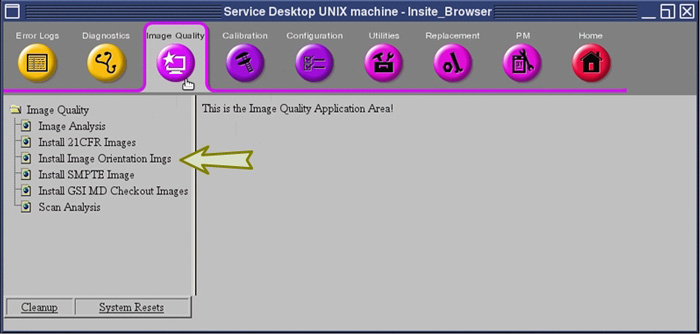
- If the exam does not exist, refer to Figure 3, “Reloading the Test Images.” Exam 99999, Series 997 contains two images that will be used in the test.
- Identify the Hospital PACS equipment that is to be evaluated. Your Customer will provide this information.
- Using the Image Works browser, add these PACS destinations to the network remote host list. Add all destinations that will be evaluated.
- Using the Image Works browser, verify the connection to these PACS destinations by using the ”Ping DICOM host” menu selection. Ping all destinations of all PACS that will be evaluated.
2 Test
The following steps will demonstrate the capability of the PACS equipment to support a specific DICOM SOP class. Depending upon the capabilities of the PACS, the CT scanner will be set to use either a “DICOM X-ray Radiation Dose SR SOP” class or “DICOM Enhanced SR SOP” class.
Procedure
- notice
- Using the Image Works browser, send Exam 99999, Series 997, to the remote destination. See Figure 1, “Select Image Series to Transfer.”
- Examine the scanner's GEsyslog
- If both “.88.67” and “.88.22” exist
in the GEsyslog, the PACS does not support the required DICOM SOP
classes. See Figure 2, “Example GEsyslog.”
- Dose Record must be set to OFF in the reconfig tool.
- Stop. This evaluation is complete. Do not continue with the remaining portions of this direction.
- If the entry containing “.88.67” is not in the GEsyslog
(i.e., Image 1 transferred successfully), the PACS supports the DICOM
X-ray Radiation Dose SR SOP standard. See Figure 2, “Example
GEsyslog.”
- In reconfig tool: Dose Record can be set to FULL.
- The scanner will now create CT Radiation Dose records for each study, using the “DICOM X-ray Radiation Dose SR SOP” class.
- Proceed to Finalization.
- If the entry containing ".88.22" is not in the GEsyslog, (i.e.
image 2 transferred successfully), the PACS supports the DICOM Enhanced
SR SOP class. See Figure 2, “Example GEsyslog.”
- In reconfig tool: Dose Record can be set to ON.
- The scanner will now create CT Radiation Dose records for each study, using the “DICOM Enhanced SR SOP” class.
- Proceed to Finalization.
 |
3 Reloading Test Images
4 Screens
Figure 1. Select Image Series to Transfer
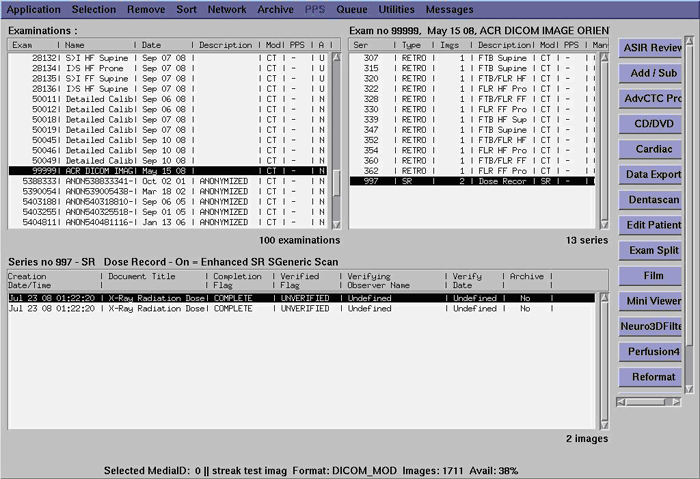
Figure 2. Example GEsyslog
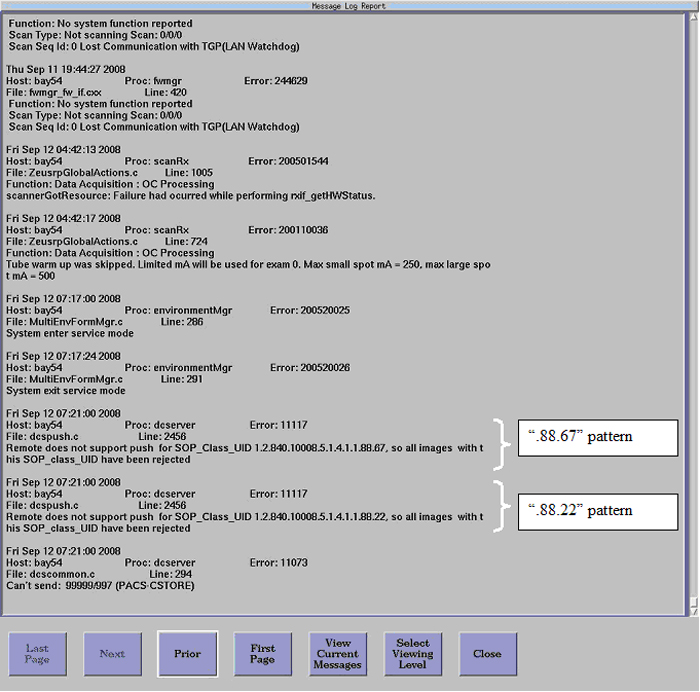
Figure 3. Reloading the Test Images
5 Finalization
Procedure
- Perform a DICOM query of the destination the exam was sent to.
- Verify Exam 99999, Series 997 exists and contains images. The
destination may contain either one or two images depending upon the
level of DICOM objects supported by the destination.note:
The dose information may not be viewable by the PACS system. The PACS is unlikely to view the dose information if pattern “.88.67” was detected. It is more likely that the PACS can view the dose information if pattern “.88.22” was detected. The intent of the DICOM enhancement is to begin populating dose information to allow for newer PACS software versions to view historical information.