- Topic ID: id_15460217
- Version: 4.0
- Date: Dec 29, 2020 1:08:01 AM
Connecting Laptop to Console (16HW14.x or Later)
Prerequisites
Overview
This document describes the processes associated with connecting a laptop to the console in order to access the Common Services Desktop (CSD).
This procedure applies to Revolution EVO with 16HW14.x or later system.
1 Console FE Service Port Setup
Procedure
- Open a Terminal window and log on as root:
Type: {ctuser@hostname} su - Enter.
Type the root password and press Enter.
- At the prompt type: enableFEport. Ouput
similar to the following example is returned:
[root@hostname] enableFEport
Console eth4 address is 10.44.22.20
Do not use 10.22.44.21 for laptop - EKG Monitor is using this address.
Do not use 10.44.22.22 for laptop - AW is using this address for DirectConnect.
2 Laptop Setup to Static IP 10.44.22.50
When finished using the FE service port, reconfigure the laptop to DHCP (to obtain an IP address automatically) and enable any network connection disabled earlier.
Procedure
- To configure a laptop for a static IP address, on the Desktop right click on My Network Places.
- Select Properties.
- Select Local Area Connection.
- Select Properties.
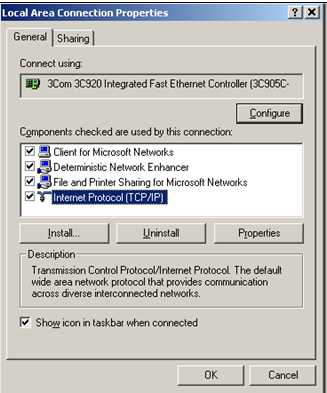
- Select Internet Protocol (TCP/IP). See Figure 1.
Figure 1. Local Area Connection Properties
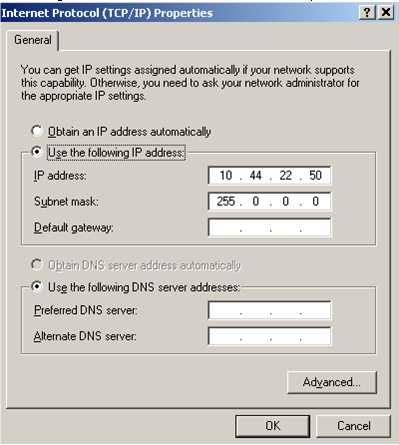
- Select Properties. The Internet Protocol (TCP/IP or TCP/IPv4) Properties window opens.
- Select Use the following IP address and
enter 10.44.22.50,Subnet Mask 255.0.0.0. See Figure 2.
Figure 2. TCP/IP Properties
- Click OK to close the Internet Protocol (TCP/IP) Properties window.
- Click Close to exit the Local Area Connection Properties window.
- Disable wireless and all other networks on laptop.
3 Testing the Laptop to Network Connection
Use of STP (Shielded Twisted Pair) cable is not allowed.
Procedure
- Connect the unshielded Ethernet cable from the laptop to the FE service port at the front of the console.
- On the laptop, open a Command Prompt window.
- At the “>” prompt enter ping 10.44.22.20.
- Confirm the reply from the 10.44.22.20.
4 Testing the Laptop to Network Connection
The following procedure uses Xming as an example.
Procedure
- Launch Xming via Start > All Programs > Xming > Xming Client.
5 Launching Troubleshooting Tool on Laptop
Procedure
- On the console service desktop, open a Terminal window:
Type: {ctuser@hostname} startSRVTool pc 10.44.22.50Enter.
- The Troubleshooting Tool GUI will appear on the laptop.
6 Finalization
No finalization steps.