- Topic ID: id_17423369
- Version: 4.0
- Date: Jan 20, 2020 8:34:44 PM
AW Direct Connect - Optima CT660
Prerequisites
Overview
Direct Connect lets you use the AW to process images on the console, without having to first pull them to the AW. Source images remain on the console, while new post-processed images are saved to the AW.
1 Over Hospital Backbone Connection Setup
A gigabit network is required to use Direct Connect over the hospital backbone. If you believe the hospital backbone is a gigabit network but the software will not enable you to configure Direct Connect over the network, check to see if a < 1 GB switch is pulling down the network speed to the system.
1.1 Configuring an AW IP Address for Direct Connect
Procedure
- With Applications software up, select the Service icon to access the Common Service Desktop.
- Select the Configuration tab.
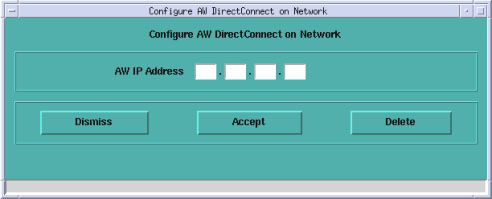
- Select Configure AW Direct Connect.
- Enter AW IP address.
Figure 1. Configure AW DirectConnect On Network Screen
- Select Accept.
- You will receive a message indicating that the AW IP address
has been configured for Direct Connect. You will now be able to use
Direct Connect with this AW.note:
Without a 1 GB switch (or greater), the configuration message will not be received.
- Select Dismiss to exit out of GUI.
1.2 Deleting an AW IP Address for Direct Connect
Procedure
- Switch to the Service icon.
- Select the Configuration tab.
- Select Configure AW Direct Connect.
- Enter AW IP address.
- Select Delete.
- You may receive a message indicating that the AW IP address has been un-configured for Direct Connect.
- Select Dismiss to exit out of GUI.note:
For information on how to set-up the console as a Direct Connect remote host on the AW4.3, please refer to the AW4.3 Service Manual (5136311-100), Installation Job Cards List—Job Card IST 002). When configuring the remote host, the field “IP used for Direct Connect” should be completed with the console’s network IP address. AW 4.3 Service Manual (5136311-100) may be accessed on the AW 4.3 by selecting AdminàService Docs and selecting the AW 4.3 Service Manual link.
2 Direct Line Connection Setup
Use this section for “Direct Line” connection setup.
2.1 Configuring the First AW for Direct Connect over a Direct Line
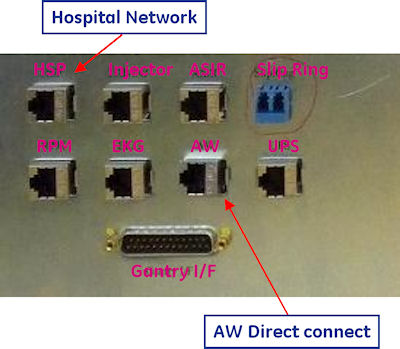
Figure 2. Rear Bulkhead Panel Connects
Procedure
- Switch to the Service icon.
- Select the Utilities tab.
- Select Application Shutdown.
- Open a Unix Shell.
- Login as root and enter the proper password:note:
If the Password has not been modified by the site and is not known, contact Local GE Service.
- su -
- Password:
- Type: reconfig
- Select Config.
- Select the Network tab.
- Select Enable AW Direct Connect? button to configure the console for Direct Connect.
- Copy down the following information, as it will be required
for the configuration of the AW:
Console IP Address: _____________________
AW IP Address: _____________________
note:The AW IP Address above refers to the AW Direct Connect IP Address.
- Select Accept.
- Upon restart, the console will be correctly configured for AW
Direct Connect.note:
The CT console assigns the AW a Direct Connect “AW IP Address” (which you copied down in Step 10). This IP address must be used to configure the AW for Direct Connect. If the AW4.3 has already been configured, you will need to re-configure it with the assigned IP address. Configuration of the AW for Direct Connect can be found in the AW4.3 Service Manual (5136311-100), Installation Job Cards List—Job Card IST 001. AW 4.3 Service Manual (5136311-100) may be accessed on the AW 4.3 by selecting AdminàService Docs and selecting the AW 4.3 Service Manual link.
2.2 Configuring Multiple AW’s for Direct Connect over a Direct Line
The CT software only allows one AW to be configured via the GUI for Direct Connect over a direct line. If a site has multiple AW’s on a Direct Connect network (isolated from the hospital backbone), you may manually configure the additional AW's. You still need to configure the first AW via the GUI steps outlined inConfiguring the First AW for Direct Connect over a Direct Line to enable the Direct Connect feature.
Procedure
- Open a command window.
- Login as root and enter the proper password:note:
If the Password has not been modified by the site and is not known, contact Local GE Service.
- su -
- Password:
- Type: cp /etc/exports{,.lfc}
- Type: echo "/usr/g/sdc_image_pool X.XX.XX.XX(async,ro)" >> /etc/exports
- Type: /etc/init.d/nfs restartnote:
For information on how to set-up the console as a Direct Connect remote host on the AW4.3, please refer to the AW4.3 Service Manual (5136311-100), Installation Job Cards List—Job Card IST 002. When configuring the remote host on the AW, the field “IP used for Direct Connect” should be completed with the “Console IP Address”, which you copied down in Step 10.
3 Finalization
No finalization steps.