- Topic ID: id_27214004
- Version: 4.0
- Date: Aug 10, 2021 9:58:33 PM
System Shutdown and Restart
Prerequisites
Overview
The following describes the system shutdown and startup processes.
1 System shutdown procedure
This procedure provides the instructional steps necessary to perform a shutdown. Shutdown being the orderly termination of both the OS and Applications software running on the scanner desktop, system cabinet and gantry. Shutdown is not to be confused with power down, additional steps are required to remove power from system. Refer to the System Safety Overview for detailed procedures for Equipment Service and LOTO.
Procedure
- The system may have a Liquid Bearing tube. Refer to the Equipment Service - LB Tube Management procedure to check the tube type and to properly shutdown the rotor.
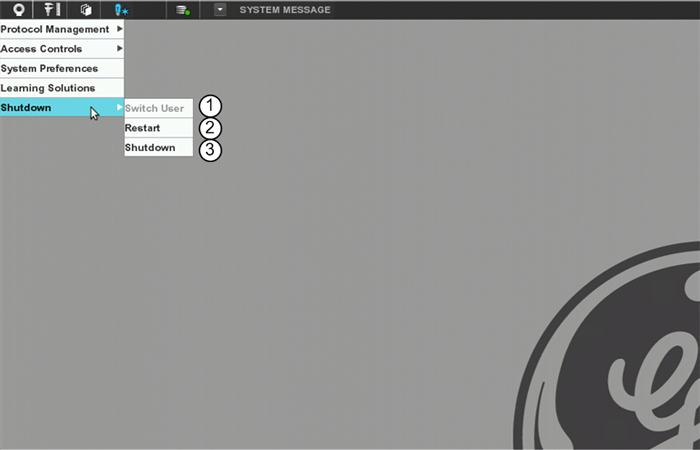
- From the Desktop Toolbar, select Shutdown > Shutdown to shutdown the system.
Figure 1. Shutdown – desktop toolbar
- System is shutdown.note: Power is still present at the scanner desktop, system cabinets and gantry! The computers have been placed into standby mode.
The system cabinet computers are slaved with the scanner desktop. As part of the shutdown scripting executed on the scanner desktop, the system cabinet computers are commanded to shutdown as well.
2 System startup procedure
The following procedure supplies the instructional steps necessary to perform a system startup. These instructions assume the system is in standby and that power has not been removed. The action of cycling power to the system will automatically startup the system.
Procedure
- Locate the Revolution Scan Control Box (RSCB) at the operator work space.
- On the RSCB, locate the System Shutdown/Startup switch.
Figure 2. RSCB – system shutdown/startup switch
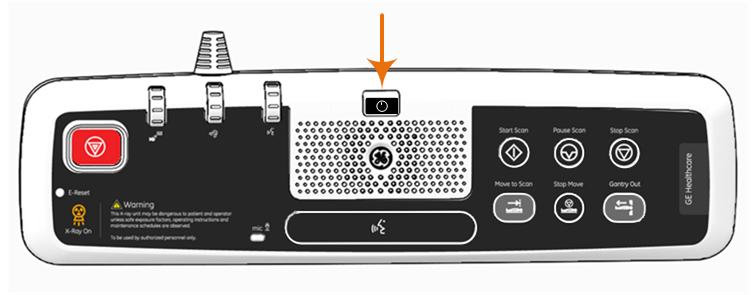
- Press the RSCB System Shutdown/Startup switch. The scanner desktop and system cabinet will be initialized. After a few seconds the user will see the scanner desktop display monitors turn on and display the initialization process.note: Likewise, the RSCB system shutdown/startup switch allows access to the shutdown process. Once the system is initialized, press and hold this switch causes the Desktop Toolbar to open and display the Shutdown selection.
3 System restart (reboot) procedure
The following procedure supplies the instructional steps necessary to perform a system restart (reboot).
Procedure
- From the Desktop Toolbar, select Shutdown > Restart to restart the system. See Figure 1.
- The system will shutdown and be followed by the start up process.note: Power is still present at the scanner desktop, system cabinets and gantry! The computers will be momentarily placed into standby mode.
The system cabinet computers are slaved with the scanner desktop. As part of the restart scripting executed on the scanner desktop, the system cabinet computers are commanded to restart as well.
The system will perform a orderly shutdown of the Application and OS software and automatically restart, effectivity rebooting the system.
4 Switch user procedure
The following procedure provides the instructional steps necessary to perform a switch user.
Procedure
- From the Desktop Toolbar, select Shutdown > Switch User to change the user who is logged into system. See Figure 1 to locate the Switch User option.
- The system will automatically log-off and present the User Login screen. A new user may now enter login credentials.note: The system will perform a user change process. OS and Application software is not restarted.
Access Control must be enabled for this feature to work.
5 CT Applications shutdown procedure
The following procedure provides the instructional steps necessary to perform Applications shutdown.
Procedure
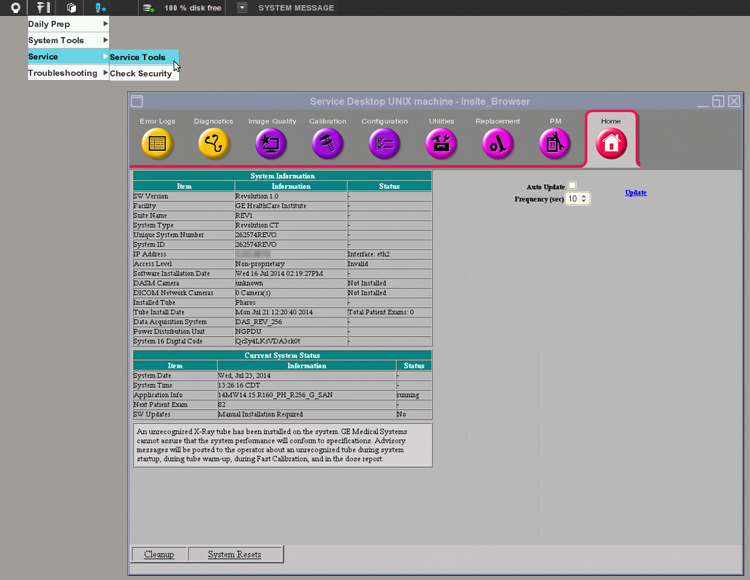
- Open the Service Desktop by selecting Service > Service Tools from the Desktop Toolbar.
Figure 3. Service Desktop – launched from desktop toolbar
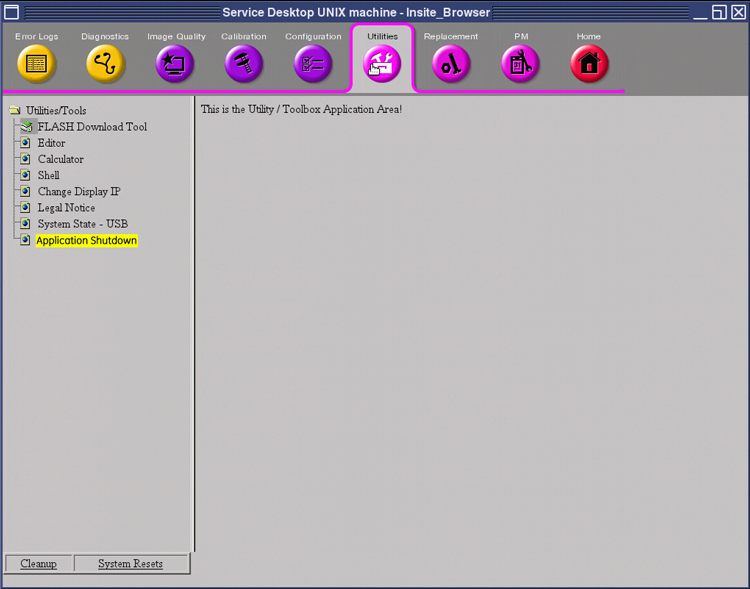
- From the Service Desktop, Utilities tab, select Application Shutdown.
Figure 4. Service Desktop > Utilities tab – Application Shutdown
- CT Application software will shutdown, leaving a blank desktop.note: After completion of Application shutdown, a blank desktop will be all that is displayed.
To access a shell window, press Alt – F3 on keyboard to display the Tool Chest and select UnixShell Left or Right.
To restart Application software, in shell window type: {ctuser@hostname} st and press Enter.
6 Finalization
Finalization
No finalization steps.