- Topic ID: id_15460632
- Version: 2.0
- Date: Nov 8, 2018 1:36:23 AM
System Functional Test
Prerequisites
1 Overview
Use the system tests in the following sections to exercise all aspects of the system and to ensure system integrity before releasing to the customer. Although the mean, standard deviation, and resolution specifications do not apply during system functional tests, treat any artifact or image anomaly as a failure.
1.1 Preparation
Procedure
- Verify that:
-
All table mechanical alignment procedures are completed.
-
The IQ test passed.
-
All options are installed and operational.
-
- If you encounter a failure during the system tests:
-
Record any evidence of artifacts, such as rings, streaks, shading, cupping, noise, or center artifacts.
-
Correct artifacts, system test, or image series failures when they occur.
-
Record failure information in the comment section of the GE Form e4879.
-
1.2 What is Tested
Procedure
- Scanning modes, including Cardiac.
- Installed hardware options, including:
-
UPS operation
-
Cardiac monitor
-
Remote monitor
-
Bar code Reader
-
Image transfer (if the network is operational)
-
Confirm that customer network features are operational, based on options ordered and the network.
-
Modem, if it is installed
-
Saving an image to DVD
-
Injector functional tests
-
AW functional tests
-
Filming/camera functional tests
-
SmartStep
-
1.3 Procedure
Procedure
- Locate the white service CD that ships with the system, located in the tech pub tray of the lean cart.
- Load the CD into the laptop drive. Look under the Functional Checks tab located on the left hand side. Run the System Scanning Test procedure.
- Record all pass/fail information on the GE e4879 form.
1.4 Confirm the following
Procedure
- The UPS goes into a backup mode when the power fails. Confirm
that you can shut down the console and the table is operational before
the loss of battery power.
Follow the procedure in the UPS startup/shutdown procedure.
- The remote monitor displays the same images as shown on the console image monitor.
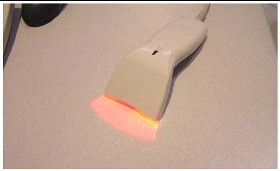
- The bar code reader is operational and data is displayed.
-
From the APPLICATION screen, select NEW PATIENT.
-
Enter the Patient ID.
-
Using the barcode reader, scan a bar code to verify the information shown here.
Figure 1. Barcode Reader
-
- If installed, confirm the following:
-
An image can be filmed, saved to DVD, and networked to another network device or AWW.
-
The Nomoto injector is operational, and all setup and calibration procedures are completed.
-
All other installed injectors must power on.
-
The SmartStep option is operational. Set up a SmartStep scan and confirm that the foot switch and the hand switch operate.
-
2 Cardiac Functional Test
CARDIAC MONITOR SETUP
Procedure
- Install these cables on the gantry option interface panel
- Turn on the monitor. Follow the monitor self test setup procedure using the document shipped with the system.
- From the APPLICATION screen, select NEW PATIENT. Fill out:
-
Patient ID: GE Test
-
Name: Cardiac Functional System Functional Test
-
Select from Protocol Menu
-
User
-
Chest
-
-
On the dark blue bar on the scan monitor select Gating "On"
-
- Check for presence of these items:
- Heart rate on the gantry display board
- Cardiac pulses shown on the screen
- Gating BPM displayed on the screen
- ECG trace highlighted on the screen
3 Connect Pro Functional Test
PATIENT SCHEDULER
Procedure
- On the scan desktop select Patient scheduler
- Select the button labeled Update
- The customer list should be present select Export data
- Send a test image to a workstation AWW or what ever is available.
4 Finalization
This section is complete when all of the above items pass.
Check all appropriate boxes on the GE Form e4879.