- Topic ID: id_15460824
- Version: 2.0
- Date: Nov 8, 2018 1:36:23 AM
Save System State
Prerequisites
Overview
System State is a collection of system files saved in a directory structure. The system uses a default directory name (service_mod_data) on System State backup media. Whenever System State is saved to DVD-RAM or USB media, the existing default directory (service_mod_data) is erased when Save All is selected. To avoid loss of a saved System State, on USB media for example, rename the default directory with an unique name. (ex: System ID). When a specific System State backup is being accessed for restoring System State, the directory must be renamed back to the default directory name of service_mod_data.
Due to the default directory name and the directory size, it will not be practical to store multiple System States on a single USB Flash Memory Stick. For emergency backup, it's recommended that System State backups be transferred to a laptop or external USB Hard Drive. Use USB Flash Memory Stick only for the immediate saving and restoring of System State during Load from Cold.
Use the following commands to create the System State DVD.
Procedure
- Insert the System State DVD-RAM Media into the Peripheral Tower DVD-RAM Drive or USB Media in any of the console's USB ports..
- Wait until the DVD-RAM Drive or USB Media is ready (i.e., front panel DVD-RAM Drive LED or USB Device Access LED is no longer flashing).
- Select: [Service] icon to access the Common Service Desktop (CSD).
- Click OK as required.
- Select: Utilities tab.
Figure 1. Common Service Destop (CSD), Utilities Tab
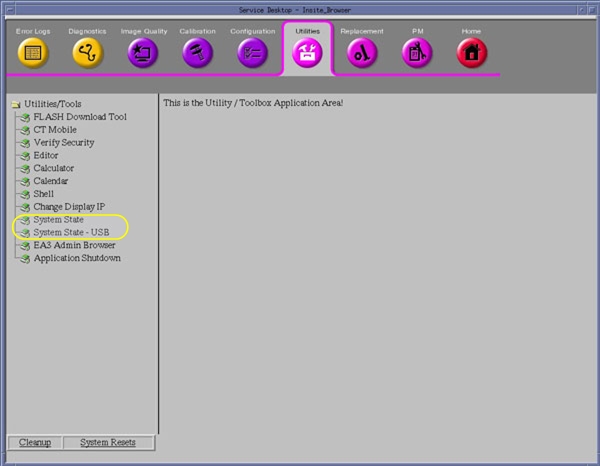
- Select: System State for DVD-RAM Media
or System State - USB for USB Media. The System
State Save/Restore screen appears.
Figure 2. Save System State Window (DVD-RAM Media)
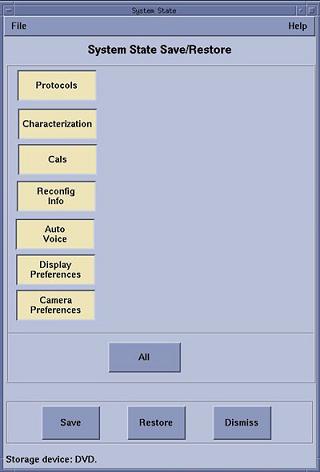
Figure 3. Save System State Window (USB Media)
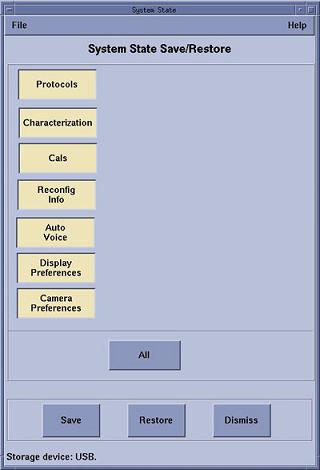
- Select All.
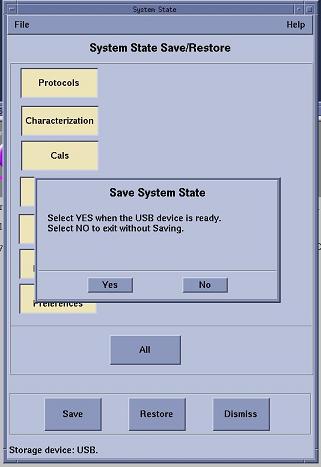
- Select [Save]. The System State Media Ready pop-up window appears.
- Select [Yes] in the System State Media Ready pop-up window.
Figure 4. System State DVD Media Ready Pop-up Window
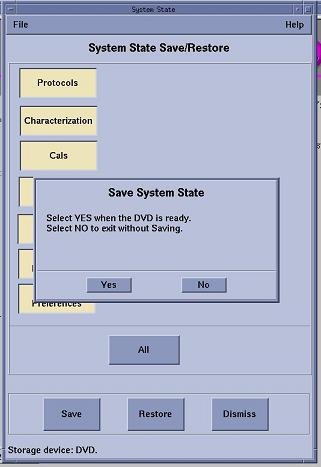
Figure 5. System State USB Media Ready Pop-up Window
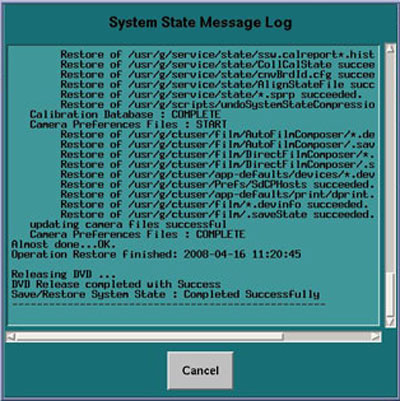
- Verify that the "Save" of System State was successful. A message
at the end of the System State Message Log Window should state: Save/Restore
System State: Completed Successfully.
Figure 6. System State Message Log Window
- When completed, select [Cancel], then [Dismiss].
- Close the Common Service Desktop window at the upper left corner of the screen.
- Remove System State DVD-RAM disk from the DVD Peripheral Tower or USB Media from USB port. Label System State Backup Media appropriately and place in a safe location.
Finalization
No finalization steps.