- Topic ID: id_15460117
- Version: 3.0
- Date: Jun 15, 2020 11:00:28 PM
GOC6.6 VCT Host Computer (Z820) RAID Controller Card Replacement
Prerequisites
Overview
This procedure shall be followed when replacing the Tesra C2075 Recon GPU Card in the GOC6.6 VCT host computer (Z820).
1 Z820 Computer Removal
Procedure
- Shutdown system. Select one of the following methods to Power
OFF the Console:
-
If Applications are up, click on the [Shut Down] button on desktop display and select [Shutdown].
-
If Applications are down, open a Terminal Window. Type: halt , then press ENTER.
-
When halt command has finished, power Off the console at the front panel switch.
-
- Apply LOTO. See Equipment Service - Lockout-Tagout-PPE procedure.
- Remove Keyboard Tabletop, Front and Rear covers from GOC6.6
console.
Refer to Replacement → Console (GOC6.6) → Console Cover Removal and Installation.
- Remove the Z820 computer from the GOC6.6 console chassis.
Refer to Replacement → Console (GOC6.6) → GOC6.6 VCT Host Computer (Z820) Replacement
2 RAID Controller Card Replacement
Procedure
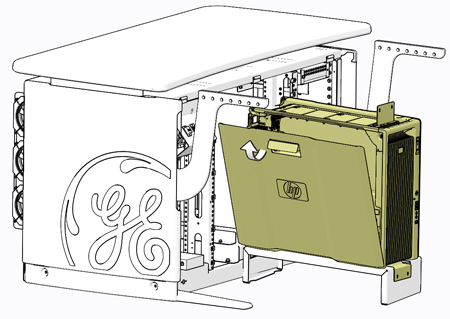
- Open the Z820 computer side access panel.
Figure 1. Z820 Side Access Panel Removal
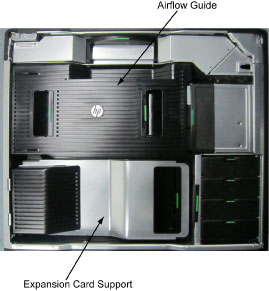
- Remove the Expansion Card Support.
Figure 2. Z820 Airflow Guide and Expansion Card Support
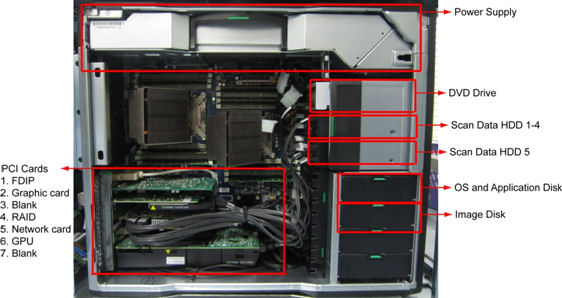
- Remove the following components from the Z820 computer:
- FDIP Card (Slot 1)
- Quadro 2000 Graphic Card (Slot 2)
Figure 3. Z820 Component Location
- Disconnect the SAS cables from the RAID Controller Card.
- Replace the existing RAID Controller Card with new one.
- Reconnect the SAS cables onto the RAID Controller Card.
- Reinstall the removed PCI cards to the Z820 computer in the
following order:
- Quadro 2000 Graphic Card (Slot 2)
- FDIP Card (Slot 1)
- Install the Expansion Card Support and close the Side Access Panel.
3 Restore the Console
Procedure
- Fully slide the Z820 computer back into the console chassis, until mounting brackets are flush against the console chassis.
- Remove and store the Service Platform.
- Install and torque the four (4) 3mm socket cap screws that mount
the Z820 computer in the GOC6.6 console.note:
Torque each the for (4) 3mm socket cap mounting screws to:
- Reconnect all cables removed earlier to the Z820 computer.
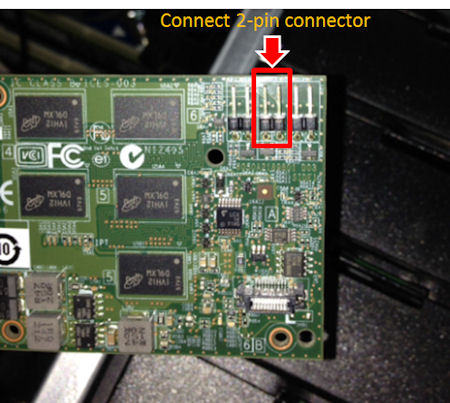
Connect the small 2-pin connector to the center of the three connectors as shown in .
Figure 4. Small 2-pin Connector
- Remove LOTO on console.
4 Finalization
Procedure
- Install console covers and Keyboard Tabletop assembly. Refer to Replacement → Console (GOC6.6) → Console Cover Removal and Installation Procedure.
- Power on console and execute “Recreate Scan Disk Array”
from Reconfig menu.note:
All scan date will be lost.
- Perform the Functional Checks → System Scanning Test instructions from the procedure list.