- Topic ID: id_15460225
- Version: 3.0
- Date: Jun 15, 2020 10:57:02 PM
(12HW14.6) Service Pack 2.1 Installation Procedure
Prerequisites
Overview
This procedure describes 12HW14.6 Service Pack 2.1 installation procedure.
The Service Pack 2.1 software CDROM contains Service Pack 1.1, Service Pack 2.0 and Service Pack 2.1 patches.
The Service Pack 2.1 is NOT available for GOC6.6.
1 Preparation for Installation
Procedure
- Check the current software version by the following command.
{ctuser@hostname} swhwinfo
Example: 12HW14.6_V40_H_HS64_G_GTL
If the output contains SP2-1-X, SP2.1 is already installed. No need to install it.
If the output contains SP1-1-1, SP1.1 is installed. Install SP2.0 and SP2.1. Go to section Sevice Pack 2.1 Installation (on SP1-1-1 software).
If the output contains SP1-0-1, SP1.0 is installed, need to uninstall it at first (Because SP1.0 shall be replaced with SP1.1). Go to section Service Pack 2.1 Installation (on SP1-0-1 software).
If the output is just 12HW14.6 (no Service Pack), execute (12HW14.6) Service Pack 1.1 Installation Procedure at first using Service Pack 2.1 CD-ROM, then install SP2.0 and 2.1. Refer to Sec 4.2 of this procedure.
note:In this case, execute Save Runtime parameter at first and execute Restore Runtime parameter after execution of “Flash Download” of SP2.1.
If the output is not equal to 12HW14.6, system software version is different, do not execute the procedure.
note:If the system software is 12HW14.6 SP2.1 or SP2.0 and VHS (Volume Helical Shuttle) option is installed, TGPU B’d Assy must be replaced with TGPHD B’d Assy. Scan abort may happen during VHS scan.
- Check Exam Split Type. (Skip this step if Service Pack Installation
is done during a 12HW14.6 LFC.)
Type swokinstall -p
If Exam Split option is displayed, execute the following
Type ls –l ~ctuser/ves/.hesMode
If there is .hesMode file, it’s HES mode.
If not, It’s VES mode.
This will be used at reinstall option.
2 Sevice Pack 2.1 Installation (on SP1-1-1 software)
Procedure
- Open a Unix shell.
- If Application software is up, perform the following command.
{ctuser@hostname} cleanMon
- In the Unix Shell, become root:
- {ctuser@hostname} su -
- Password: <password>
- Insert the Service Pack CD into DVD drive in the host.
- Perform the following steps to install the Service Pack CD:
- [root@hostname]# patch_install -c
- The following message is displayed.
These patches from cdrom will be installed:
12HW14.6_GEHCServicePack2.0
------------------------------------------
I will install update 12HW14.6_GEHCServicePack2.0 from CDROM, is this ok ? [y/n]
- Input y to install Service Pack 2.0.
- Confirm the “Update 12HW14.6_GEHCServicePack2.0 has been
installed successfully” message.
The following message appears after completion of SP2.0 installation, and ignore to do it this timing. The bearing type setting will be done after SP2.1 installation.
###############################################################
# Execute reconfig in order to set Bearing type (Ball/Liquid) #
# after SP2.0 installation completion. #
###############################################################
- The following messages is displayed.
These patches from cdrom will be installed:
12HW14.6_GEHCServicePack2.1
------------------------------------------
I will install update 12HW14.6_GEHCServicePack2.1 from CDROM, is this ok ? [y/n]
- Input y to install Service Pack 2.1.
The following message appears after completion of SP2.1 installation.
###############################################################
# Execute reconfig in order to set Bearing type (Ball/Liquid) #
# after SP2.1 installation completion. #
###############################################################
Flash Download will be done at step 10 of this procedure.
- Confirm the “Update 12HW14.6_GEHCServciePack2.1 has been installed successfully” message.
- Check Software Version:
- Type: [root@hostname]# swhwinfo ENTER
- System should reply with a response similar to the following:
12HW14.6_SP2-1-X.<hw info (ex. V40_H_H64_G_GTL) >
- Go to reconfig. menu and set Bearing type of X-ray Tube. Refer
to System Configuration (12HW14.6 SP2.1 or
later).
Reboot is executed during reconfig when bearing type was updated. In this case, skip step 9 “Reboot the system”.
- Remove the Service Pack CD from Host DVD drive.
- Reboot the system:
[root@hostname]# reboot
- Execute Flash Download.
Type “swhwinfo” in command window and confirm that the tube type is same as bearing type in reconfig.
Example of strings: 12HW14.6_SP2-0-2.V40_NV_V64_G_GTM in case of VCT Liquid Bearing.
-
Ball Bearing : H
-
Liquid Bearing: NV
-
- Perform sanity scan with the following technique and confirm
they completed successfully.
Scout, Axial and Helical.
- Procedure completed.
3 Service Pack 2.1 Installation (on SP1-0-1 software)
In case of SP1.0 is installed, need to uninstall options, uninstall SP1.0 at first, then install SP1.1, install SP2.0, install SP2.1 and install options.
Procedure
- Perform Save State.
- Uninstall the following options (if installed) using the Install
Options menu in the Configuration Tab in Common Service Desktop.
-
AdvVesselAnalysis
-
AutoBone
-
CardEP
-
CardIQPlus
-
CTColonoPro
-
CTPerfusion4
-
CTPerfusion4Neuro
-
VolumeViewer
-
- Open a Unix shell.
- Shutdown Application (if up). Type cleanMon ENTER .
- Uninstall SP1.0.
- Type su - ENTER to be root user.
- Type patch_install –u ENTER. Follow the instructions displayed on the screen.
- Verify that patch uninstalled with “Successful” message is displayed, then type rebootENTER to reboot the system.
- Open a Unix shell, and type swhwinfo ENTER . Confirm that the output does not contain “SP1.0”.
- Insert the Service Pack 2.1 CD-ROM into the Host DVD drive.
- Delete the old patch file, type the following commands.
- su - ENTER to be root user.
- mount /mnt/cdrom
- /mnt/cdrom/scripts/remove_oldrpm
- Confirm that the command prompt is displayed.
- Type patch_install –c ENTER. Follow the instructions displayed on the screen.
Install SP1.1, SP2.0 and SP2.1 continuously.
note:It may take 3~4 min., please wait.
- Verify “Successful” message is displayed.
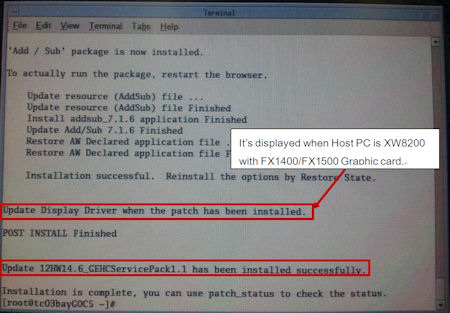
- When the Host PC is XW8200 with FX1400/FX1500 Graphic card,
the following message is displayed. In this case, execute the following
steps to update Display Driver. If the message is not displayed,
type reboot [ENTER] and skip to step 13 and ignore Flash Download
if requested.
Figure 1. Message Window
- Type init 3 ENTER to shut down the [X Window]. The monitor will be changed to a black screen, and will appear with a text of shutdown.
- Hold down the Alt key and then press the F6 key once, the login prompt will appear, and login as user name “root”. (It takes about 1 min. to log in.)
- Type patch_nvdriver ENTER .
After displaying a “Successful” message and a reboot request message, press Enter to reboot.
note:Flash Download may be requested, but ignore it. Flash Download will be executed later.
- Remove Patch CD-ROM from Host DVD drive.
- Open a Unix shell and type swhwinfo ENTER .
The output should contain “SP2.1” and will look similar to this: 12HW14.6_SP2-1-X.V40_H_HS64_G_GTL.
- Restore State (Reconfig Info only) to reinstall the options previously removed, then restart the system.
- Confirm the following options has been reinstalled.
-
AdvVesselAnalysis
-
AutoBone
-
CardEP
-
CardIQPlus
-
CTColonoPro
-
CTPerfusion4
-
CTPerfusion4Neuro
-
VolumeViewer
-
- Go to reconfig. menu and set Bearing type of X-ray Tube. Refer to System Configuration (12HW14.6 SP2.1 or later).
- Execute Flash Download.
- Execute a test scan to confirm system functionality. Perform a minimum of one scout and 20 images helical or axial scans.
- Procedure completed.
4 Appendix - Service Pack 2.1 Uninstallation
Procedure
- Save System State.
- Execute Save Runtime parameter from Configure tab of CSD.
- Open a Unix shell and check Exam Split type.
Type swokinstall –p ENTER
If the Exam Split option is installed, execute the following.
Type ls –l ~ctuser/ves/.hesMode ENTER
If there is .hesMode file, it’s HES mode.
If not, it’s VES mode.
This will be used at reinstall option.
- Uninstall the following options (if installed) using the Install
Options menu in the Configuration Tab in Common Service Desktop.
-
AdvVesselAnalysis
-
AutoBone
-
CardEP
-
CardIQPlus
-
CTColonoPro
-
CTPerfusion4
-
CTPerfusion4Neuro
-
VolumeViewer
-
- In a Unix Shell, type cleanMon ENTER to shutdown application.
- Type su - ENTER to be root user and type init 3 ENTER to shut down the [X Window]. The monitor will be changed to a black screen, and will appear with a text of shutdown.
- Hold down the Alt key and then press the F6 key once, the login prompt will appear, and login as user name “root”. (It takes about 1 min. to log in.)
- Type patch_nvdriver –u ENTER .
After displaying “NVIDIA driver has been updated” message and a reboot request message, press Enter to reboot.
note:Flash Download may be requested, but ignore it. Flash Download will be executed later.
- Press Cancel button before the application launches.
- Open a Unix Shell and type su - ENTER to be root user
- Type patch_install -u ENTER . Follow the instructions displayed on the screen.note:
It may take 3~4 min., please wait.
- notice
- Verify all of patches uninstalled with “Successful” message is displayed, then type reboot ENTER to reboot the system.
- Open a Unix shell, and type swhwinfo ENTER. Confirm that the output does not contain “SP2.1” and will look similar to this: 12HW14.6.V40_H_HS64_G_GTL.
- Perform a Restore System State (Reconfig Info Only) to re-install the options previously removed, then restart the system.
- Confirm that the following options has been reinstalled.
-
AdvVesselAnalysis
-
AutoBone
-
CardEP
-
CardIQPlus
-
CTColonoPro
-
CTPerfusion4
-
CTPerfusion4Neuro
-
VolumeViewer
-
- Execute Flash Download.
- Execute Restore Runtime parameter from Configure tab of CSD.
- Execute Filament Calibration.
- Execute a test scan to confirm system functionality. Perform a minimum of one scout and 20 images helical or axial scans.
 |
5 Finalization
No finalization steps.