- Topic ID: id_15460387
- Version: 2.0
- Date: Nov 8, 2018 1:37:30 AM
DIG Troubleshooting
1 Overview
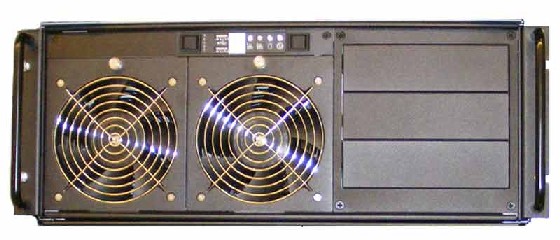
The follow information will assist in confirming if the DIG Computer is experiencing a hardware fault. Although the following is not a complete set of diagnostics, it should be sufficient in determining if the DIG Computer is suffering from hardware issues at the prescribe Field Replaceable Unit (FRU) level.
Figure 1. DIG Computer
 |
|

TO PREVENT DAMAGE TO COMPONENTS WITHIN THE HSDA, OBSERVE THE FOLLOWING ESD PRECAUTIONS:
-
WORK ON A STATIC-FREE MAT.
-
WEAR A STATIC STRAP TO ENSURE THAT ANY ACCUMULATED ELECTROSTATIC CHARGE IS DISCHARGED FROM YOUR BODY TO GROUND.
-
CREATE A COMMON GROUND FOR THE EQUIPMENT YOU ARE WORKING ON BY CONNECTING THE STATIC-FREE MAT, STATIC STRAP AND PERIPHERAL UNITS TO THAT PIECE OF EQUIPMENT.
FOR FURTHER INFORMATION REGARDING ESD PROTECTION, REFER TO THE SAFETY CHAPTER IN THIS PUBLICATION
2 DIG Computer General Troubleshooting
Before proceeding with the rest of this guide, use the following checklists to find possible solutions for DIG Computer problems.
2.1 Power Checklist
-
Is the DIG Computer powered on?
-
Is the front panel green power light illuminated?
-
Has Circuit Breaker #1 or #2 (CB1 or CB2) tripped on Power Distribution Box?
-
Is the DIG Computer connected to the proper electrical outlet on the Power Distribution Box?
-
Has the DIG PSU Switch been turned on (on back of DIG chassis)?
2.2 Cable Checklist
Examine all cables for loose or incorrect connections:
-
Network Cables
-
DIP Optical Link Cables
-
SAS Controller Cables
3 DIG Remote Management Module (RMM)
The DIG computer is equipped with a Remote Management Module (RMM), with its own dedicated Ethernet network access. The RMM is a self contained micro computer running operating and application software embedded within the firmware of the RMM card. As long as the standby power (3.3V) of the DIG computer’s power supply is present, the RMM will operate and allow access from the Host Computer.
The RMM in the DIG Computer provides the means for virtual presence (remote console) at the Host Computer. This presence includes keyboard, video and mouse redirection. By utilizing a RMM in the DIG Computer, an independent path for communication and hardware status checking can be established without the need of a fully functioning DIG Computer.
The RMM functionality replaces the Serial over LAN (SOL) functionality used in previous console generations.
|
|
3.1 RMM Access
-
To access the RMM, open a Terminal Window, and log on as root:
Type: {ctuser@hostname}su – and press ENTER
Type the root password and press ENTER
-
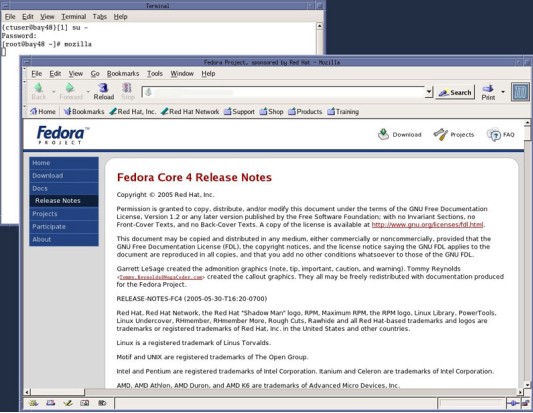
Launch the Mozilla WEB Brower:
Type: [root@hostname]mozilla and press ENTER
The Mozilla (Fedora) WEB Browser Figure 2 will appear .
Figure 2. Mozilla WEB Browser
-
In the WEB Browser URL Address Bar:
Type: darcrmm and press ENTER
-
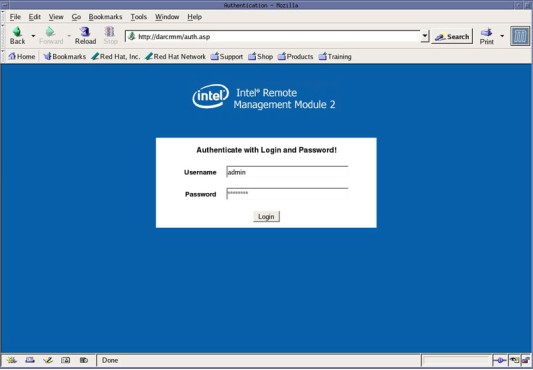
The WEB Browser will update and display the Login page (Figure 3) for the DIG RMM.
Username: Type: admin and press TAB
Password Type: password and press ENTER
Figure 3. DIG RMM Login Page
-
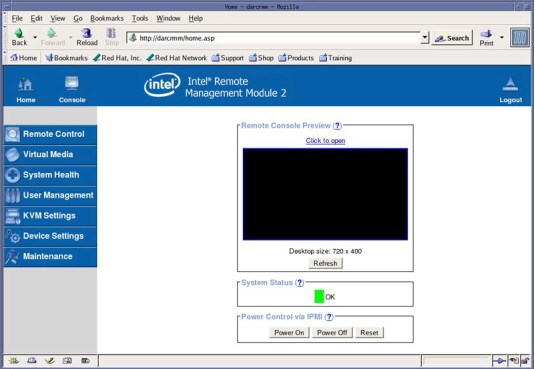
The WEB Browser will update and display the Home page (Figure 4) for the DIG RMM.
Figure 4. DIG RMM Home Page
3.2 DIG Computer RMM Navigation
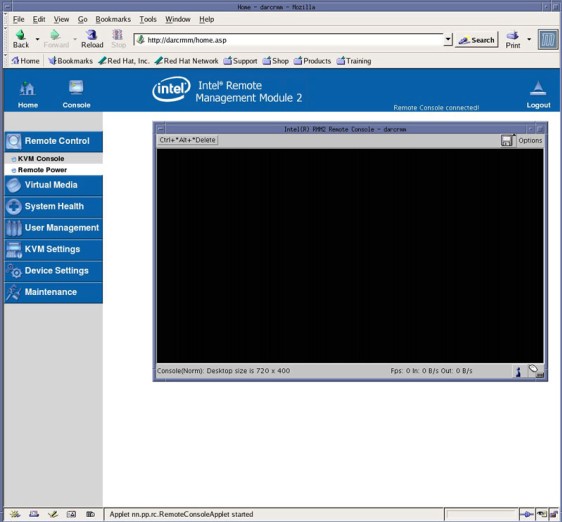
By clicking on the Console ICON, the Remote Console Preview window or Remote Control/KVM Console navigation Button, a new window will be open displaying the DIG Computer’s display (Figure 5). In other words the DIG Computer’s video will be redirected to the Host Computer’s display, displayed in the WEB Browser’s Remote Console Window. This feature will allow the user to view the following:
-
DIG Video Display – In normal operating mode
-
DIG Bootup – When DIG is reset independently
-
DIG BIOS Settings – When F2 is pressed at start of DIG bootup
Figure 5. DIG RMM Remote Console
By clicking Remote Control/Remote Power, the DIG Computer can be reset or power can be turned ON and OFF.
Resetting the DIG Computer or toggling power takes a few minutes to process.
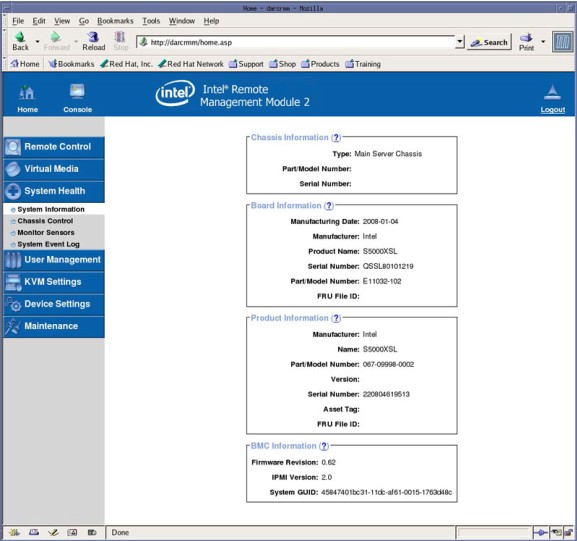
By clicking System Health, the DIG Computer’s hardware revisions can be checked. System Board information will be displayed (Figure 6).
Figure 6. DIG RMM System Health
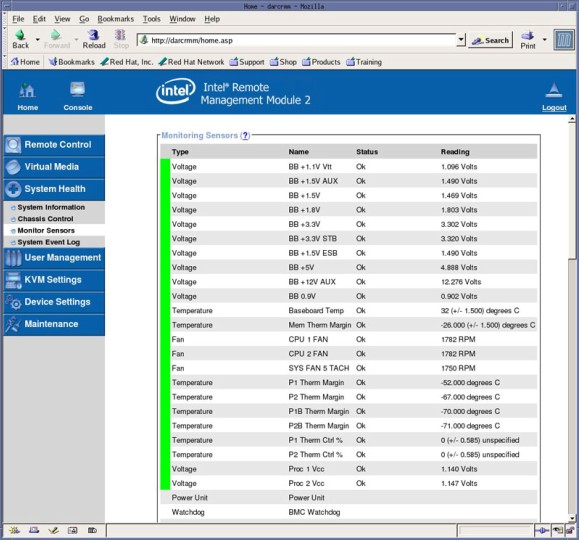
By clicking System Health/Monitor Sensors, the DIG Computer’s IPMI sensors can be monitored (Figure 7). This is useful for determining if hardware failures are present or operating temperatures are being exceeded.
Figure 7. DIG RMM System Health / Monitor Sensors
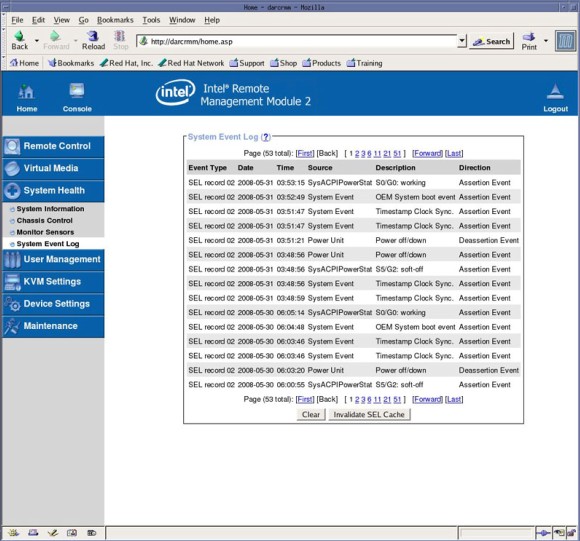
By clicking System Health/System Event Log, the DIG Computer’s RMM event logging can be viewed (Figure 8). This is useful for determining if hardware failures are present.
Figure 8. DIG RMM System Health / System Event Log
4 DIG COMPUTER TROUBLESHOOTING – LEDS
The DIG Computer has numerous status LEDs mounted on the motherboard and chassis that can indicate hardware faults and operational status of the computer. Some of these LEDs are visible on either the front or back of the DIG Computer chassis while others require that the DIG Computer be removed from the console, AC power applied and chassis cover removed.
4.1 External Status LEDs
4.1.1 DIG Computer Chassis Front Panel Indicators
Figure 9. Front Panel Indicators
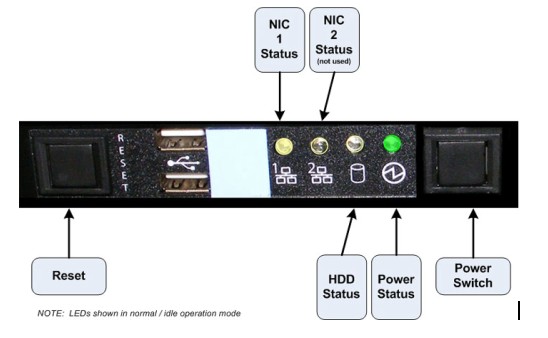
The Power Status LED has the following states:
-
Power Status LED has no color showing: PC is off or is in Sleep Mode (not used).
-
Solid Green: Host PC on.
The NIC LEDs have the following states:
-
NIC LED has no color showing: No connection.
-
Solid Amber: NIC is linked.
-
Blinking Amber: NIC Activity
The HDD Status LED has the following states:
-
HDD Status LED has no color showing: No HDD Activity.
-
Blinking Amber: HDD Activity.
4.1.2 DIG Computer Chassis Rear Panel Indicators
Figure 10. System Status, ID, POST and NIC LED Locations
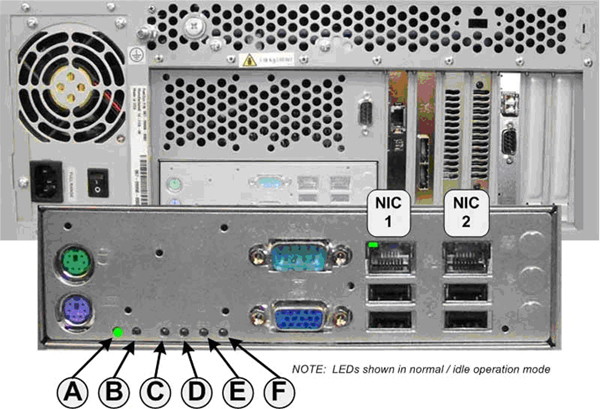
System Status LED (A)
System ID LED (B)
System Post LEDs (C - F)
During DIG Computer boot process, the BIOS executes a number of platform configuration processes, each assigned a specific hex POST code number. As each configuration routine is started, the BIOS will display the given POST code to the POST LEDs. To assist in troubleshooting a system hang during POST process, the POST LEDs can be used to identify the last POST process to be executed and the corresponding fault indications.
NIC Status LEDs
4.2 Internal Status LEDs
 |
|
 |
|
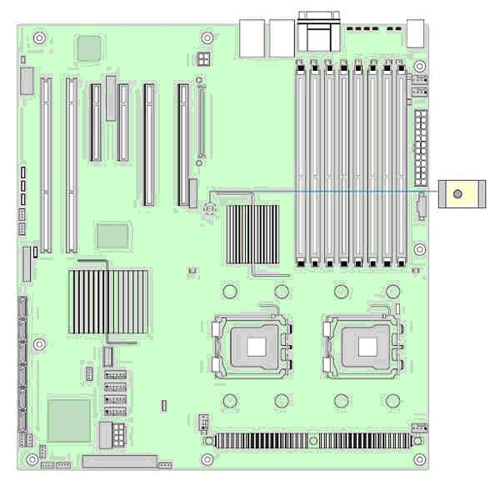
4.2.1 5 Volt Standby LED (motherboard)
The DIG Computer motherboard has an LED mounted toward the middle of the board that indicates that the Power Supply is under power and is supplying 5 Volt Standby power to the DIG computer. As long as the DIG computer is plugged into an energized AC Power source, this LED should be operational. If LED is not illuminated, suspect either a faulty PSU or motherboard in the DIG Computer.
Figure 11. 5 Volt Standby Status LED Location
4.2.2 Fan Fault LEDs (motherboard)
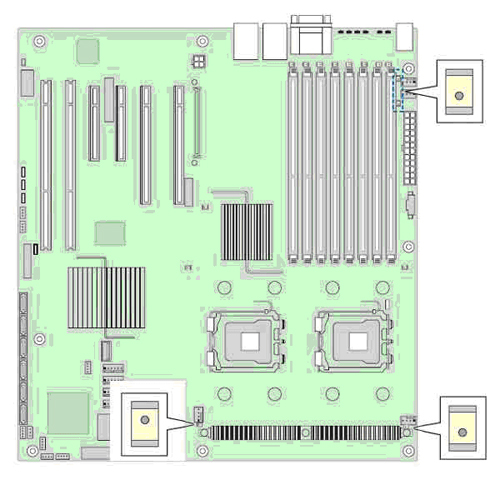
The DIG Computer motherboard has two (2) CPU Fan LEDs mounted close to the CPU Fan headers and two (2) System Chassis Fan LEDs mounted close to the rear of the motherboard, which indicates that the Fans are faulty in the DIG computer.
Figure 12. Fan Fault Status LED Location
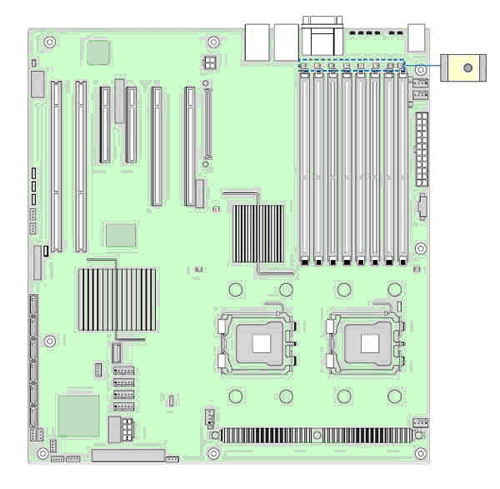
4.2.3 Memory DIMM Fault LEDs (motherboard)
The DIG Computer motherboard has Memory DIMM fault indicator LED associated with each DIMM Socket location. If LED is illuminated, suspect a bad memory module.
Figure 13. Memory DIMM Fault LEDs Location
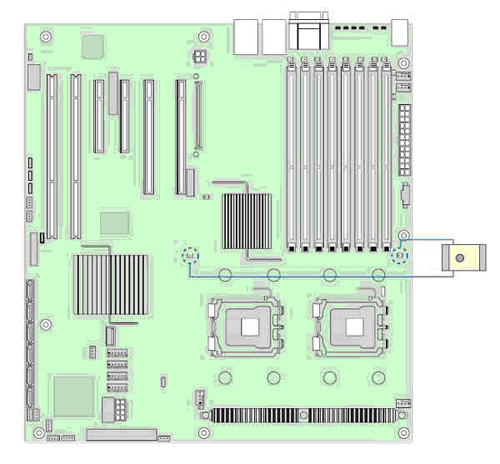
4.2.4 CPU Fault LEDs (motherboard)
The DIG Computer motherboard has CPU fault indicator LED associated with each CPUs. If LED is illuminated, suspect a bad processor.
Figure 14. CPU Fault LEDs Location
5 DIG COMPUTER POST CODE ERRORS (VIDEO SCREEN)
Whenever possible, the DIG Computer BIOS will output current boot progress codes on a video screen. The codes may be reported by the system BIOS or option ROMs.
The response column in the following table is divided into two (2) types:
-
Pause: The message is displayed in the Error Manager screen, an error is logged to the System Event Log (SEL), and use input is required to continue. The user can take immediate corrective action or choose to continue.
-
Halt: The message is displayed in the Error Manager screen, an error is logged to the SEL, and the system cannot boot unless the error is resolved.