- Topic ID: id_15460802
- Version: 2.0
- Date: Nov 8, 2018 1:37:29 AM
Console Network Switch Troubleshooting
1 Overview
The follow information will assist in confirming if the CNS is experiencing a hardware fault. Although the following is not a complete set of diagnostics, it should be sufficient in determining if the CNS is suffering from hardware issues at the prescribe Field Replaceable Unit (FRU) level.
Figure 1. Console Network Switch (5263798)

Figure 2. Console Network Switch (5263798-2)

 |
|

2 CNS General Troubleshooting
Before proceeding with the rest of this procedure, use the following checklist to find possible solutions for CNS problems.
2.1 Power Check
-
Is the CNS powered on?
-
Is the Power LED illuminated?
-
Has Circuit Breaker #2 (CB2) tripped on Power Distribution Box?
-
Is the CNS connected to the proper electrical outlet on the Power Distribution Box?
2.2 Cable Check
Are all Ethernet Cables properly inserted?
3 CNS LEDs
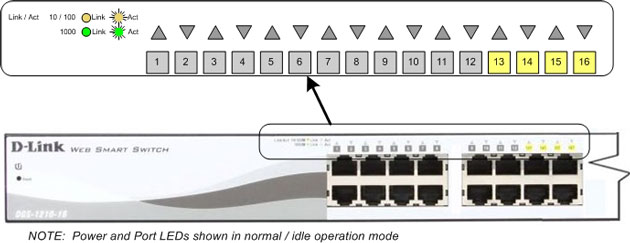
The CNS has LEDs mounted on its front panel to give operational status of the Switch and Ethernet ports.
Figure 3. CNS (5263798) LED Indicators
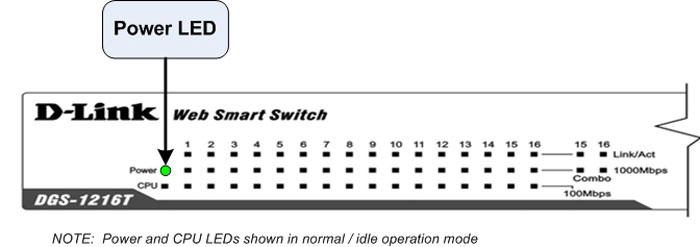
Figure 4. CNS (5263798-2) LED Indicators
4 CNS RESET SWITCH
 |
|
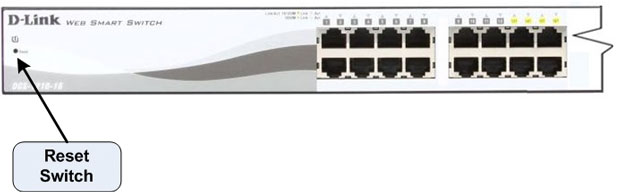
The CNS has a Reset button on the back panel (of 526379) or front panel (of 526379–2) of the Switch. The Reset Button restores all configuration settings to factory defaults. Use caution. The DHCP Server on the Host Computer may no longer recognize other components on the console network. Reboot of the console and running system configuration (“reconfig”) may be required.
Figure 5. CNS (526379) Reset Switch

Figure 6. CNS (526379–2) Reset Switch