- Topic ID: id_15460526
- Version: 2.0
- Date: Nov 8, 2018 1:38:02 AM
What Axial Drive Do I Have?
1 Overview
This procedure is used to help identify which axial drive is present on the CT system. The type of drive will determine which sub-component replacement procedures are necessary.
2 Visual Identification of Drive
Visually inspect the axial drive in the gantry. If the drive looks like Figure 1, it is the Allen Bradley Drive. All sub-component replacement procedures for this drive will read, “Axial Drive...”.
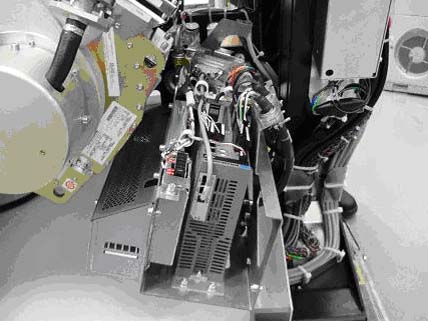
If the drive looks like Figure 2, it is the 2010 drive. All sub-component replacement procedures for this drive will read, “2010 Axial Drive...”.
Figure 1. Allen Bradley Axial Drive
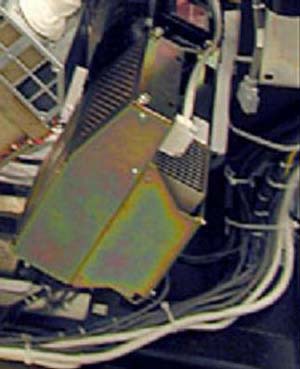
Figure 2. 2010 Axial Drive
3 Software Identification of Drive
Go to the Diagnostics tab on the Common Service Desktop.
Go to the RTS Viewer and select Gantry Rotate in the subsystem pull-down menu. (It should be the first selection.)
In the Display Type field, choose Non-cumulative and then hit OK.
Refer to the illustration below to determine the drive type field.
Figure 3. Gantry Information
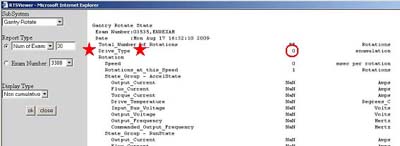
If the Drive Type field on the fifth line of the page displays 0, the drive is an Allen Bradley drive. All sub-component replacement procedures for this drive will read, “Axial Drive...”.
If the Drive Type field at the top of the page displays 1 , the drive is a 2010 drive. All sub-component replacement procedures for this drive will read, “2010 Axial Drive...”.