- Topic ID: id_15460274
- Version: 2.0
- Date: Nov 8, 2018 1:39:30 AM
VDARC Stand-Alone OS Load
This stand-alone procedure eliminates any external sources causing an issue but does not rule out media issues or internal VDARC Node. In this procedure the user will load the OS software directly into the VDARC Node DVD-ROM. The Operator Console keyboard will be disconnected from the Host Computer and reconnected to the rear of the VDARC Node. The T/S VDARC video monitor cable will be connected between the VDARC Node rear panel and the Display Monitor.
Jarrell VDARC and Jarrell IG Nodes require software release 06MW29.x or later.
If VDARC Node OS Load Work-around with Disk Array (JBOD) OFF failed, perform the VDARC Stand-alone OS Load. Do Not perform this section if the VDARC Node has loaded the OS successfully.
-
Remove the front and rear covers from the Operator Console.
-
See Figure 1 (Westville or Jarrell VDARC Node versions) for keyboard and T/S VDARC video monitor connections. The T/S VDARC video monitor connection is located on the left side and is blue. The keyboard connection is color coded the standard purple.
Figure 1. Rear Panel of Westville (Top Picture) and Jarrell (Bottom Picture) VDARC Nodes
Sheet 1 of 2
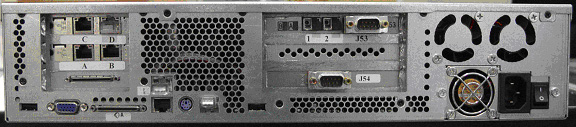
Sheet 2 of 2

-
Connect the T/S VDARC video monitor cable between the VDARC Node and the right Display Monitor.
-
Verify the Right Display Monitor front panel is properly set to display the VDARC Node input.
-
Reposition the existing Host Computer keyboard connection:
-
Remove the keyboard cable at the rear of the Host Computer
-
Reconnect the keyboard cable at the rear of the VDARC Node
note:Jarrell VDARC and Jarrell IG Nodes require software release 06MW29.x or later.
-
-
Insert (and verify the software is properly clicked into place) the OS software directly into the front panel DVD-ROM on the VDARC Node.
-
Close the VDARC Node DVD-ROM tray.
-
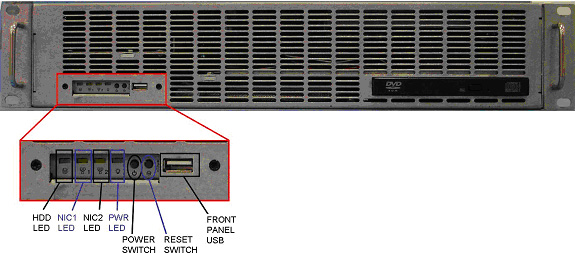
Press the VDARC Node front panel Power Switch to turn off power. See Figure 2.
Figure 2. Front Panel of Westville (Top Picture) and Jarrell (Bottom Picture) VDARC Nodes
Sheet 1 of 2
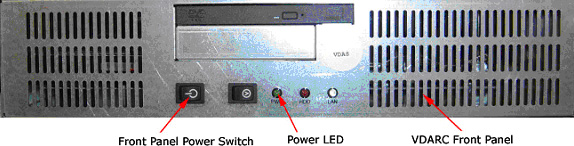
Sheet 2 of 2
-
Wait 30 seconds and reapply power to the VDARC Node at the front panel switch.
-
The OS is a bootable software DVD. At the boot: prompt, type ONLY the following command (several commands are listed on the monitor display):
CTDARC
note:The Console Operating System load takes approximately 20 minutes. If the boot: prompt does not appear, then either the DVD is bad or the Console Operating System Media is not installed in the drive correctly. Typing any other command not listed in this procedure will result in a reload.
-
After the OS is loaded on the VDARC Node, the OS DVD should automatically eject from the VDARC Node DVD-ROM Drive. If the DVD does not auto-eject after 30 minutes, press the VDARC Node Reset button. This will reboot the VDARC Node.
-
Remove the OS DVD.
-
Manually close the VDARC Node DVD-ROM tray.
-
The VDARC Node should reboot. If the VDARC does not reboot, cycle power to the VDARC Node.
-
After approximately 4 to 5 minutes the VDARC T/S Video Monitor should display the message: See you on the darc side of the moon.
note:If the OS failed to load the VDARC Node, retry the stand-alone procedure with all interconnect cables disconnected from the VDARC Node. If it continues to fail the stand-alone procedure then replace the VDARC Node.
-
Disconnect the T/S VDARC video monitor cable from the right Display Monitor.
-
Reconnect the Host Computer keyboard connection:
-
Remove the keyboard cable at the rear of the VDARC Node
-
Reconnect the keyboard cable at the rear of the Host Computer
-
-
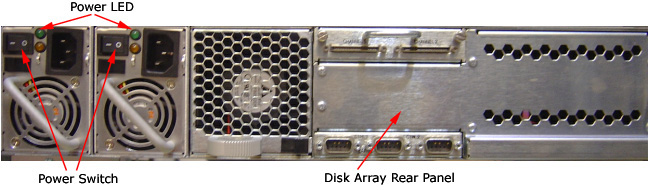
At the Disk Array (JBOD) verify two green LEDs at rear panel are illuminated. If not, press two power switches at rear panel, to apply power to the Disk Array. See Figure 3.
Figure 3. Rear Panel of VCT Disk Array