- Topic ID: id_15460143
- Version: 3.0
- Date: Apr 22, 2019 12:55:29 AM
Manually Configuring System INFO
This procedures describes the steps necessary to manually configure System INFO.
-
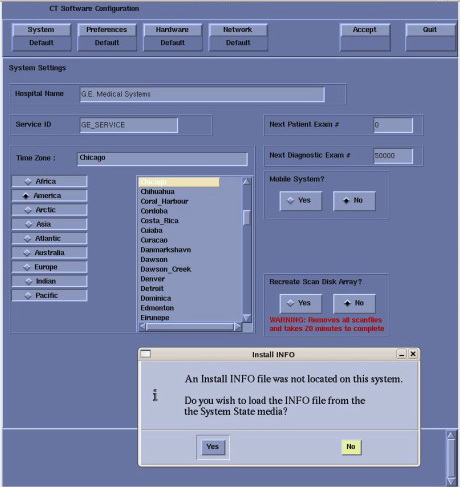
When the System State Install INFO decision box appears (Figure 1), click No. Then select: Hardware to access System and Console Type configuration.
Figure 1. Install INFO Decision Box
-
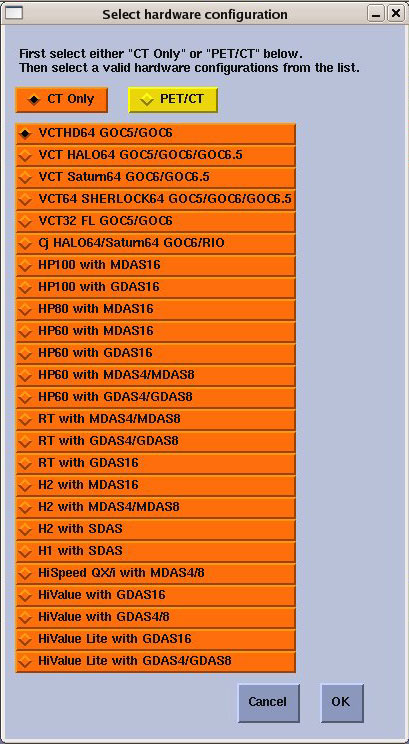
In the Hardware Configuration window, select the appropriate hardware configuration for the System, DAS and Console type. Click OK when done.
Figure 2. Hardware Configuration Window
-
Manually configure the Preference, Hardware, and Network Settings screens as required.
note:Reference the GOC6 Console Information Sheet in the site log for site specific information and Align, Setup, Cals - Console (GOC6) - System Configuration procedure in the service manual for more configuration details.
Remember to set # of VeRBs to “1” on the Hardware Setting Screen if the console is equipped with a VeRB Computer.
-
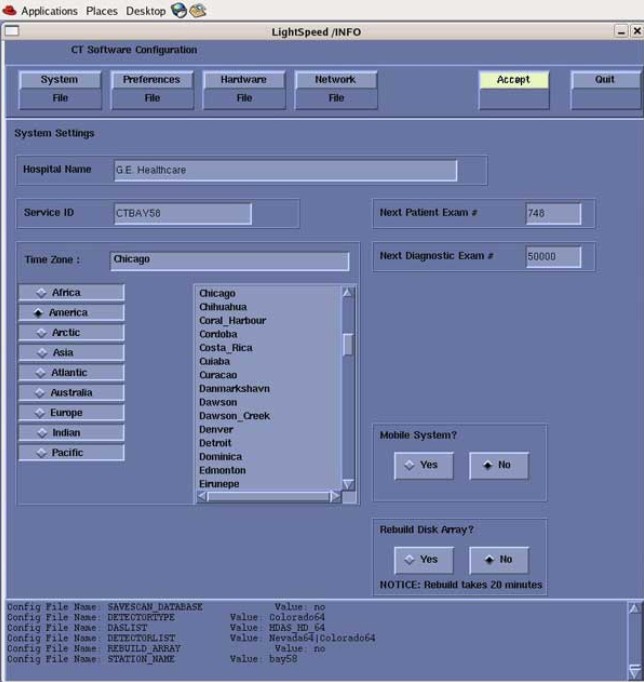
After manually configuring the system, click Accept and return to Applications Software Load, in the Load From Cold (LFC) procedure.
Figure 3. System Configuration Utility - Accept Button