- Topic ID: id_11038873
- Version: 3.0
- Date: Apr 22, 2019 12:56:29 AM
FLASH Download
1 Diagnostic Description
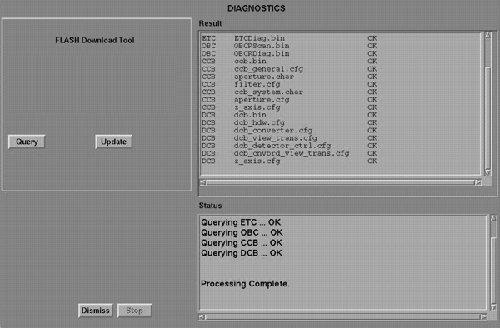
This utility loads the FLASH memory located on the control processors that are located within the system control architecture, with files stored on the system disk. This allows the nodes to initialize quickly after a reset is performed. This utility can also be used to check the nodes for the correct file versions without forcing a download.
Figure 1. FLASH Download GUI
2 When (to Use)
-
This tool must be used at least once after upgrading software or replacing any CCB, DCB, STC, ETC, TCB, OBC, ORP, TGP, TGPU or JEDI/PPC board.
note:-
Not all systems contain each of the mentioned control boards. The boards used will vary by system type.
-
The FLASH Download Tool may need to be run several times to successfully FLASH all control boards.
-
-
Run the FLASH Download tool if an Attention window displays or an error message is logged indicating a file version mismatch was found.
-
Go to the .
3 What (to Look for)
Verify that all files are downloaded without errors.
4 Additional Information
-
The OBC/ORP must be downloaded to FLASH the CCB or DCB.
-
Mismatches of files stored on the system disk and FLASH will prohibit scanning.
-
The aperture.char file is unique for each collimator. The numeric part of the serial number must be entered for this file to determine if an upload or download is required.