- Topic ID: id_15460844
- Version: 2.0
- Date: Nov 8, 2018 1:37:16 AM
DARC OS Load Pop-Up Boxes
1 Introduction
This section describes pop-up message boxes that may appear during a DARC OS load and provides additional information on what to do if you get one.
The term “DARC” will be used in this module to refer to DARC or VDARC Nodes.
2 Procedure
Locate the appropriate pop-up box in the following subsections and refer to the actions to take.
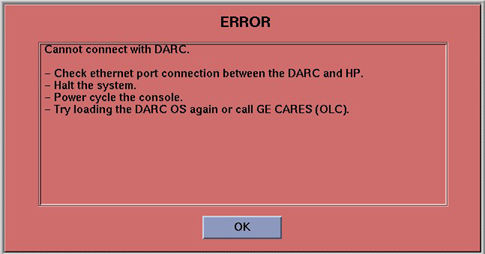
2.1 Error - Cannot connect with DARC
Figure 1. Cannot Connect With DARC
2.1.1 Pop-up Message Description
SOL (Serial Over LAN) checks out good but a failure occurs.
2.1.2 Actions to Take
-
At the rear of the DARC, verify the DARC Ethernet cable connecting to Host Ethernet Port C is installed properly (i.e., “Clicked-In” fully at both ends).
-
Click OK.
-
Open a Unix Shell.
-
Type: haltENTER.
-
When console message states power down then Power Off the Operator Console.
-
Wait 30 seconds and Power On the Operator Console.
-
Try the DARC OS load again.
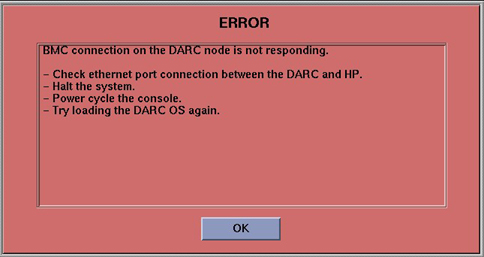
2.2 Error - BMC Connection on DARC Node Not Responding
Figure 2. BMC Connection on DARC Node is Not Responding
2.2.1 Pop-up Message Description
Cannot connect to the DARC or an internal error in the DARC.
2.2.2 Actions to Take
-
At the rear of the DARC, verify the DARC Ethernet cable connecting to Host Ethernet Port C is installed properly (i.e., “Clicked-In” fully at both ends).
-
Click OK.
-
Open a Unix Shell.
-
Type: haltENTER.
-
When console message states power down, then Power Off the Operator Console.
-
Wait 30 seconds and Power On the Operator Console.
-
Try the DARC Node OS load again.
-
Try new DARC Node to Host Ethernet cable.
-
Call OLC before replacing DARC.
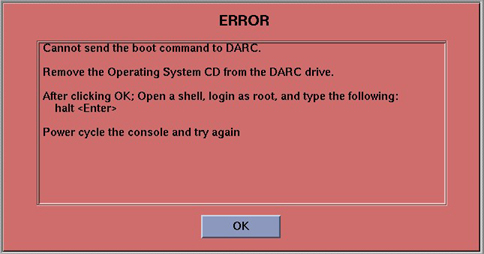
2.3 Error - Cannot Send Boot Command to DARC
During initial DARC Operating System load process something goes wrong.
Figure 3. Cannot Send Boot Command to DARC
2.3.1 Pop-up Message Description
During initial DARC Operating System load process something goes wrong.
2.3.2 Actions to Take
-
Remove OS CD from DARC drive.
-
Click OK.
-
Open a Unix Shell.
-
Type: haltENTER.
-
When console message states power down then Power Off the Operator Console.
-
Wait 30 seconds and Power On the Operator Console.
-
Try the DARC Node OS load again.
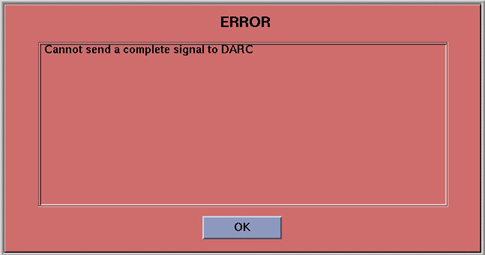
2.4 Error - Cannot send a complete signal to DARC
Figure 4. Cannot send complete signal to DARC
2.4.1 Pop-up Message Description
This is a Pop-Up that is used in conjunction with the informational pop-ups listed in Information - DARC Node Loaded OS but Complete Signal not Sent. It notifies the user an ERROR has occurred.
2.4.2 Action to Take
-
Click on OK.
-
Refer to the following section.
2.5 Information - DARC Node Loaded OS but Complete Signal not Sent
Figure 5. DARC Node OS Loaded But No Complete Signal Sent (Tips Ref)
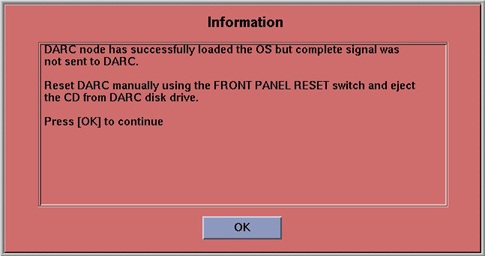
2.5.1 Pop-up Message Description
Both messages are essentially the same. Ignore the “tips and work around manual” reference. The DARC Operating System was properly loaded properly, however, the DARC “complete” signal was lost or missed within the time-out period.
2.5.2 Action to Take
-
At the DARC front panel, press the RESET switch.
-
Eject and remove the OS CD.
-
The Pop-Up box in the LFC procedure may pop-up. Click on OK.
-
Verify the OS was successfully loaded per the LFC procedure:
-
Open a Unix Shell.
-
{ctuser@hostname} su - Enter
-
Password: #bigguy Enter
-
[root@hostname]# rsh darc Enter
Last login: Thu Oct 9 11:17:35 on ttyS1 You have new mail.
-
[root@localhost root] exit Enter <- The prompt shows the OS was loaded properly.
-
Close the Unix Shell.
-
-
Click on OK.
-
Continue with software install. Load DARC Application Software on the Host Computer next.
2.6 DARC Node - Cable Checkout
-
Verify the rear power cable is connected, switch is turned on and fan is operating.
-
Verify front power LED is illuminated.
-
Verify Ethernet cable is in good condition and connected as follows:
-
Host Ethernet port C to DARC Node Ethernet.
-
HP (right-card - top Ethernet port).
-
2.7 DARC Node - Remote Shell
This subsection will verify the DARC Node remote shell can be invoked to determine if the DARC Node is up. The prompt root@localhost lets the user know the DARC OS has been loaded successfully.
Open a Unix Shell and type the following:
-
{ctuser@hostname} su space - Enter.
-
Password: #bigguy Enter.
-
[root@hostname]# rsh darc Enter.
Last login: Thu Oct 9 11:17:35 on #### You have new mail..
-
[root@localhost root ]# exit Enter.
logout rlogin: connection closed.
[root@hostname]#.
2.8 DARC Node --- Serial Over LAN Checkout
Verification of the Serial Over LAN check is almost always the initial test performed on the DARC after power and cable verification. It has been placed after ping and remote shell checkout because they are very quick tests. With SOL Checkout the telnet connection is made and the SOL connection from the Host Computer to the DARC Node is then established. This test will verify the DARC Node was booted and is up.
Open a Unix Shell and type the following:
{ctuser@hostname} su space - Enter
Password: #bigguy Enter
[root@hostname]# telnet localhost 623Enter
Trying 127.0.0.1...
Connected to localhost. <- This output indicates Host Apps were loaded and the cliservice proxy server is running.
Escape character is '^]'.
Server: darc Enter
Username: Enter
Password: Enter
Login successful <- This output indicates the SOL connection is established.
dpccli> console Enter
If the darc login prompt is not present and localhost.localdomain prompt is displayed, then try reloading the DARC Node OS and DARC Application software per the procedure. The problem could be that the DARC Apps did not load correctly. Always be sure the DARC OS version matches the Host OS version already loaded.