- Topic ID: id_15460201
- Version: 2.0
- Date: Nov 8, 2018 1:37:15 AM
06MW03.4 SW LFC (LS 7.X)
Figure 1. LightSpeed 7.X GOC5 Operator Console (Front Cover Removed)
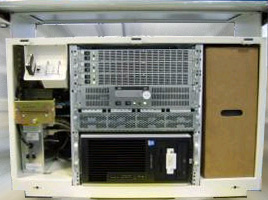
The contents of this procedure are equivalent to Direction 5116412-100, Revision 8 only. This procedure does NOT match any other revision of 5116412-100.
1 Scope
This LFC (Load from Cold) procedure supports systems using version 05MW31.x or later.
2 Preliminary Requirements
2.1 Software Version (For LightSpeed 7.X) VCT 06MW03.4
This Procedure applies to the software version 06MW03.4 or later.
-
5154896 - LightSpeed Xtream Console Operating System
Version - GEMS Linux 4.3.16
-
5167837 - LightSpeed VCT Applications Software DVD
Version VCT 06MW03.4
-
2399297 - Xtream Serial-Over-LAN Service Software
Version - 1.0 Supports: Linux Xtream
The Xtream Serial-Over-Lan Service Software is not used during the LFC unless instructed via a pop-up message box "SOL Service - ...run the Serial Over LAN Service CD...". This CD is loaded directly into the V/DARC Node. Then press the reset (or cycle power) at the front panel of the V/DARC Node as required. This CD will auto-eject when the SOL load process is complete.
2.2 Required Conditions
2.2.1 Hardware-Related Prerequisites
-
Verify the SCSI Tower DVD-RAM power is applied.
-
Verify the SCSI Tower terminator LED is lit (located at the rear).
-
Verify the Host Computer DVD-ROM drive does not have any media in it.
-
Verify and record specific system hardware configuration.
Record screen information in VCT Console Information Sheet.
-
Open a Unix Shell and type the following:
{ctuser@hostname} cat /usr/g/config/INFO Enter
-
Record software version.
-
Type the following:
{ctuser@hostname} su - Enter
{ctuser@hostname} #bigguy Enter
{root@hostname} dmidecode | more Enter
BIOS Information (Command is available with 05MW31.5X)
Version: JQ.W1.13.US = 1.13 for xw8000
Version: 786B8 v1.11 = 1.11 for xw8200
-
Record bios version.
-
Type the following:
{root@hostname} exit Enter
{ctuser@hostname} cat /usr/g/config/INFO Enter
-
Record screen information.
-
-
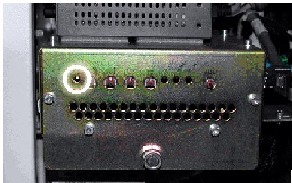
Verify the ICOM has the power LED lit. (See illustration, below.)
2.2.2 Software Load Prerequisites
Some Host Computer xw8200 that were sent with pre-05MW31.5x (A.K.A. M3A ) SW have an incorrect ethernet port cabling configuration. Visually verify that your Host Computer Ethernet Port cables are configured properly.
The chart below illustrates the Host Computer Ethernet naming scheme for the two (2) GOC5 Host Computer Types. Physical cable connections within the Operator Console do not change – only the software Ethernet port naming scheme differs.
Two (2) Host Computer types used in the GOC5 Operator Console (xw8000 or xw8200). The ifconfig command output is reported differently for each Host type. This occurs because the NIC configuration (NIC 1 vs. NIC2) was changed by the vendor.
3 Procedures
3.1 Save System State
New tasks are included in this SW release. These tasks will generate data that needs to be saved to the System State DVD. Follow the save and restore procedures throughout this document precisely or valuable information may be lost.
-
Insert the System State DVD-RAM into the SCSI Tower DVD RAM drive.
-
Wait until the DVD drive is ready (i.e., until the front panel green LED is no longer lit).
-
Select: Service icon to access the CSD (Common Service Desktop)..
-
Select: Utilities.
-
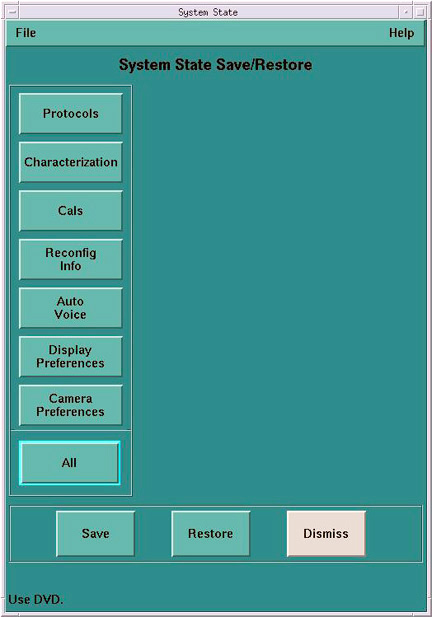
Select: System State.
-
Select All to select all the cals, characterizations, etc.
-
Select Save.
-
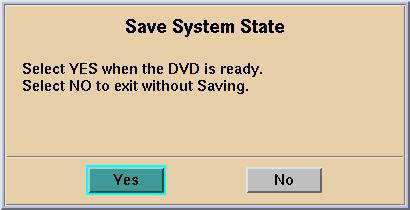
If applicable, select Yes when the following message appears: System State Media Status: Please insert a DVD into the drive and press Save again.
 note:
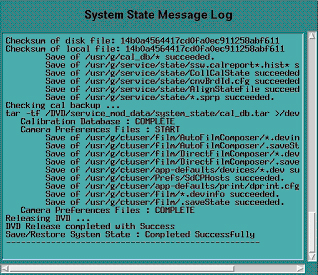
note:Verify that the "Save" of System State was successful. If not, correct any errors and re-save the system state. A message at the end of the Save should state: Save/Restore System State: Completed Successfully.
-
When completed, select CANCEL.
-
When completed, select Dismiss.
-
Close the Service Desktop window at the upper left corner of the screen.
3.2 Load from Cold Installation Procedures
Use these procedures to perform a “Load from Cold” (LFC) from a grouping of Software media.
Before proceeding you must disconnect the console from the Hospital Network. Failure to do this may result in the console broadcasting traffic out to the entire Hospital network.
3.2.1 Disconnect Hospital Network Cable from Rear Console Bulkhead
-
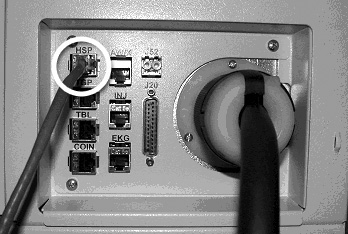
Unplug the Hospital Network (HSP) cable from rear Console bulkhead. See illustration below.
-
Label the cable appropriately and set it aside during LFC.
3.2.2 Linux Operating System (OS) Software Load on Host Computer
System State SAVE must be performed before performing the Load From Cold Procedure.
-
Remove the Operator Console's front cover.
-
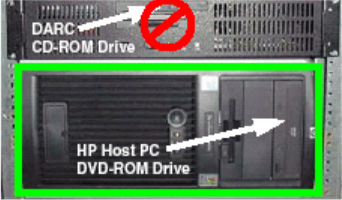
Insert the 4.3.16 LightSpeed Xtream Console Operating System DVD (P/N 5154896) into the Host Computer DVD-ROM drive (see the illustration below). The Host Computer must be powered ON to insert the disk.
-
Select one of the following methods to re-power the Operator Console:
-
If Applications are up:
-
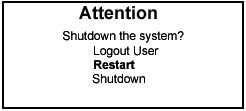
Select the Shut Down button.

-
Select Restart then OK to restart the system.
-
-
If Application Software is down, at the toolchest open a Unix Shell and type:
-
{ctuser@hostname} su - Enter
-
Password: #bigguy Enter
-
[root@hostname] halt
-
The Operator Console monitor will display a System Halted message when it is acceptable to power OFF the Operator Console.
-
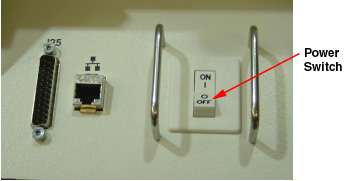
Power OFF the Operator Console at the front panel switch.
-
Wait 30 seconds to allow the disk drive to settle; then power ON the Operator Console at the front panel switch.
-
-
-
As the Host Computer restarts, the booting process messages appear. After the booting process completes, the boot: prompt appears. (The OS is a bootable media.)
-
At the boot: prompt, type one of the following depending on system type:
GEHC2 (for English Keyboard only)
iGEHC2 (International command only)
note:The Console Operating System load takes approximately 20 minutes. If the boot: prompt does not appear, then either the DVD is bad or the Console Operating System Media is not installed in the drive. Typing GEHC (or iGEHC) results in both scan and display being on one monitor and requires a LFC. Typing any other command not listed in this procedure will result in a LFC.
-
After the OS is loaded on the Host Computer, a red button appears and displays Reboot.
-
Remove the OS DVD from the Host Computer DVD-ROM Drive when it ejects.
-
Press Enter to reboot.
-
The Host Computer will reboot.
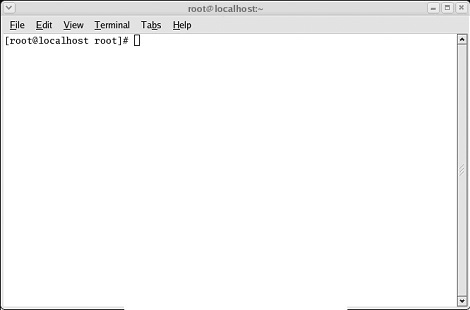
note:Do not insert the LightSpeed VCT Applications Software DVD into the Host Computer until the system reboots and the [root@localhost] window appears, displaying the [root@localhost root]# prompt.
3.2.3 Application Software Load on the Host Computer
There is a single Application DVD used for both the Host Computer and the VDARC. All applications software will be loaded to the Host Computer during this process.
 |
|
-
Verify V/DARC Trouble Shooting cable is not connected to the Scan or Display Monitors at this time.
-
After the Host Computer reboots, verify that the window appears with the [root@localhost root]# prompt.
-
Insert the LightSpeed VCT Applications Software DVD (p/n 5167837) into the DVD-ROM drive on the Host Computer. See the illustration below.
-
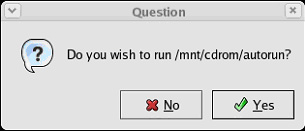
After approximately 15 seconds, a pop-up box appears, displaying:
-
Select Yes.
note:If the pop-up box Question does not appear after two minutes, type the following and wait approximately one minute for the pop-up box to appear.
mount /mnt/cdrom Enter
/mnt/cdrom/autorun Enter
-
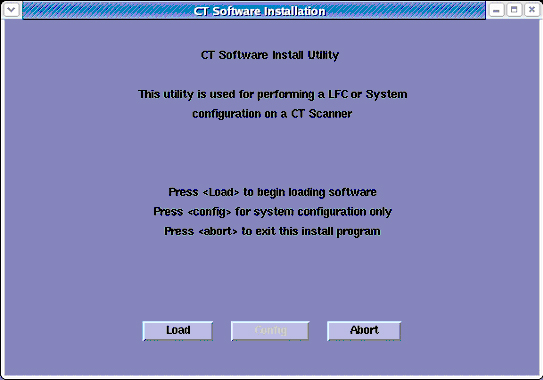
After approximately 15 seconds, an Installation Utility window appears. (See illustration, below.)
-
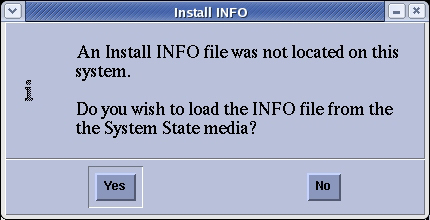
Select LOAD button. A prompt message appears asking if you want to load the INFO file from the System State DVD.
-
System State DVD:
-
If you do not have a System State or the System State is unusable, select NO.
-
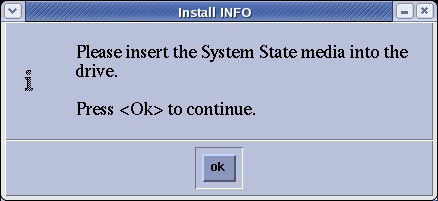
If you have a System State DVD, select YES. When prompted, ensure the System State DVD is in the DVD drive in the SCSI Tower (on top of the console), and then select OK.
-
-
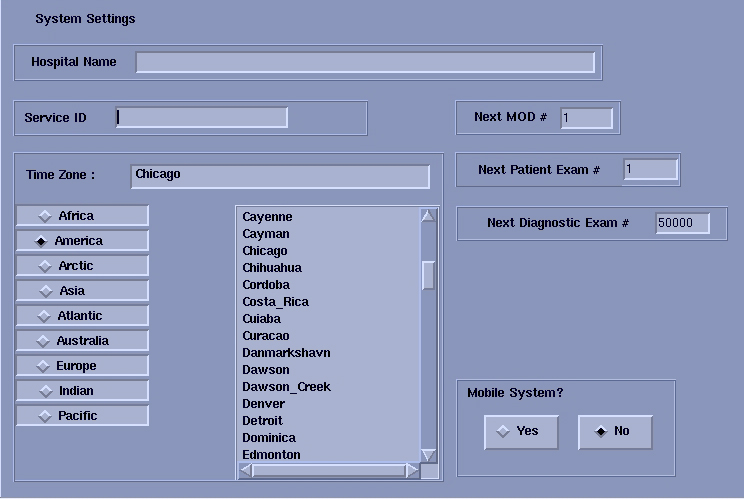
Select the System tab.
See example System Settings screen, below.
-
Verify that the Next Patient Exam # on the System Settings screen is the value restored from Save System State. Otherwise, set to 1.
-
Verify that the proper Time Zone is selected.
-
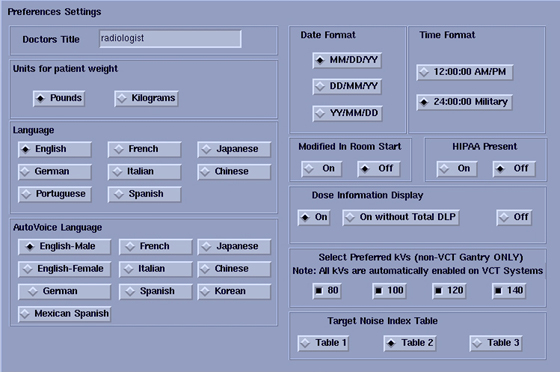
Select the Preferences tab.
See the illustration below, for an example Preference Settings screen.
-
Select the units for Patient Weight.
-
Select Language: (ENGLISH or OTHER).
-
Select Preferred FastCal KV - select the kV to be calibrated during FastCal. These kVs should include all kVs that the site uses for patient scanning.
note:For VCT, all kV's are automatically enabled.
-
Select Target Noise Index Table.
-
Verify proper Date Format is selected.
-
Verify proper Time Format is selected.
-
Verify Modified in Room Start is set to OFF, unless the site is in Japan, and/or the customer has requested that this be turned ON.
-
Set HIPAA Present to OFF, unless the customer requests HIPPA to be ON.
-
Select the site preferred Dose Information Display option for the site to use in monitoring calculated Patient Dose:
-
Select ON (full CTDiw Display)
-
Select ON WITHOUT TOTAL DLP (no Dose Length Product Display), or
-
Select OFF (no CTDIw Display)
note:A scroll bar below this menu may be present. It contains the System Information from the INFO file System State.
-
-
Select the Hardware tab.
See example Hardware Settings screen, below.
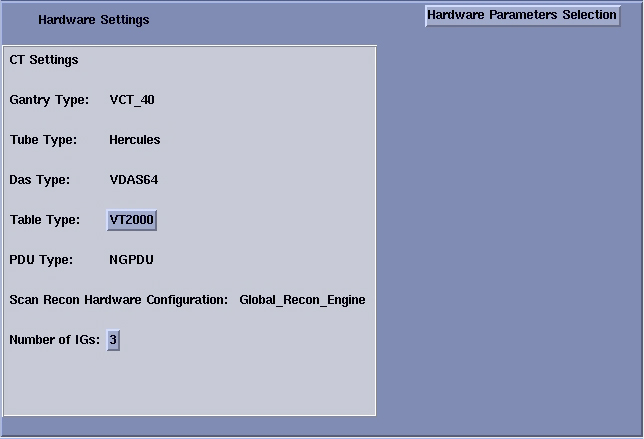
-
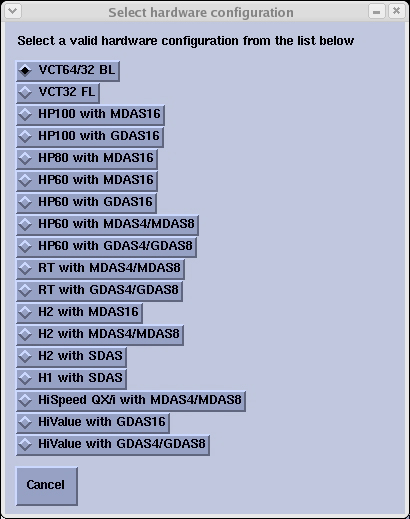
Select the Hardware Parameters Selections button. Then, depending on the VCT, site select one of the following:
-
VCT64/32 BL
-
VCT32 FL
See example Select hardware configuration screen, below.
-
-
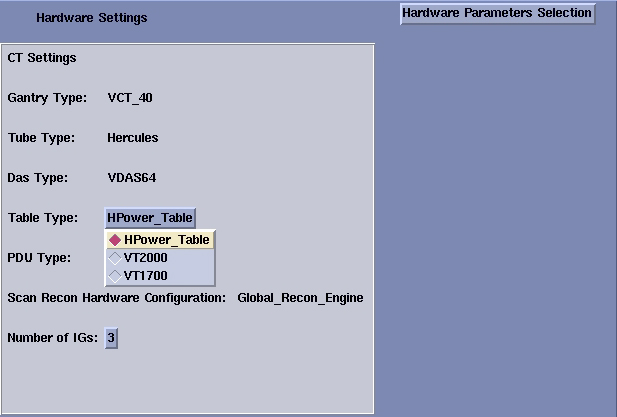
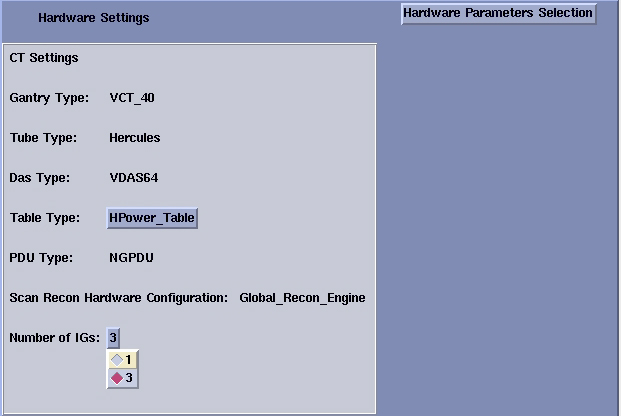
Select the proper Table Type for Hardware.
See example Hardware Settings screen, below.
 note:
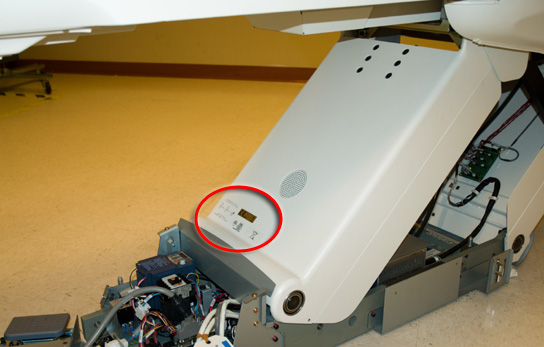
note:Check the label/rating plate at the front bottom of the Table, closest to the Gantry (by the GTCB), and determine the Table Type according to the part number of the Table:
-
5121647: VT2000
-
5122080: VT1700
The HPower_Table select is not valid for VCT Installed Base
-
-
Select the proper Number of IGs present in the Operator Console.
See example Hardware Settings screen, below.
-
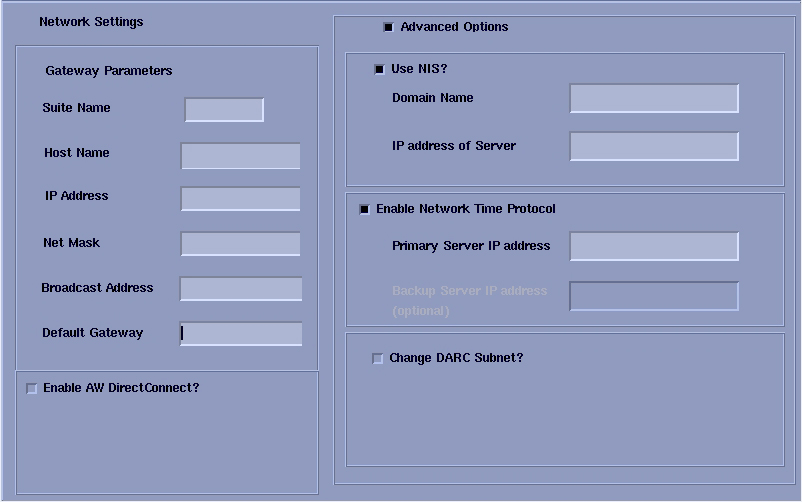
Select the Network button.
See example Network Settings screen, below.
-
Configure Network Settings:
-
Suite Name - Add your name here.
note:The Suite Name must start with a letter, followed by 3 alphanumeric characters Total must be four characters long. The name of the OC interface <Suite Name>_oc within the scanner's subnet. It is suggested that you choose CT01 as its name, unless a different Suite Name is required.
-
Host Name - Add your host name here.
note:The Host Name identifies the hostname and AE Title of the scanner. It:
-
MUST NOT be <Suite Name>_oc or <Suite Name>_OC.
-
MUST NOT exceed 16 Characters.
-
MUST only contain the following characters: a thru z, 0 thru 9, - and _.
-
-
IP Address - Site supplied address.
-
The following procedure should be performed if your customer Ethernet hospital backbone begins with 172.16.0.xx, OR if the scanner will connect to a device with an IP address of 172.16.0.xx.
-
If hospital backbone starts with 172.16.0.xx and this is a first time install, continue and complete the software load on the HOST and VDARC. When the VDARC applications load is complete the VDARC subnet can be changed by running “reconfig”. During reconfig, check the Change DARC subnet box, and enter the following value: 169.254.0
-
If the hospital backbone starts with 172.16.0.xx, and the VDARC subnet was already changed, continue and complete the software load on the HOST and VDARC.
-
If the VDARC subnet was already changed and needs to be set to the 172.16.0 subnet continue and complete the load on HOST and VDARC and run reconfig to change the VDARC subnet.
-
-
Net Mask - Site supplied address.
note:If the hospital backbone IP address is 192.9.220.xx, then the Net Mask must be set to 255.255.255.252.
-
Broadcast Address - Site supplied address.
-
Default Gateway - Site supplied address.
note:Make sure the NUM LOCK button on the keyboard is not active. If it is, deselect it to enable the ACCEPT button in the next step. Failure to deactivate the NUM LOCK results in load issues.
-
If your customer has AW Direct Connect, then select Enable AW DirectConnect?. Complete the LFC, making certain to configure this feature in AW Direct Connect. (Do not configure AW Direct Connect now.)
-
If your customer wants to synchronize the system time to their NTP server, then select Enable Network Time Protocol, and enter the Primary Server IP address.
-
-
Select the ACCEPT button at the right corner of the User Interface.
-
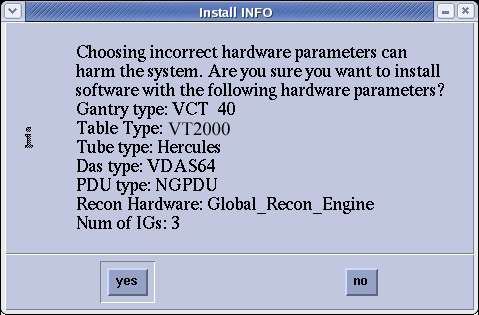
An Install INFO pop-up box is displayed.
See illustration below, for a typical Install INFO message (the Install INFO message is different for each system configuration).
-
Select yes, if correct.
note:If the information is not correct, select the NO button. This returns you to the Hardware screen. Select the Hardware Parameters Selection button and select the correct system configuration from the displayed list. Select the Accept button again, followed by the YES button on the Install INFO pop-up to accept the new hardware configuration.
-
The following pop-up message appears:
Please make sure the CT Application SW is in the drive - the system will be rebooted.
No action is required for this pop-up. The system will automatically reboot after approximately 10 seconds if the OK button is not selected.
note:Do not remove the LightSpeed VCT Applications Software DVD from the Host Computer until instructed to do so.
-
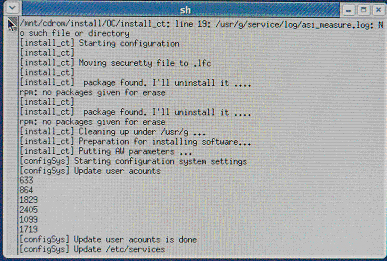
As the system reboots, the following Winterm window message appears: Starting LFW procedure. A shell Installation screen appears and the application software starts loading.
-
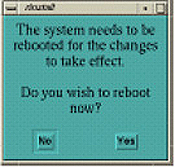
When the system prompts you to reboot (after approximately 13 minutes), answer YES. The system is going down for reboot NOW. (See illustration, below.)
 note:
note:During the reboot of the console, a message may appear to the effect that the system was not able to determine what the tube type was and to run the TIC tool. This message should be ignored.
-
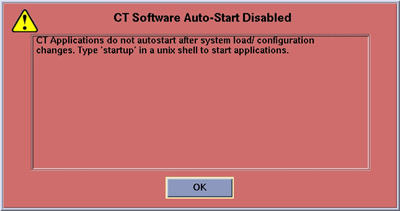
After approximately 3 minutes, a pink pop-up box appears, stating CT Software Auto- Start Disabled. In this box, select OK.
-
Press the button on the DVD-ROM drive to remove the LightSpeed VCT Applications Software DVD from the Host Computer.
3.2.4 Confirm Host PC Software
Confirm the Host Computer Software type. Output of the following commands MUST BE EXACT.
-
Open a Unix Shell and type the following to see software and hardware Config information.
{ctuser@hostname} swhwinfo Enter
06MW03.4. <hardware revision info here>
Example for VCT64: 06MW03.4.V40_H_V64_G_GTL
note:-
If the revisions match, continue with this procedure.
-
If the revisions do NOT match, reload the software.
-
-
{ctuser@hostname} swhwinfo –o for OS version
Release: GEHC/CTT Linux 4.3.16
Built: Tue Jul 12 12:29:10 CTD 2005
note:Confirm that the results match the Operating System version and Software Build Date shown on the OS and Applications DVDs.
3.2.5 Set Scanner Date and Time
You must set the date and time on the Host Computer with Application Software down.
-
Open a Unix Shell and log in as root:
-
su - Enter.
-
#bigguy Enter.
-
-
Set date and time. Type the following:
{root@hostname}# setdate Enter, to be prompted through the individual entries. Where:
Enter the current Year or "q" to quit (1980-2030) [2006]:
Enter the current Month or "q" to quit (1-12) [04]:
Enter the current Day or "q" to quit (1-30) [14]:
Enter the current Hour (Military Time) or "q" to quit (0-23) [18]: 15
Enter the current Minute or "q" to quit (0-59) [13]: 18
\nUpdating the time on the OC and SBC, Please Wait...
PING darc (172.16.0.2) 56(84) bytes of data.
-
Upon completing either of the above commands, the user will receive one of the two following responses:
-
If the V/DARC Node has been replaced and has no software, the following response will appear:
--- darc ping statistics ---
1 packets transmitted, 0 received, 100% packet loss, time 0ms
The darc is not responding. darc will sync time with oc during next darc reboot
Current OC date : Fri Apr 14 15:18:00 CDT 2006
Could not retrieve the SBC TImeZone.
Please make sure the TimeZones for the OC and SBC are the same.
[root@liblab14]#
-
If the V/DARC Node is being reloaded and had software, the following response will appear:
--- darc ping statistics ---
1 packets transmitted, 1 received, 0% packet loss, time 0ms
rtt min/avg/max/mdev = 0.139/0.139/0.139/0.000 ms, pipe 2
connect to address 10.0.1.2: Connection refused
connect to address 10.0.1.2: Connection refused
trying normal rsh (/usr/bin/rsh)
Alarm clock
connect to address 10.0.1.2: Connection refused
connect to address 10.0.1.2: Connection refused
trying normal rsh (/usr/bin/rsh)
IG1 date: 04142006161358 selected date: 04142006161343
connect to address 10.0.2.2: Connection refused
connect to address 10.0.2.2: Connection refused
trying normal rsh (/usr/bin/rsh)
Alarm clock
connect to address 10.0.2.2: Connection refused
connect to address 10.0.2.2: Connection refused
trying normal rsh (/usr/bin/rsh)
IG2 date: 04142006161408 selected date: 04142006161354
connect to address 10.0.3.2: Connection refused
connect to address 10.0.3.2: Connection refused
trying normal rsh (/usr/bin/rsh)
Alarm clock
connect to address 10.0.3.2: Connection refused
connect to address 10.0.3.2: Connection refused
trying normal rsh (/usr/bin/rsh)
IG3 date: 04142006161418 selected date: 04142006161404
Current OC date : Fri Apr 14 16:14:05 CDT 2006
Current DARC date : Fri Apr 14 16:14:04 CDT 2006
setdate completed with NO ERRORS.
[root@liblab14]#
-
3.2.6 Delete SCSI Partitions
This process is performed with Application software down.
If the Host Computer is able to successfully remote shell the V/DARC Node, perform the instructions in this section. Performing the reconfigScanDisk script may cause V/DARC Node OS load issues. Deleting V/DARC Nodes SCSI partitions will prevent V/DARC Node OS load issues. The reconfigScanDisk script is not a viable/usable script on VCT software/hardware and will be removed later in the LFC.
If unable to perform either a remote shell to the V/DARC (rsh darc) or the SCSI Partitions Delete process, continue with the next sub-section “Verify Disk Array (JBOD) is OFF”.
In a Unix Shell, type the following:
-
{ctuser@hostname} su - Enter
-
password: #bigguy Enter
-
[root@hostname] rsh darc Enter
-
[root@darc] umount /raw_data Enter << There is a space between “umount” and “/raw_data”
note:If the SCSI partitioning was erroneous, the Warning below is displayed for the “parted” command run. Ignore and continue deleting the SCSI partitions.
Warning: Unable to align partition properly. This probably means that another partitioning tool generated an incorrect partition table, because it didn't have the correct BIOS geometry. It is safe to ignore, but ignoring may cause (fixable) problems with some boot loaders.
Example: parted(spacebar) –s (spacebar)/dev/sd_(spacebar)rm (spacebar)1
-
[root@darc] parted -s /dev/sda rm 1 Enter
-
[root@darc] parted -s /dev/sdb rm 1 Enter
-
[root@darc] parted -s /dev/sdc rm 1 Enter
-
[root@darc] parted -s /dev/sdd rm 1 Enter
-
[root@darc] parted -s /dev/sde rm 1 Enter
-
[root@darc] parted -s /dev/sdf rm 1 Enter
-
[root@darc] parted -s /dev/sdg rm 1 Enter
-
[root@darc] parted -s /dev/sdh rm 1 Enter
3.2.7 Verify Disk Array (JBOD) is OFF
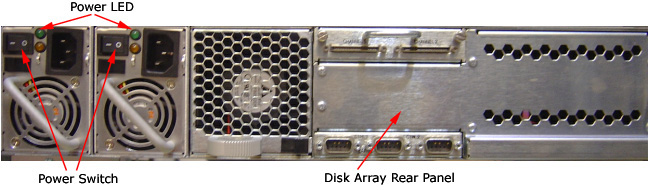
At the rear of the Disk Array (JBOD), verify if the two green Power LEDs at rear panel are off. If not, press the two (2) power switches at rear panel to remove power from the Disk Array. Refer to Figure 2.
Figure 2. Rear Panel of Disk Array
3.2.8 Operating System Software Installation on Host Computer for V/DARC
The 4.3.16 LightSpeed Xtream Console Operating System DVD (P/N 5154896) will be inserted into the Host Computer and via a script – it will be loaded to the V/DARC Node. If any problems arise, verify the correct media is installed or verify the Boot BIOS Order is correct. If V/DARC Node OS load problems continue, perform the V/DARC Stand-alone OS load procedure. This stand-alone procedure eliminates any external sources causing an issue but does not rule out media issues or internal V/DARC Node issues.
-
Open a Unix Shell and type the following:
-
{ctuser@hostname} su - Enter
-
Password: #bigguy Enter
-
[root@hostname] cd /usr/g/scripts Enter
-
[root@hostname] ./start_darcOS Enter
-
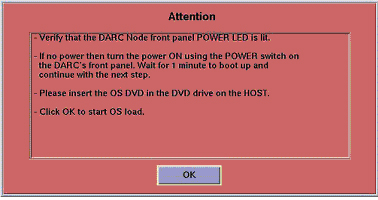
An Attention window appears:
-
-
Follow the instructions in the Attention window:
-
Verify the V/DARC Node is turned ON
-
Insert the 4.3.16 LightSpeed Xtream Console Operating System DVD (P/N 5154896) into the Host Computer DVD-ROM drive
-
Select OK to begin.
-
-
An sh window displays the message below followed by a series of four rows of dots.
sh
Copy OS packages from the DVD to the HOST’s hard drive. Thistakes about 10 minutes.………………………………………………………………………….
………………………………………………………………………….
………………………………………………………………………….
………………………………………………………………………….
-
Once the copy process is complete the OS load begins:
sh
OS load has started. This takes about 18 minutes.
##.## % done.
note:The VDARC OS Load will stop prematurely ONLY if an error is encountered. An Error Dialog Box will appear with a brief description of the error. Select OK after reading the instructions displayed on the Monitor. Refer to DARC OS Load Pop-Up Boxes for additional information on these error pop-up windows. Also, if any problems arise, verify the correct media is installed.
note:A %done status is displayed during the V/DARC OS load. This is only a timed countdown sequence and does not provide status of the actual load process. When the V/DARC OS load has completed a reboot message will appear.
-
Once the load process is complete the DARC reboots:
Sh
Waiting for the DARC to boot up…
-
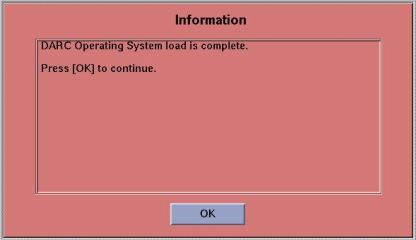
When the V/DARC OS load has completed, a pop-up Information box is displayed. An example is shown below.
-
The OS disk will eject automatically. Remove the OS media from the Host Computer drive and close the drive.
-
Select OK.
-
To verify the OS has been loaded on the V/DARC Node, open a Unix Shell and type the following:
note:If the VDARC login prompt [root@localhost root] is not present, then try reloading the V/DARC Node OS again per the procedure. Always be sure the V/DARC OS matches the Host OS already loaded. If issues persist perform the V/DARC Node Stand-alone Work Around OS Load Procedure.
-
{ctuser@hostname} su - Enter
-
Password: #bigguy Enter
-
[root@hostname] rsh darc Enter
-
[root@localhost root] exit Enter
-
-
This completes the OS load for the V/DARC Node.
3.2.9 Verify Disk Array (JBOD) is ON
At the rear of the Disk Array (JBOD), locate the two (2) power switches. Press the two (2) power switches at rear panel to apply power to the Disk Array. Refer to Figure 3
Figure 3. Rear Panel of Disk Array
3.2.10 V/DARC Applications Software Load
-
Open a Unix Shell and type the following:
[ctuser@hostname} su - Enter
Password: #bigguy Enter
[root@hostname] cd /usr/g/scripts Enter.
[root@hostname] ./start_darc_load Enter.
-
A shell window pops up and the load begins. A SUCCESSFUL LOAD TAKES ~10 MINUTES. Continue the procedure when the load window goes away.
-
Close the shell (do not use for the next process).
3.2.11 Reboot The Operator Console & Stop Application from Starting Up
Open a Unix Shell and type the following:
-
[ctuser@hostname} su - Enter
-
Password #bigguy Enter
-
[root@hostname] sync Enter
-
[root@hostname] sync Enter
-
[root@hostname] reboot Enter
A message appears: The system is going down for reboot NOW!
-
After approximately 4-5 minutes a pink pop up window appears with the message:
CT Software Auto-Start Disabled.
-
Select OK.
3.2.12 Remove 'reconfigScanDisk' Script
Open a Unix Shell and type the following:
-
{ctuser@hostname} su - Enter
-
Password: #bigguy
Enter
-
[root@hostname] rsh darc Enter
-
[root@darc] cd /usr/g/scripts Enter
-
[root@darc]] ls reconfigScanDisk Enter
reconfigScanDisk
-
[root@darc] rm reconfigScanDisk Enter
Type y to remove: yEnter
-
[root@darc] ls reconfigScanDisk Enter
reconfigScanDisk will be gone.
3.2.13 VRAC Flash Update
This is a required step for any site performing an LFC. This procedure flashes the VRAC(s) from the Host Computer with Application Software down.
-
Open a Unix Shell and type the following:
{ctuser@hostname} vrac_flash_update Enter
note:This tool will check the FLASH versions of the VRAC on all IGs in the system. If any version is not up to date the VRAC will be updated at this time. APPLICATIONS MUST NOT BE RUNNING WHEN THIS STARTS.
note:If this FLASH procedure is interrupted reverify the V/DARC and V/IG Node rsh process is successful. Then rerun the vrac_flash_update procedure.
-
Type: y
-
Verify vrac_flash_update was successful.
3.2.14 Changing DARC Subnet Using the “reconfig” Command
The following procedure should be performed ONLY IF you performed step 27d, inApplication Software Load on the Host Computer (i.e., if your customer Ethernet Hospital Backbone begins with 172.16.0.xx.)
-
Open a Unix shell and type the following:
-
[ctuser@hostname} su - Enter
-
password: #bigguy Enter
-
[root@hostname] reconfig Enter
-
-
Select the Network button, check the Advanced Options box, then check the Change DARC Subnet? box and enter the following: 169.254.0.
-
Select Accept.
-
When the system prompts you to reboot, select Yes to reboot the system.
3.3 CT Applications Start Up
-
Open a Unix shell and type the following:
{ctuser@lhostname} st Enter
-
A Pink Pop Up Attention Message appears:
“OC initializing. Please wait…”.
note:IG NODE NOT RESPONDING POP UP: The IG Node(s) may need to be power cycled. Possibly the VDARC Node was unable to actually bring up the IG Node or the IG Node did not respond due to a bad Ethernet cable or incorrect port connection.
-
Select OK for other pink message boxes that appear throughout the reboot process.
-
If any Recon Selftest Failures are encountered review the error log. Make certain to note the errors for troubleshooting after the LFC.
3.4 Restore System State
This procedure restores Characterization Data, Calibration Data, Protocols, etc., from your System State DVD.
-
Insert the Save System State DVD-RAM into DVD-RAM SCSI Tower drive.
-
Wait until the DVD drive is ready (i.e., until the front panel green LED is no longer lit).
-
Select: Service icon to access the CSD (Common Service Desktop).
-
Select: Utilities.
-
Select: System State.
-
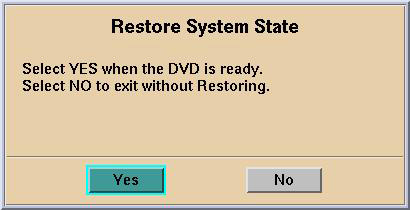
Select All. This will highlight the protocols, calibration, characterization, etc.
-
Select Restore.
note:This will not affect any IP addresses (e.g., DARC Subnet) that were previously modified.
-
If applicable, select Yes when a pop-up appears to restore System State.
-
Verify the CSA Protocols (reformat, Volume Viewer, etc.) were restored correctly.
-
When completed, select CANCEL.
-
Select DISMISS.
-
Close the Service Desktop window.
3.5 Save System State
New tasks are included in this SW release. These tasks will generate data that needs to be saved to the System State DVD. Follow the save and restore procedures throughout this document precisely or valuable information may be lost.
-
Insert the System State DVD-RAM into the SCSI Tower DVD RAM drive.
-
Wait until the DVD drive is ready (i.e., until the front panel green LED is no longer lit).
-
Select: Service icon to access the CSD (Common Service Desktop)..
-
Select: Utilities.
-
Select: System State.
-
Select All to select all the cals, characterizations, etc.
-
Select Save.
-
If applicable, select Yes when the following message appears: System State Media Status: Please insert a DVD into the drive and press Save again.
note:Verify that the "Save" of System State was successful. If not, correct any errors and re-save the system state. A message at the end of the Save should state: Save/Restore System State: Completed Successfully.
-
When completed, select CANCEL.
-
When completed, select Dismiss.
-
Close the Service Desktop window at the upper left corner of the screen.
3.6 Retro Recon Test
The Reconstruction (not Scan) portion of the system can be tested at this point.
-
Verify Recon is not Shutdown or Paused (in the Left Display Monitor's FSA Box). Select Recon Management then Restart Queue, if not in the Idle Mode.
-
Select Retro Recon on the left Monitor.
-
Select the gold rat Patient ID.
-
Select Select Series.
-
Select Confirm.
-
Verify the image(s) reconstruct and are displayed.
-
Verify the Left Monitor’s FSA Box displays successfully.
-
Select Quit.
3.7 RECON Self Test
-
Select the Service Icon.
-
Select Diagnostics.
-
Under Image Chain, select Recon Data Path.
-
Select Recon Data Path.
-
Verify it is set to 1 and ALL.
-
Select Run.
-
Verify Recon Data Path tests pass.
-
Select Dismiss or close the GUI.
3.8 Flash Download
|
|
-
Power OFF the GTCB by pressing the Emergency Off button. Use one of the two Emergency Off buttons found on the Gantry front cover.
-
Select the Service Icon.
Select Utilities.
Select Install.
Select FLASH Download Tool.
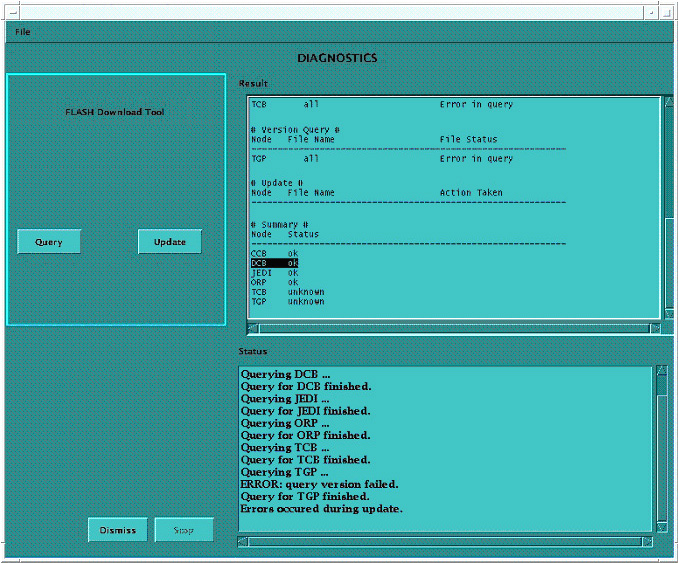
-
Verify the GTCB is powered OFF. Verify the small green Gantry Reset LED is still blinking on the Gantry Control.
note:The Gantry Reset LED indicates the Emergency Stop circuit status. When the E-Stop circuit is pressed, all power is removed from the GT/VT - 2000/1700 Table. Another indication of the Emergency Stop circuit status is the orange Drives Reset LED blinking on the Service Switch Panel.
-
Select Update.
Verify the GTCB is powered OFF. This is achieved by pressing the Emergency Stop button on the front Gantry Covers. Verify power is removed from the GTCB by checking that the small Gantry Reset LED is still blinking on the Gantry Control.
note:Ignore any TGP “unknown” messaging. This is not a problem.
-
Turn GTCB power back ON ONLY after the DCB/CCB/Jedi/ORP has successfully flashed. GTCB power is restored via the Gantry Control reset button or the Drives Reset switch on the Service Switch Panel.
note:Ignore any TGP “unknown” messaging. This is not a problem.
-
Once the DCB/CCB/Jedi/ORP flash successfully:
Select Update.
Verify the GTCB is powered ON at this time.
-
Select Dismiss when then Flash Download process is a success.
-
If there are any issues with the FLASH Download Tool update, open a Unix Shell and try to ping the following (Ctrl+C and close the shell when done pinging each one).
-
ping orp
-
ping tgp
note:If an issue exists with Flash Download, retry, then perform SYSTEM RESETS, SCAN, RUN and verify this passes, and view the log for errors.
note:Flash Download may take several times before it is successful. GTCB board failures during a Flash Download were identified as timing issues between the DCB Flash and the GTCB (TCB) Flash. Powering OFF the GTCB eliminates this Flash timing issue between the DCB and GTCB.
-
3.9 Install Options
-
Insert the Options DVD-RAM in the SCSI Tower DVD RAM drive.
note:If you do not have the Options DVD-RAM, then you can use the eLicense feature. Follow this link to the eLicense Page: http://egems.gehealthcare.com/elicense/index.jsp
-
With the Applications up, select the Service Icon.
-
Select Configuration.
-
Select Install Options.
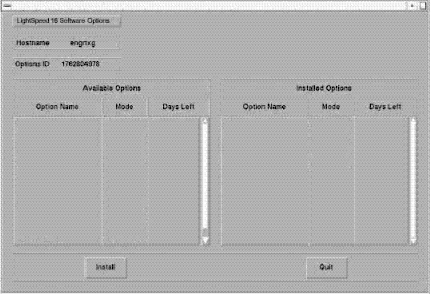
-
Select Install.
-
Select Permanent.
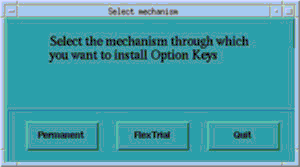
-
Select the MEDIA button and insert the Options DVD.
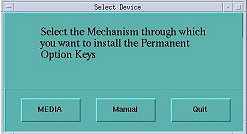
-
Select OK. Software options available for installation are displayed on the options screen.
-
Select options one at a time from the Available Options List and select Install to update each selection and place it on the Installed Options List.
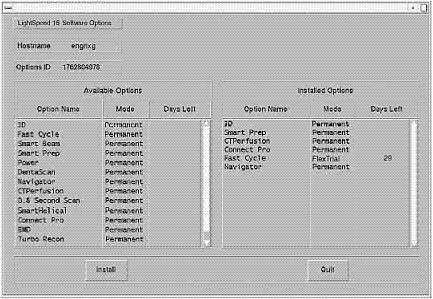
-
Select Quit to exit the window when the process is complete.
-
Select Quit again to exit Install Options window.
-
A window pops-up displaying: “Application should be shutdown and restarted for installed/removed options to take effect.”
-
Select OK.
-
Press the button on the DVD-RAM drive on SCSI Tower to eject the option DVD.
-
Close the Service Desktop window in the upper left corner of the screen.
-
Do not remove the DVD-RAM from the SCSI Tower DVD-RAM drive.
3.10 Tube Usage Verification
Verify on Common Service Desktop (CSD) the number of Exams. If it does not match what was recorded earlier, then contact the OLC for directions to fix Tube Usage.
For the initial M4 Load, this step is critical to VCT Tube Warranty. 6000 Exams or 12 months.
3.11 Feature Installation
3.11.1 HIPAA
If HIPAA is turned ON, then configure it now. (Refer to HIPAA Configuration) When HIPAA configuration is complete, return to this procedure.
3.11.2 Product Network Filters (PNF)
If your customer wishes to have Product Network Filters (PNF) configured, then proceed to Configure Product Network Filters now. When PNF configuration is complete, return to this procedure.
3.11.3 AW Direct Connect
If requested by the customer, configure AW Direct Connect, now. When configuration is complete, return to this procedure.
3.12 Restart the System
3.12.1 Re-Connect Hospital Network Cable to Rear Console Bulkhead
Plug the Hospital Network (HSP) Cable into the Operator Console's rear bulkhead as shown.
3.12.2 Restarting the System
-
Select the red Shutdown Icon.
-
An attention box will appear as shown below:
Select: Restart and then the OK button to shutdown and restart the system.
-
If HIPAA Present was SET TO ON--Admin Screen:
When the system comes up the following screen will be displayed if ‘HIPAA Present’ was set to On during the Application LOAD process. The admin screen requires a password and OK:
-
Operation: Login
-
Username: service
-
Password: 4rhelp
-
Select OK.
-
3.13 Tube Identification
|
|
If the tube in your system has a ’Tube ID’ board, the software automatically selects the tube identity, and sets it to ‘GE Performix Tube’. There is no action needed. For all other systems or if the software does not automatically select the tub identity, follow the procedure shown below.
Do not “double click” the Tube Certification Tool. This will cause more than one tool window to be displayed, one with message service key information not available. If this happens, close window and try again. If this happens more than once, reboot system and try again.
Figure 4. Selection of Tube Identity
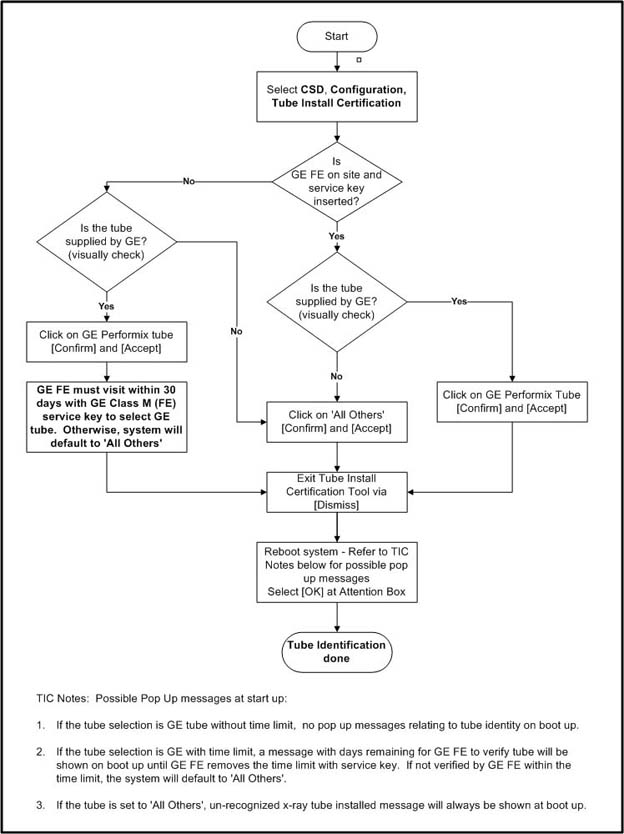
Possible Pop Up messages at start up:
-
If the tube selection is GE tube without time limit, no pop up messages relating to tube identity on boot up.
-
If the tube selection is GE with time limit, a message with days remaining for GE FE to verify tube will be shown on boot up until GE FE removes the time limit with service key. If not verified by GE FE within the time limit, the system will default to 'All Others'.
-
If the tube is set to 'All Others', unrecognized x-ray tube installed message will always be shown at boot up.
Please refer to Tube Install Certification Tool - Screens for examples of the screens displayed by the Tube Install Certification Tool.
3.14 System Sanity Scanning
-
Successfully perform a Scout scan.
-
Successfully perform a Helical scan.
-
Successfully perform an Axial scan.
-
Load Process is now complete.
3.15 Finalization
-
Remove the System State DVD-RAM from the SCSI Tower.
-
Verify V/DARC Troubleshooting Cable is not connected to Scan or Display Monitors.
-
Replace the front and rear Operator Console covers.