- Topic ID: id_11038860
- Version: 3.0
- Date: Apr 9, 2020 8:47:21 PM
Gantry Rotation Safety Check
Prerequisites
Use DDC to Rotate the Gantry for 10 minutes, at the fastest allowed gantry speed.
Procedure
- Launch Diagnostic Data Collection (DDC) Utility:
- Open the Common Service Desktop
- Click on the Diagnostics Icon
- Click on the Data Acquisition Folder
- Click on the Diagnostic Data Collection Menu Item
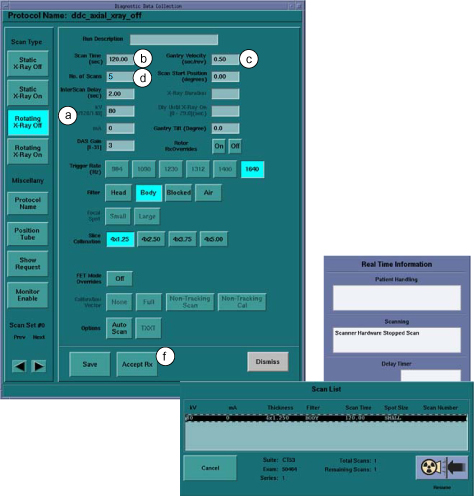
- Prepare System for DDC Scan. Refer to Figure 1.
- Select Rotating X-Ray Off
- Type: 120 in Scan Time (sec) field.
- Type: 0 in the Gantry Velocity (sec/rev) field and press Enter. The system will then default to the fastest allowable service mode revolution time.
- No of Scans = 5. This will result in 10 minutes of rotation.
- Verify other settings, as shown.
- Click on Accept RX button, to send scan request
Figure 1. DDC Tool
The Utility:
-
Displays the Scan List GUI and the Real Time Information Window.
-
After a few seconds, it starts flashing the Scan button on the console.
- Press the Scan button on the Console, to start each DDC Scan. When complete, the DDC Utility dismisses the Scan List GUI and the Real Time Information window.
- If no issues arise, gantry rotation capability is safe for use.
Finalization
No finalization steps.