- Topic ID: id_15460335
- Version: 2.0
- Date: Nov 8, 2018 1:37:33 AM
HP Host Diagnostics - xw8200
1 HP Troubleshooting
1.1 HP XW 8200 Troubleshooting - LEDs
1.1.1 Power LED is Flashing or Red
The Power LED on the Power On/Off button has the following states:
-
Solid Green: System on
-
Blinking Green: Stand By
-
Solid or Blinking Red: System Error
-
None: Hibernate Mode or Off
1.1.2 Hard Disk Drive Activity LED
The hard disk drive activity LED flickers whenever the system is accessing either hard drive.
1.1.3 Network Activity LED
The network activity LED at the rear of the system on the onboard network port flickers whenever there is network activity (as long as the system is plugged into AC power with power switch on or off).
1.2 Troubleshooting with Diagnostic Light Codes and Piezo Speaker
The beeps are heard through the on-board piezo speaker and not the chassis speaker. The blinking lights and beeps repeat for five cycles. After that, only the blinking lights repeat.
Table 1 shows the Beep Component Error Solutions.
1.3 HP XW 8200 Troubleshooting – POST Error Codes
POST is a series of diagnostic tests that runs automatically when the system is turned on. An audible and/or visual message occurs if the POST encounters a problem. POST checks the following items to ensure that the workstation system is functioning properly:
-
Keyboard
-
Memory modules
-
Diskette drives
-
All SATA, IDE. and SCSI mass storage devices
-
Processors
-
Controllers
1.4 Power-Up Diagnostics
-
LED indications
-
Reports
1.5 PC Failures
Replace PC
1.6 Peripherals
-
SCSI tower parts
-
Replace faulty drive
1.7 Power-On-Self-Test (POST)
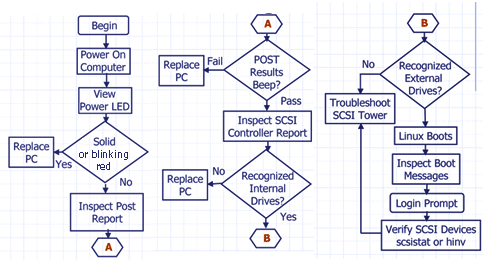
Figure 1. POST
1.7.1 Failures
-
Power switch LED flashes.
-
PC may beep multiple times.
-
Report display -
-
Detailed text with instructions to proceed using function keys.
-
Detailed error codes or instructions for decoding “beeps”.
-
-
If power-up self tests fail, replace the computer.
1.7.2 POST Reports
-
Follow instructions displayed in report.
-
Read the summary for controller and drive status.
-
HINV lists internal drives found.
-
SCSISTAT lists scan tower devices.
-
Watch for boot text messages that do not contain [OK] indications.
2 Host Computer - Linux Workstation
2.1 Solving Hardware Problems - Workstation Does Not Start Properly
2.1.1 Display is Blank
If your display is blank after you turn on your Workstation, check that:
-
The Workstation and monitor are turned on. (The power lights should be illuminated.)
-
Both the Workstation and monitor power cords are firmly connected and plugged in.
-
The outlet power is functioning.
-
The monitor is firmly connected to the graphics card connection.
-
The monitor’s contrast and brightness settings are set correctly.
2.1.2 A POST Error Message is Displayed
The Power-on-Self-Test (POST) can detect both an error and a change to the configuration. In either case, a code and short description is displayed. Depending on the message, one or more choices are displayed:
-
Press F1 to ignore the message and continue.
-
Press F2 to run the Setup program and correct a system configuration error.
-
Press Enter to see more details about the message. After viewing these details, you are returned to the original POST display screen.
2.1.3 Keyboard Does Not Work
If your keyboard does not work as expected:
-
Ensure that all the keyboard cables are firmly connected.
-
Ensure the keyboard is connected to the keyboard connector rather than the mouse connector on the rear panel of the Workstation.
-
Ensure you are using a PS2 keyboard rather than a USB keyboard.
-
Replace the keyboard with a known working unit to ensure the keyboard itself is not defective.
2.1.4 Monitor Does Not Work
If the display is blank, refer to Display is Blank, “Display is Blank”.
If the display works properly during the Power-on-Self-Test (POST), but goes blank when Windows starts, the display settings in the operating system may not be compatible with your monitor.
2.1.5 Mouse Does Not Work
If your mouse does not work as expected:
-
Ensure that the mouse cable is firmly connected.
-
Ensure that the mouse is connected to the mouse connector rather than the keyboard connector on the rear panel of your Workstation.
-
Ensure you are using the correct driver. You can download the latest driver from the HP web site (www.hp.com/workstations/support).
-
Clean the mouse ball with a dry, lint-free cloth if the cursor moves sporadically.
-
Replace the mouse with a known working unit to ensure the mouse itself is not defective.
2.2 Using e-Diag Tools for Hardware Problems
Use e-Diag Tools to diagnose hardware-related problems on your HP Workstation.