- Topic ID: id_18718265
- Version: 1.0
- Date: Sep 20, 2018 2:04:54 PM
Collimator Functional Diagnostic Tests
The Collimator Functional Diagnostic tests are accessed from the Service Desktop by choosing Diagnostics. The “Collimator and Filtration” test selected has four sub-functional tests, which are described in the following sections.
1 Collimator Aperture Test
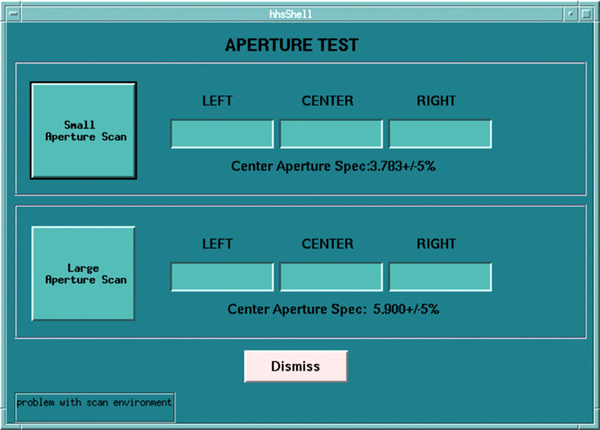
The Collimator Aperture Function Test tool is used for gathering and viewing Collimator Aperture test data. It is used to recreate faulted or normal operating data when the real time data is not available, or not of use.
Figure 1. Collimator Aperture Test GUI
1.1 Small Aperture Scan
This button will launch the process, which includes scanning, and post the appropriate results in the Left, Center, Right windows.
1.2 Large Aperture Scan
This button will launch the process, which includes scanning, and post the appropriate results in the Left, Center, Right windows.
2 Collimator Aperture Position Test
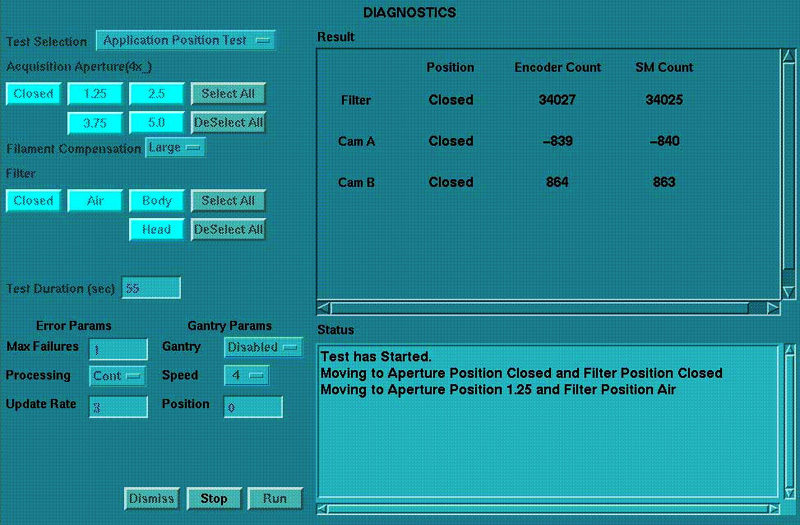
Figure 2. Collimator Application Test GUI
2.1 Diagnostic Description
This test continuously positions the collimator and filter to the selected position.
2.2 When (to use)
-
Test runs in continuous modes, which help detect intermittent operating conditions.
-
Means to visually validate the aperture and filter positions.
-
Functional validation of the operation of the collimator.
2.3 What (to look for)
Look for highlighted fields that indicate the cam or filter did not make it to position. Check the log for additional information, when this occurs.
2.4 Notes
-
Test can be run from application or diagnostic firmware download.
-
Watch for finger pinch hazards.
-
Attempt to move the filter and/or cams, when test is complete, and verify motor has a lot of holding torque.
3 Collimator Continuous Filter Position Test
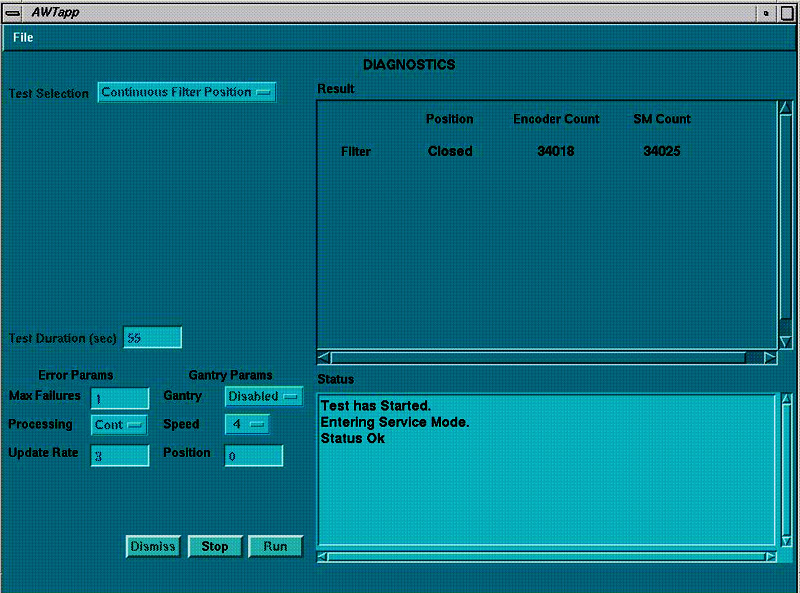
Figure 3. Collimator Continuous Filter Position Test GUI
3.1 Diagnostic Description
This test continuously moves the filter from one extreme to another.
3.2 When (to use)
-
Verify no mechanical binding is present.
-
Manual mode for signal tracing.
-
Check for motion when errors indicate no motion sensed.
3.3 What (to look for)
If the display does not indicate changes in the encoder count, visually check the filter for motion:
-
If filter is moving, failure is in the encode circuit.
-
If filter is not moving, failure is in the drive circuit.
3.4 Notes
-
Test can be run in the applications and diagnostic download.
-
Watch for finger pinch hazards.
-
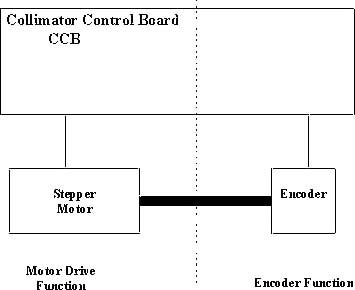
The filter drive can be divided into two functions:
-
Motor Drive (Positioning driver).
-
Encoder (Position feedback).
-
Figure 4. Collimator Filter Position
4 Collimator Continuous CAM Rotation Test
Figure 5. Collimator Continuous CAM Rotation Test
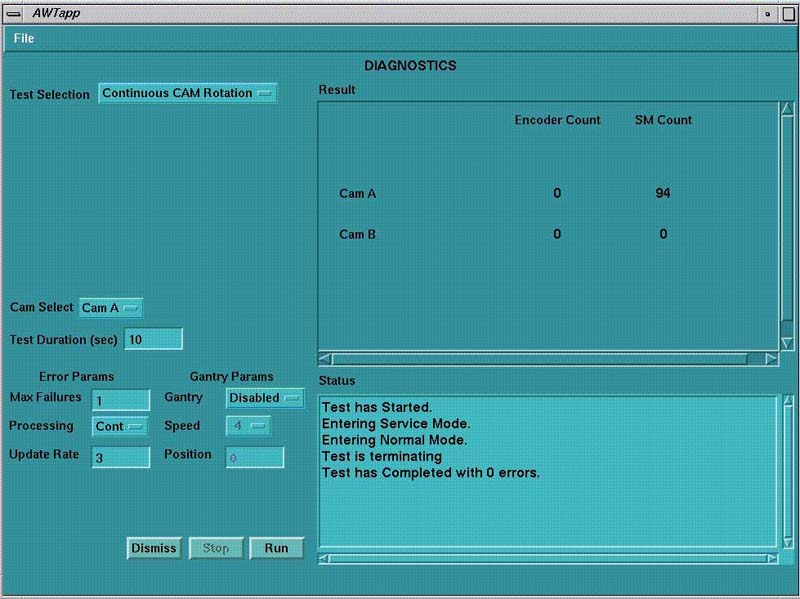
4.1 Diagnostic Description
This test continuously rotates the selected CAM.
4.2 When (to use)
-
Verify no mechanical binding is present.
-
Manual mode for signal tracing.
4.3 What (to look for)
-
If the display does not indicate changes in the encoder count, visually check the cam for motion.
-
Listen for mechanical vibration or binding.
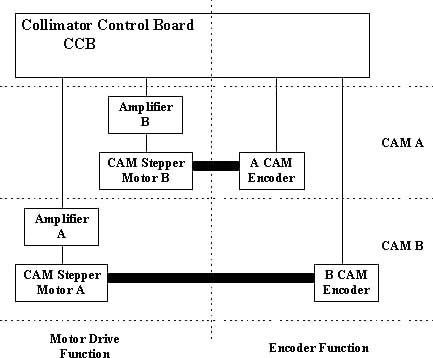
Figure 6. Collimator CAM Rotation
4.4 Notes
-
Test can be run in the applications and diagnostic download.
-
Watch for finger pinch hazards.
-
CAM A and B circuitry is the same.
-
CAM operation can be divided into four functions:
5 Collimator Encoder Test
Figure 7. Collimator Encoder Test Screen
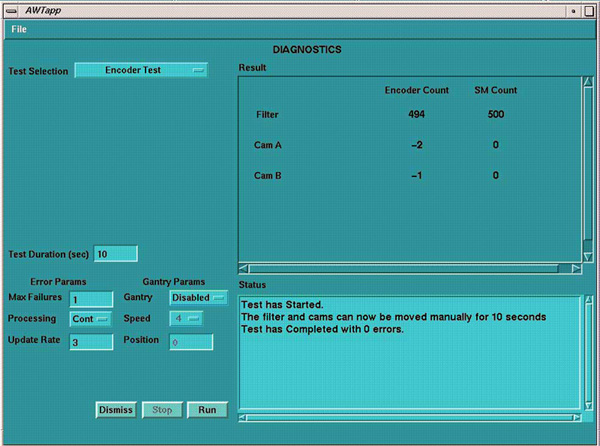
5.1 Diagnostic Description
Reads and displays the CAM and filter encoders while the devices are manually positioned.
5.2 When (to use)
Confirm an encoder problem with the collimator.
5.3 What (to look for)
Verify encoder reading changes once the cams or filters are moved. See below for relative encoder counts.
5.4 Notes
-
Test can be run in the applications and diagnostic download.
-
Watch for finger pinch hazards.
-
Test reduces the cam holding torque to allow the cams to be rotated by hand.
-
Cams are 2000 counts per rotation.
-
Filter is 1000 counts per rotation.
-
Cam encoder requires the whole collimator to be replaced.
-
Filter housing assembly is a FRU.