- Topic ID: BJ_200608_Z01
- Version: 2.0
- Date: Jun 10, 2020 2:25:34 AM
Unmount SSA key procedure
1 Overview
SSA hardware key works as USB Storage device. That means unmount process shall be done before unplug SSA key. This document explains how to unmount SSA hardware key. The procedure is different by software version.
2 Unmount Procedure Using Unmount SSA Key
-
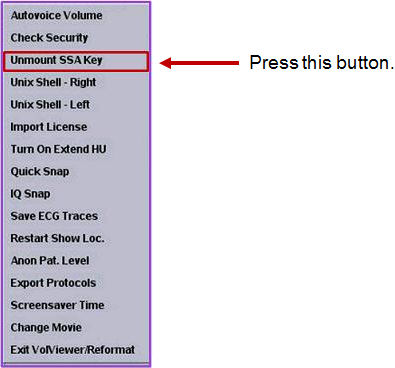
Press the “Unmount SSA” button in Tool Chest.
Figure 1. Unmount SSA key menu in Tool Chest
-
Unplug SSA hardware key after confirmation of Unmount SSA successful dialog message.
note: If Blue LED of SSA hardware key is blinking after unmount operation, wait unplug operation until the blinking stops and continuous lit on. -
Perform “Check Security” from Tool Chest.
-
Restart Common Service Desktop and confirm the Access Level is Non-proprietary.
3 Unmount Procedure with Command
-
Open shell window and type the following command.
$ su - <enter>
root password
# umount /media/SSA/
# exit
$ exit
-
Unplug SSA hardware key from USB port.
note:If Blue LED of SSA hardware key is blinking after unmount operation, wait until the blinking stops and continuous lit on.
-
Perform “Check Security” from Tool Chest.
-
Restart the Common Service Desktop and confirm the Access Level is “Non-proprietary”.
4 Troubleshooting
If you encountered the following message, exit any shells and try again.
umount: /media/SSA: device is busy