- Topic ID: BJ_210527_L01
- Version: 2.0
- Date: Dec 22, 2021 11:21:28 PM
Recon GPU Card Troubleshooting
1 Overview
This procedure troubleshoots issues with NVIDIA RTX5000 Recon GPU Cards (PN: 8780000-113).
2 Perform a SPRsnap
System should not be scanning or reconstructing images. Sprsnap takes a couple of minutes. Make sure you communicate with the site before a SPRsnap is obtained remotely.
3 Check for successful LFC completion
Open a Unix shell:
Type cd /var/adm [ENTER]
List the install log files ls -alst install.log.*
Run command below on the oldest (largest) install log:
Type grep -w "Input/output error" install.log.xxxxx [ENTER]
String of grep command must be typed accurately. (The first character of “output” is lowercase.)
If the "Input/output error" is found in the log, LFC is required again.
If the LFC fails again, try different of install discs.
Consider running Check Media on the applications disc to verify.
Type mount /mnt/cdrom
Type cd /mnt/cdrom
Type checkMedia -v
#Record result if fail replace discs
Type cd /
Type eject
4 Ensure GPU ECC state is ON
Open a Unix shell:
Type nvidia-smi [ENTER]
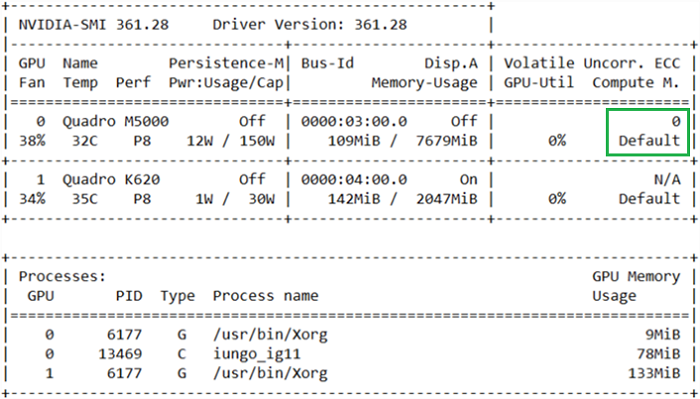
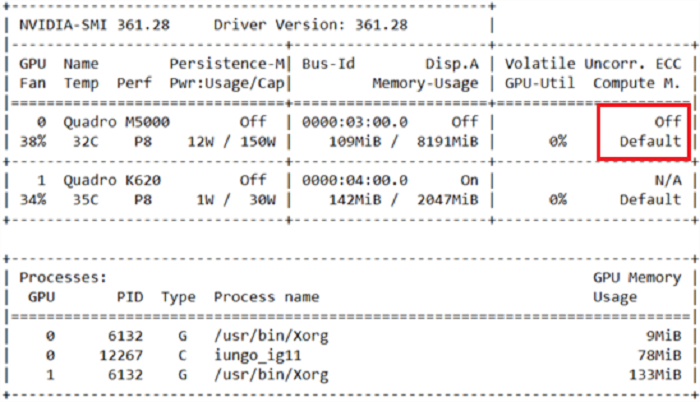
Check GPU ECC status as below:
- If the GPU ECC is ON, below is what the output would look like(boxed in green, figure is an example):
- If the GPU ECC is OFF, below is what the output would look like (boxed in red, figure is an example):
Turn ECC back on:
Type: nvidia-smi -g 0 --ecc-config=1 [ENTER]
A message will show that ECC is enable and a reboot is required:

After reboot, check that the ECC is ON according to previous steps.
5 Check image / Raw database storage
Open a Unix shell:
Type df -h [ENTER]
Below is an example of the output:
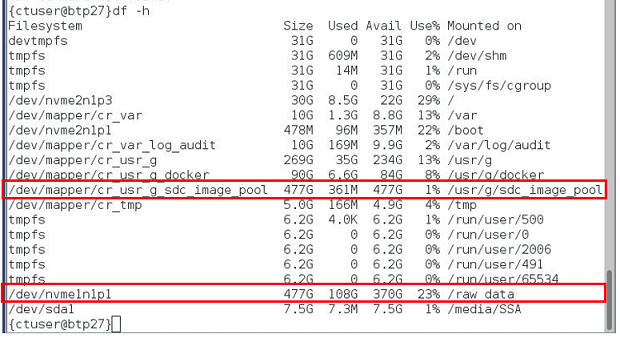
Check that /raw_data usage is <70%, If it is >=70%, reboot the scanner and recheck.
Check that /usr/g/sdc_image_pool usage is <70%, If it is >=70%, suggest to customer that is would be best to make space on drive.
6 Recon Performance Test (from Service Manual)
See service manual, and complete procedure titled “Recon Performance Verification Procedure” located in the following path: Troubleshooting > Console > Open Console > Recon Performance Verification Procedure.
7 Finalization
If the test does not meet specifications, please replace the card.