- Topic ID: concept_tpk_czv_y3b
- Version: 3.0
- Date: Dec 29, 2020 1:02:40 AM
HP Z8G4 BIOS Customized Configuration Save and Restore Procedure with USB Device
This procedure can only be used for HP Z8G4 host computer.
1 Saving Host PC BIOS Settings as Default
Perform the following steps to save the Host PC BIOS Settings as default settings (settings currently configured and stored in ROM):
- Power off the console.
- Insert the USB device to the host computer.
- Power on the console.
- When the display is active and Press the Esc Key for Startup Menu appears at the bottom of the screen, press F10 or Esc.note: If you do not press F10 or Esc at the appropriate time, try again. Turn the host computer off, then on, and press F10 again to access the utility. You can also press Ctrl+Alt+Delete keys before starting if you do not press F10 before the message disappears.
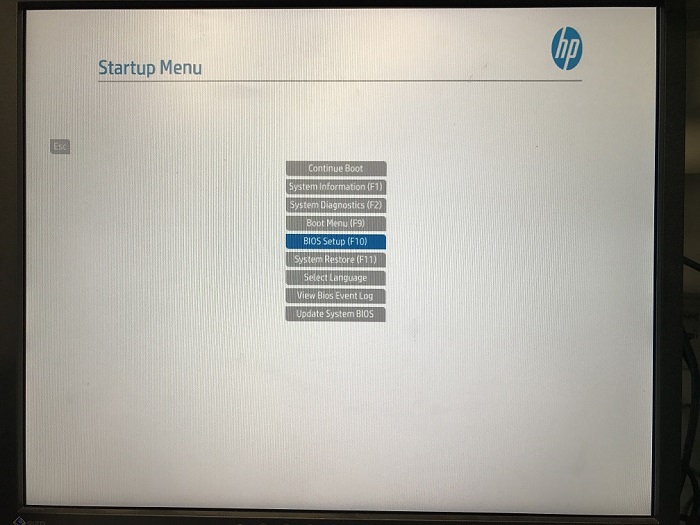
- The Startup Menu appears, use the up and down arrow keys to select BIOS Setup.
Figure 1. Startup Menu
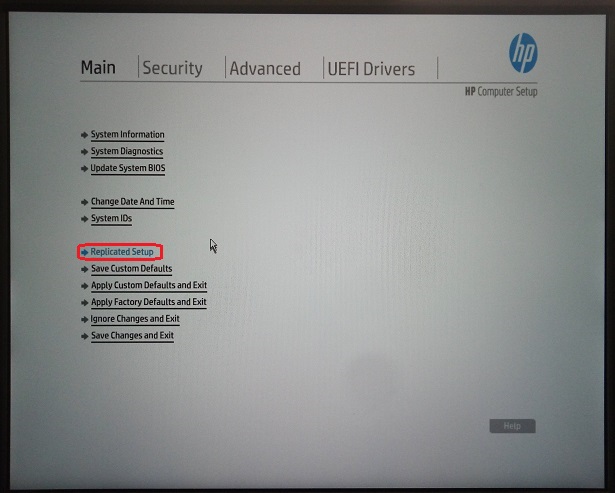
- In the Computer Setup (F10) Utility menu, the following headings are displayed: Main, Security, Advanced and UEFI Drivers.
- Select Main > Replicated Setup, and then press Enter.
Figure 2. Replicated Setup
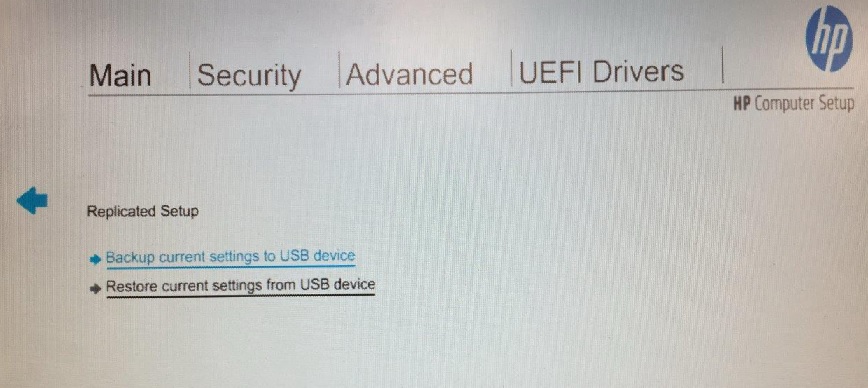
- The Replicated Setup screen appears. Select Backup current settings to USB device. The HpSetup.txt file will be created in USB device and “Settings successfully saved to USB storage device (HpSetup.txt).” appears, and then click on OK.
Figure 3. Replicated Setup
- The Host PC reboots.
2 Restoring Host PC BIOS Settings from Default
Perform the following steps to restore the Host PC BIOS settings from default settings (BIOS Settings currently saved in Defaults Settings of ROM):
-
Reboot the Host PC, when the display is active and Press the Esc Key for Startup Menu appears at the bottom of the screen, press F10 or Esc.
note: If you do not press F10 or Esc at the appropriate time, try again. Turn the workstation off, then on, and press F10 again to access the utility. You can also press Ctrl+Alt+Delete keys before starting if you do not press F10 before the message disappears. -
Select Main > Replicated Setup, and then press Enter. The Replicated Setup screen appears. (See Figure 3)
-
Select Restore current settings from USB device. The “Settings successfully restored from USB storage device.” appears, and then click on OK.
-
The Host PC reboots.